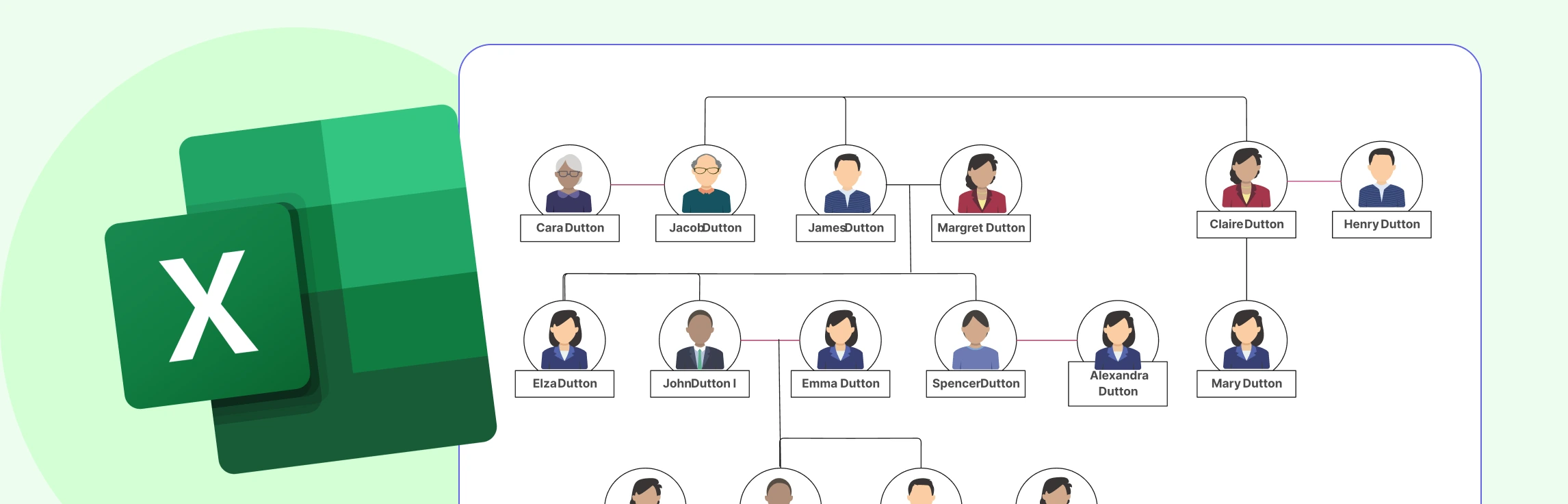
Whether you’re mapping out your ancestry for a school project, organizing family history for elders, or simply curious about how everyone is connected, you’ll need to understand how to build a basic family tree. In this guide, you’ll learn how to do a family tree in Excel using SmartArt or simple shapes, where Excel may fall short as your tree expands, and an easier alternative you can try instead. You’ll also get free templates so you can jump in without starting from scratch.
What is a Family Tree?
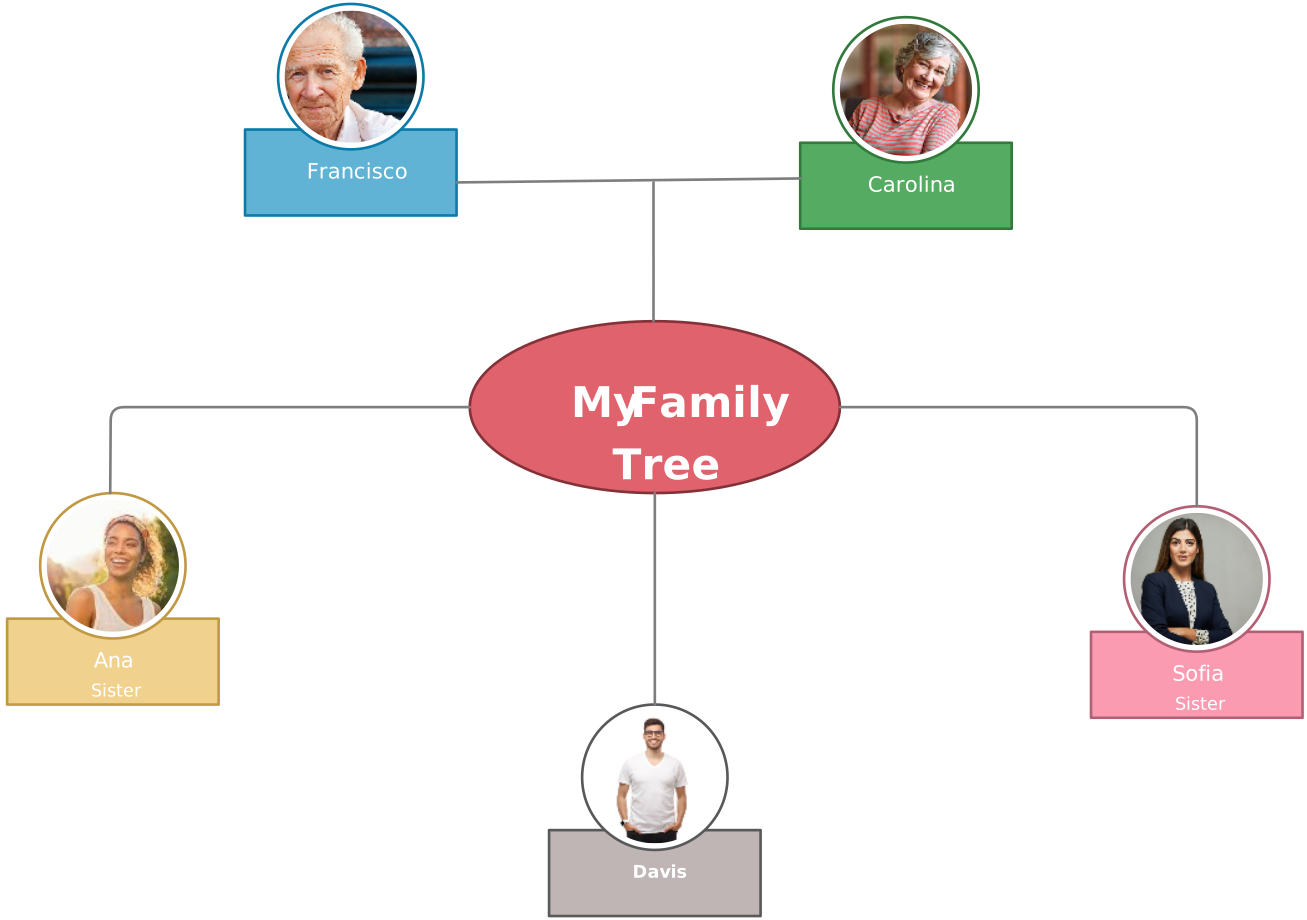
A family tree is a simple way to visualize where you come from and how everyone in your family is connected. It lays out your ancestors across generations—parents, grandparents, siblings, cousins, and shows how each person links to the next. Think of it as a map of your family story, whether you sketch it out on paper or build a more detailed digital version with photos, dates, and extra details. It’s a helpful way to understand your roots and see how every branch fits into the bigger picture.

How to Create a Family Tree in Excel
Follow these steps to learn how to make a family tree on Excel using shapes and connectors.
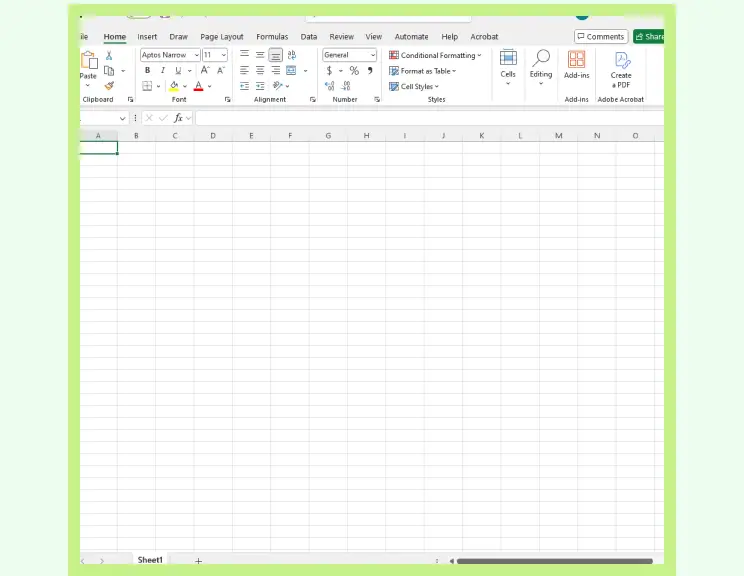
Step 1: Open a New Worksheet
Start with a blank Excel sheet so you have enough space.
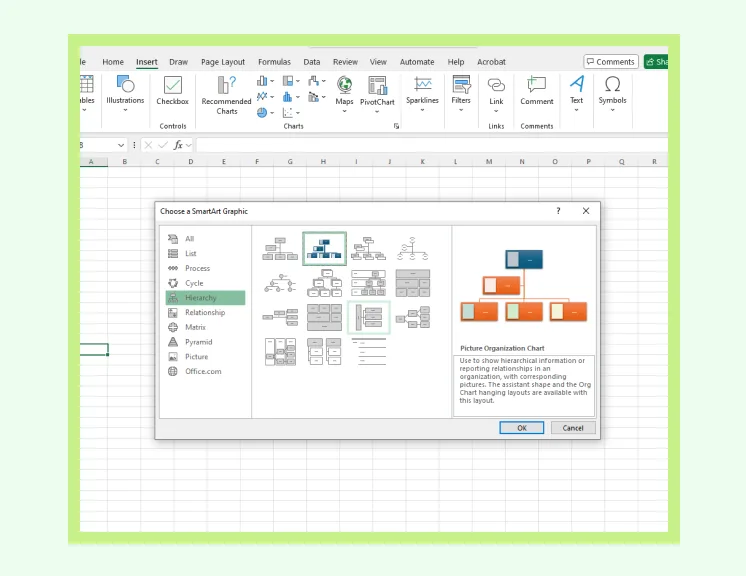
Step 2: Insert a SmartArt Hierarchy Graphic
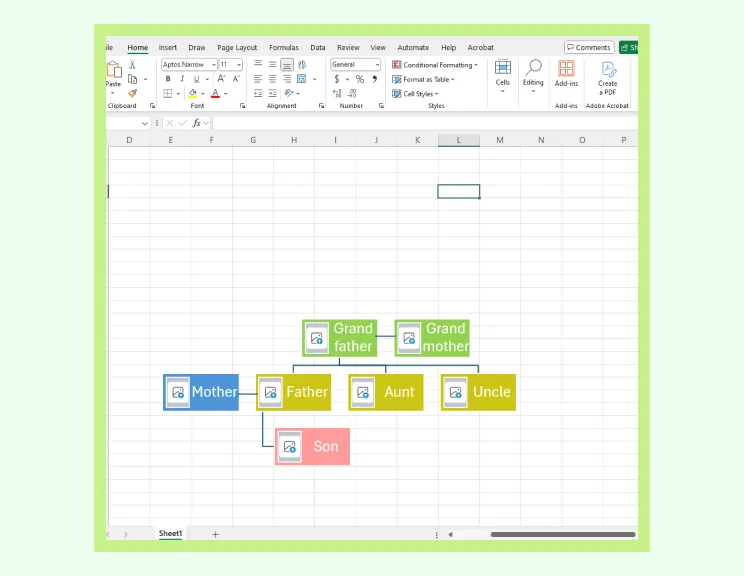
Go to Insert → SmartArt → Hierarchy and choose a layout like Organization Chart. This structure works well for parent–child relationships.
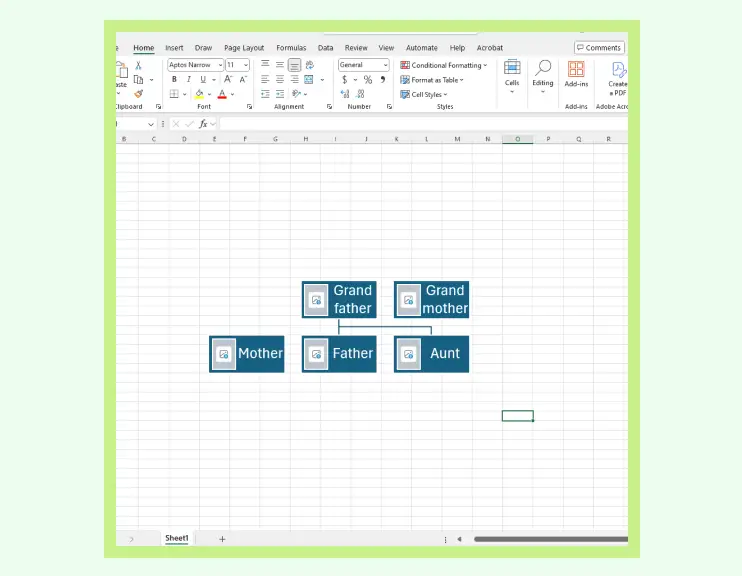
Step 3: Add Family Member Entries
Click each SmartArt box to enter names and details. Use the text pane on the left to quickly add, remove, or reorder family members.
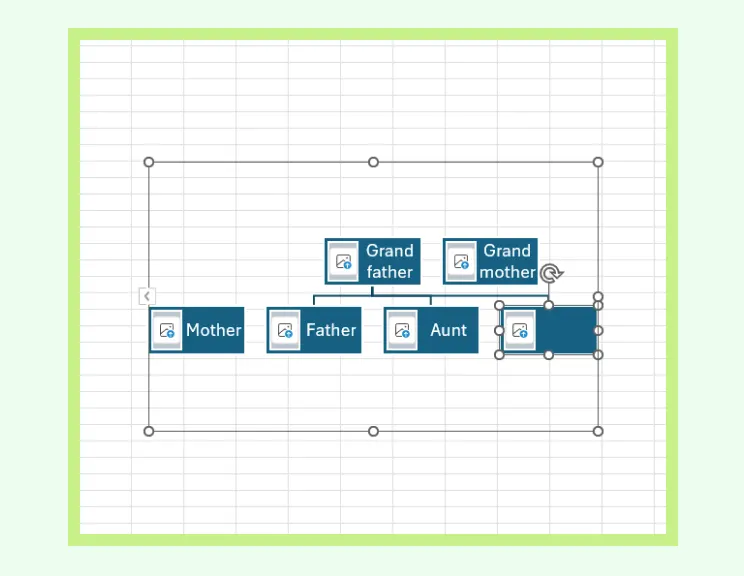
Step 4: Build Out Generations
Use Add Shape → Add Shape Above/Below/After to create grandparents, parents, and children. Since SmartArt isn’t fully flexible for complex branches, keep the structure simple.
Step 5: Adjust Layout for Better Spacing
Use SmartArt Design → Layouts and SmartArt Styles to improve spacing and readability. This helps because SmartArt doesn’t always auto-arrange large family trees neatly.
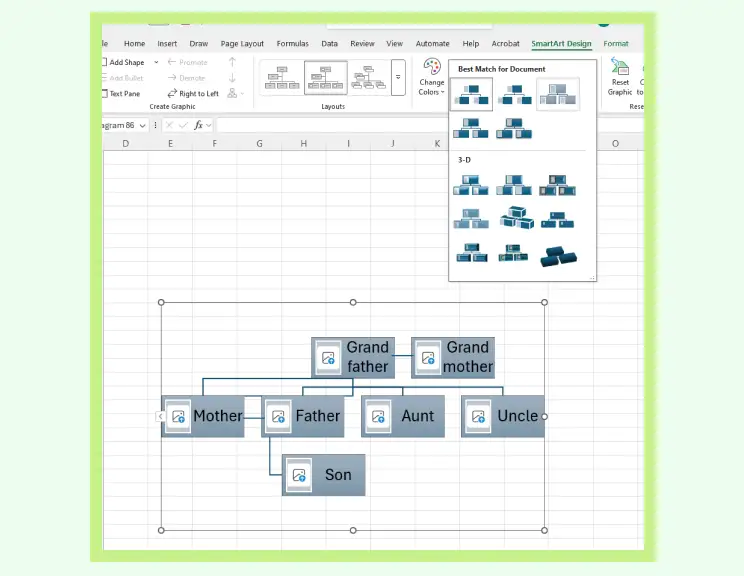
Step 6: Apply Colors or Styles
Use Change Colors or SmartArt styles to differentiate branches or generations. It adds clarity, especially since SmartArt shapes are uniform by default.
Step 7: Save or Export Your Diagram
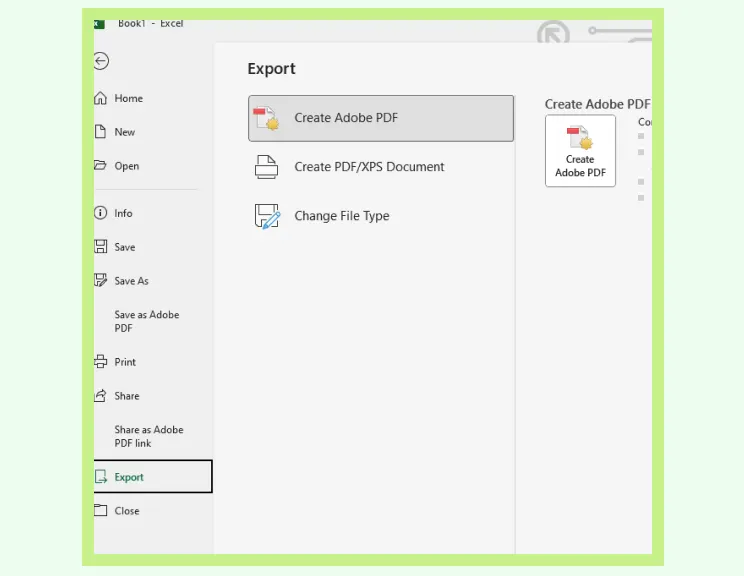
Save your workbook or export the diagram as an image or PDF. If your family tree expands, you may need to switch layouts or rebuild sections, as SmartArt has limited room for very large trees.
Challenges of Building a Family Tree in Excel
Making a family tree on Excel is doable for simple layouts, but once you start adding more relatives, branches, and generations, the following limitations become more noticeable.
Not built for complex diagrams: Excel can handle basic charts, but detailed family structures with multiple generations quickly become difficult to organize.
SmartArt layouts are rigid: Hierarchy charts don’t adapt well to uneven or branching family lines, so fitting non-traditional or extended families requires workarounds.
Shapes and connectors require manual adjustments: When you move one box, the lines don’t reposition automatically, meaning frequent resizing and realignment.
Clutter increases as the tree grows: Adding grandparents, cousins, and multiple siblings can lead to overlapping shapes and limited horizontal or vertical space.
Extra details make the worksheet messy: Photos, birthdates, and notes can clutter the layout since Excel doesn’t offer dedicated fields or structured containers.
Sharing or exporting isn’t seamless: Large diagrams may lose clarity when exported as an image or PDF, and scaling them neatly takes extra effort.
Expanding the tree later can be time-consuming: Adding new family members often requires shifting whole sections around, which gets harder the bigger the tree becomes.
Benefits of Using Creately for Drawing a Family Tree
Creately’s family tree creator gives you a flexible, collaborative, and easy-to-use workspace for mapping your entire family history, making it a far better alternative to creating a family tree in Excel.
Flexible & Easy to Build
The infinite canvas lets your tree expand naturally without worrying about cramped worksheets or page breaks.
Drag-and-drop editing makes arranging generations simple, even as the tree becomes larger.
Smart connectors automatically adjust when you move shapes, preventing the misaligned lines common in Excel.
Perfect for Complex Family Structures
Easily map blended families, step-relations, multiple marriages, or adopted children without fighting rigid SmartArt layouts.
You’re not locked into a single hierarchy—you can shape the diagram to match your family’s real structure.
Add photos, key dates, and notes without cluttering or breaking the design.
Quick Setup & Clear Visuals
Start with customizable family tree templates so you don’t have to build everything manually.
Use color-coding, icons, and formatting tools to make each branch easy to understand.
Consistent styling helps maintain clarity, especially for large, multi-generation trees.
Built for Collaboration & Sharing
Invite relatives to contribute information or confirm details directly on the diagram.
Use comments and mentions to discuss updates without switching tools.
Export your tree to PNG, PDF, JPEG, or embed it in documents or presentations with one click.
Easy Saving, Updating & Future-Proofing
Cloud-based saving keeps everything updated across devices—no version conflicts.
Adding new relatives or extending branches takes seconds without the layout breaking.
Ideal for long-term family history projects where accuracy and easy updates matter.
Creately Vs Microsoft Excel Family Tree Features Comparison
If you’re deciding between creating a family tree format in Excel or using Creately, this breakdown shows how each tool performs in terms of layout flexibility, editing ease, and long-term upkeep.
Feature / Capability | Creately | Microsoft Excel |
Canvas & Space | Unlimited workspace that grows with your family tree | Fixed grid area that becomes restrictive as the tree expands |
Ease of Editing | Simple drag-and-drop tools that keep everything neatly aligned | Shapes and lines must be positioned manually, which takes time |
Connectors | Lines stay connected and adjust automatically when you move items | Connectors often shift, break, or overlap during edits |
Complex Family Structures | Easily visualizes blended families, multiple marriages, and unique branches | SmartArt is rigid, making irregular or non-traditional families hard to map |
Templates | Wide range of editable family tree templates you can customize instantly | Very few options—mostly basic hierarchy charts |
Visual Styling | Advanced styling with colors, photos, labels, and consistent formatting | Limited styling tools with basic shapes and color fills |
Collaboration | Multiple people can update the tree together in real time | No live collaboration—only one person can edit at a time |
Updates & Growth | Expands smoothly without disrupting the layout | Adding new members usually requires rearranging the entire structure |
Sharing & Exporting | Export cleanly to PNG, PDF, JPEG or embed online without losing formatting | Exporting may cause layout issues or require extra adjustments |
Long-Term Maintenance | Designed for continuous updates and long-term family projects | Maintenance becomes challenging as more generations are added |
Explore our guide on how to make a family tree to learn how to create one in Creately, with tips on organizing generations clearly, and mapping relationships correctly as your family grows.
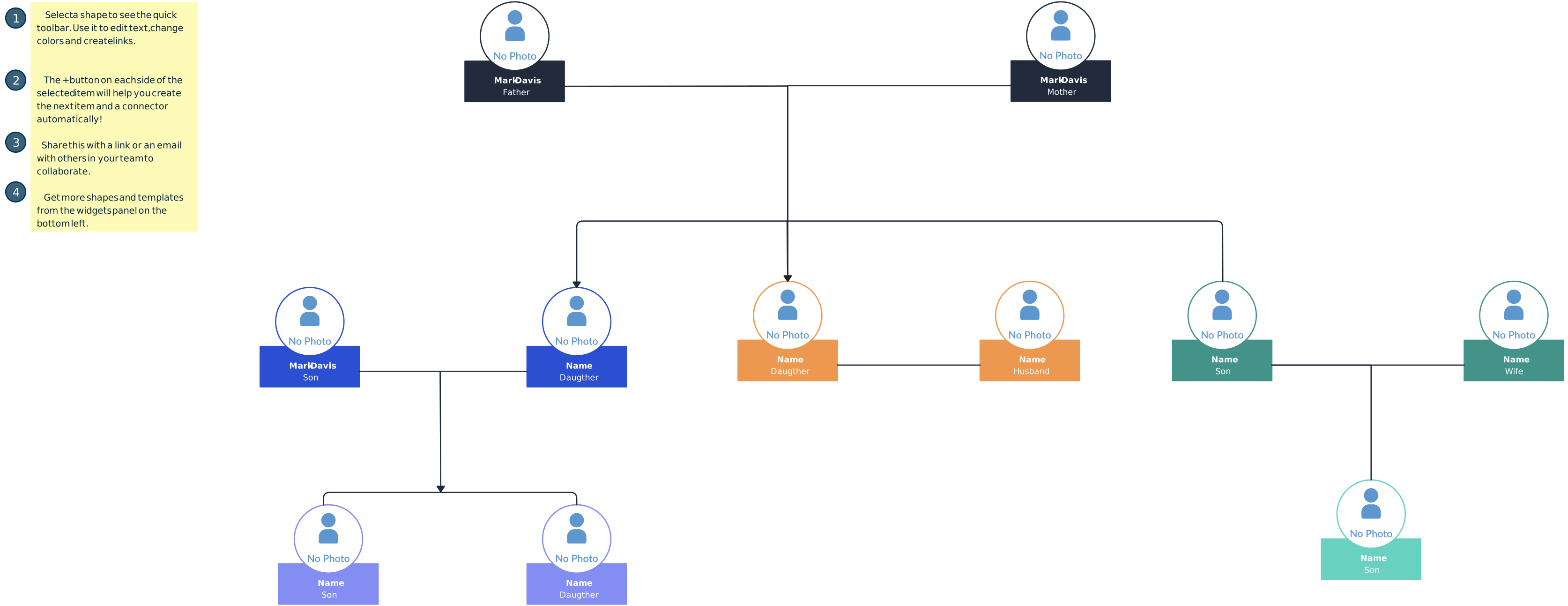
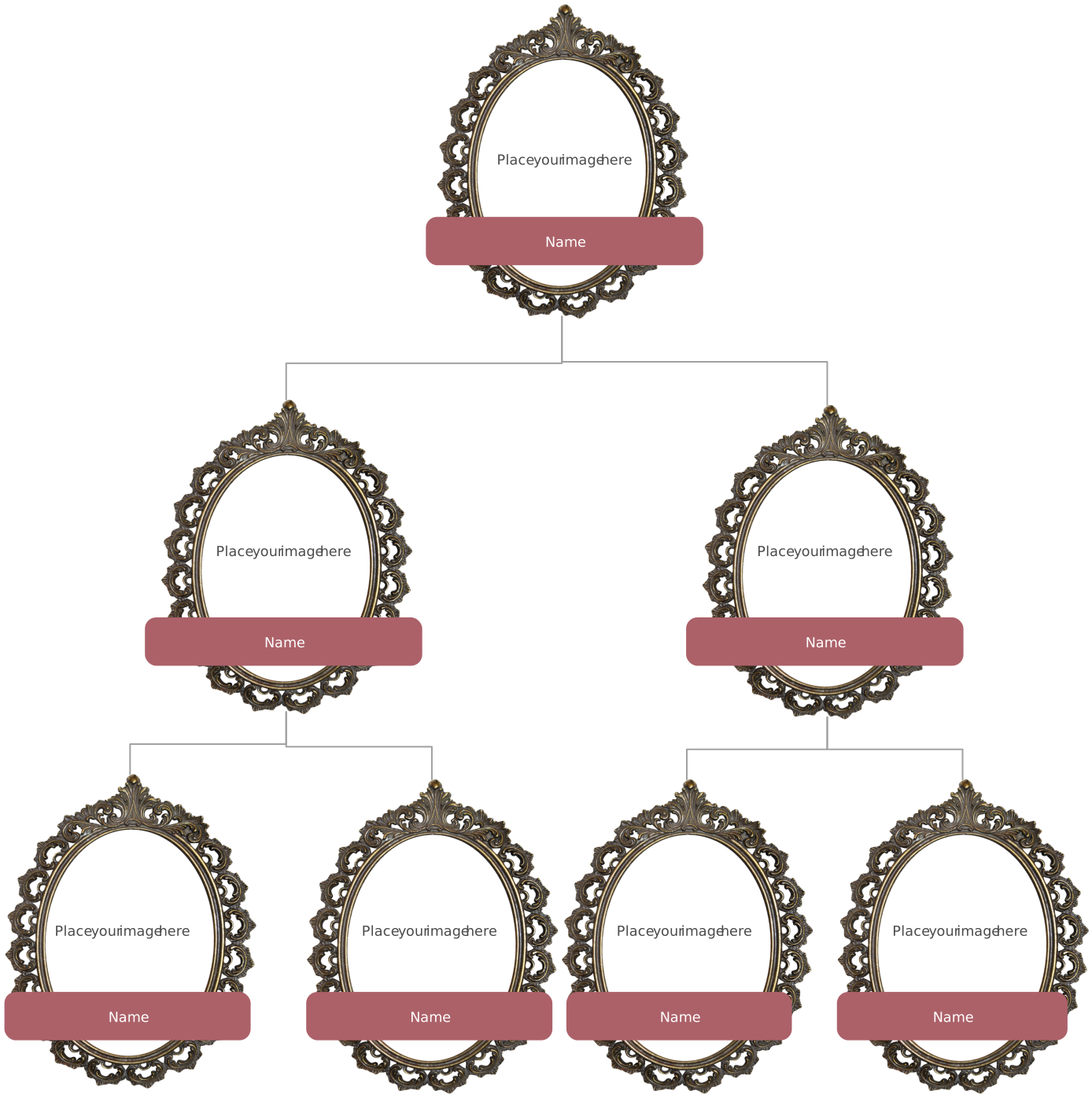
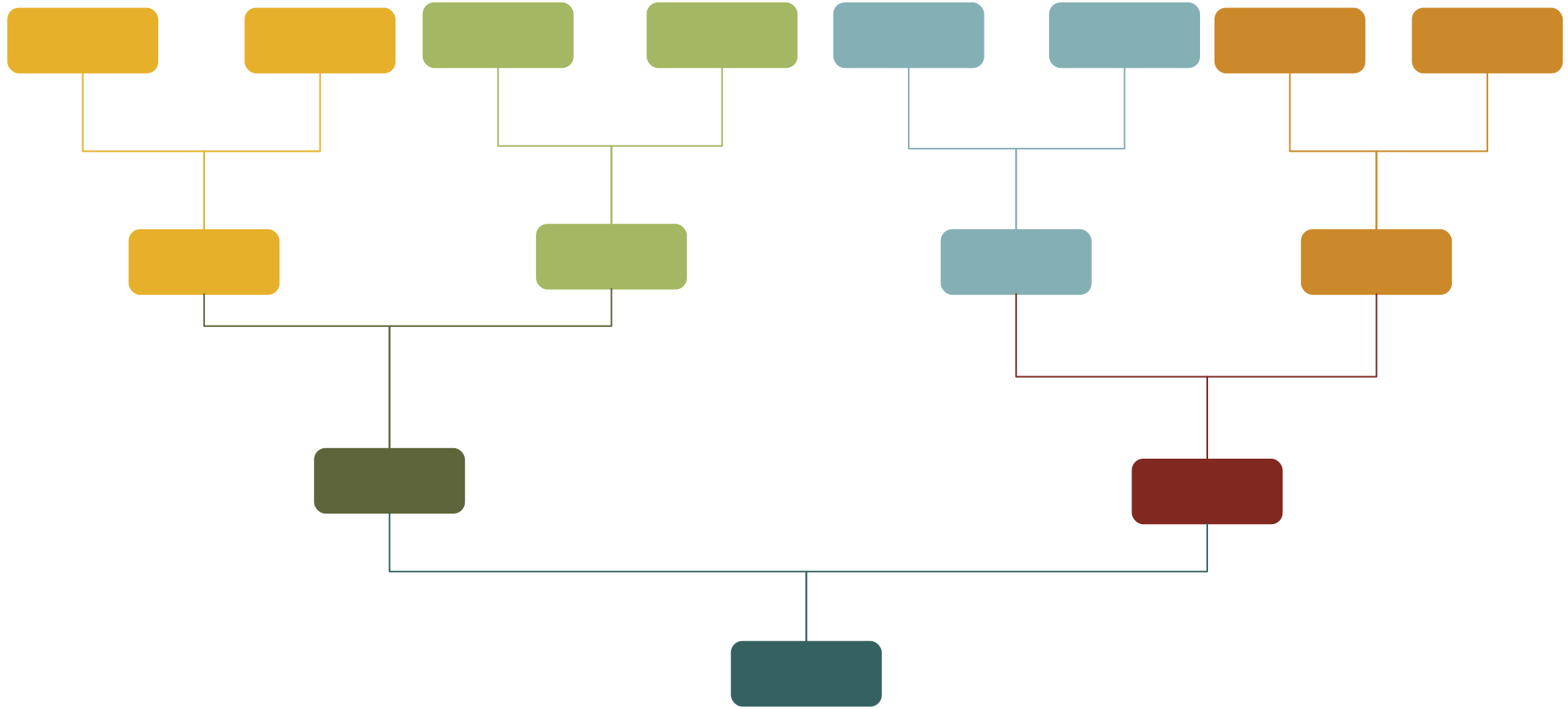
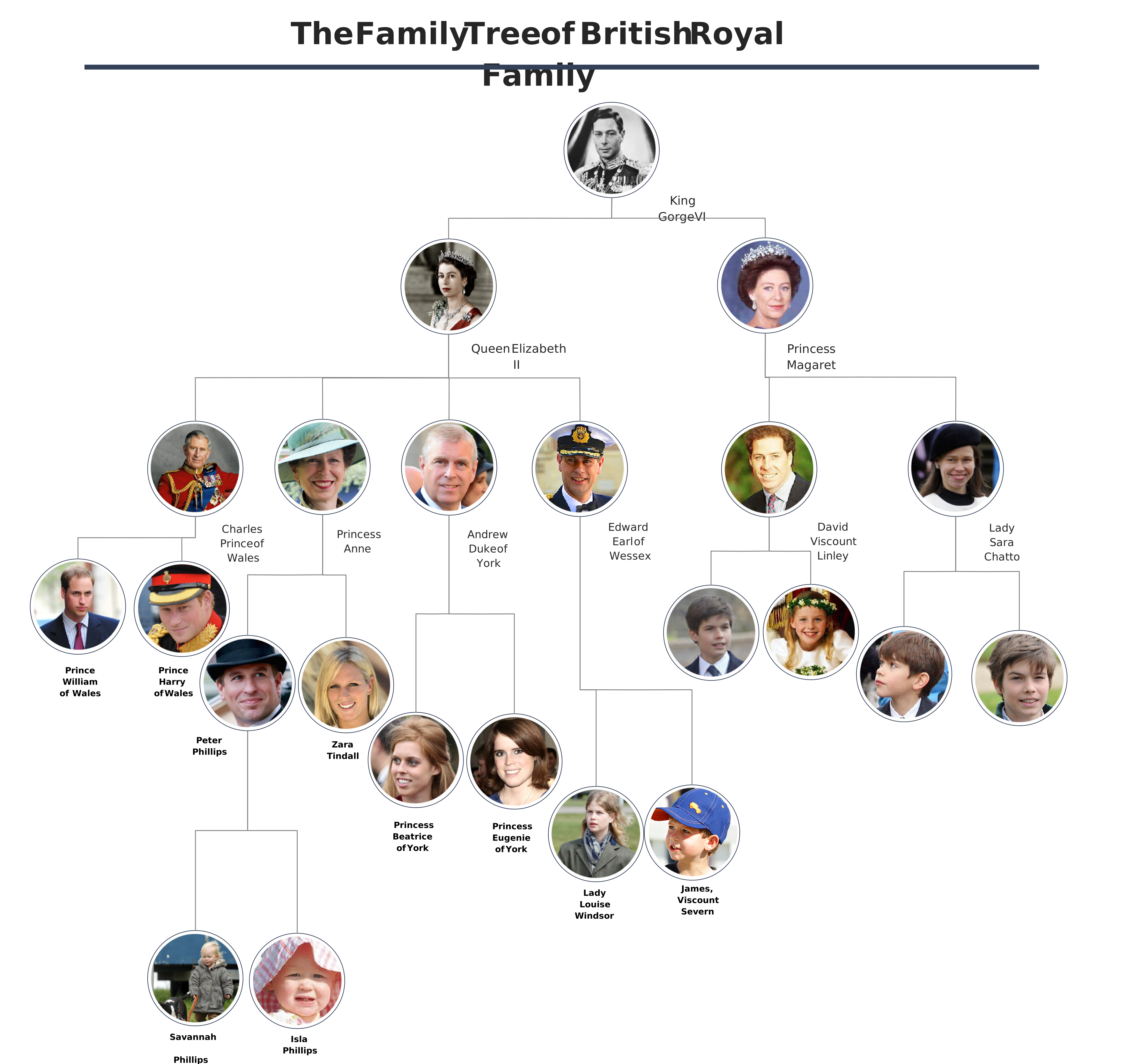
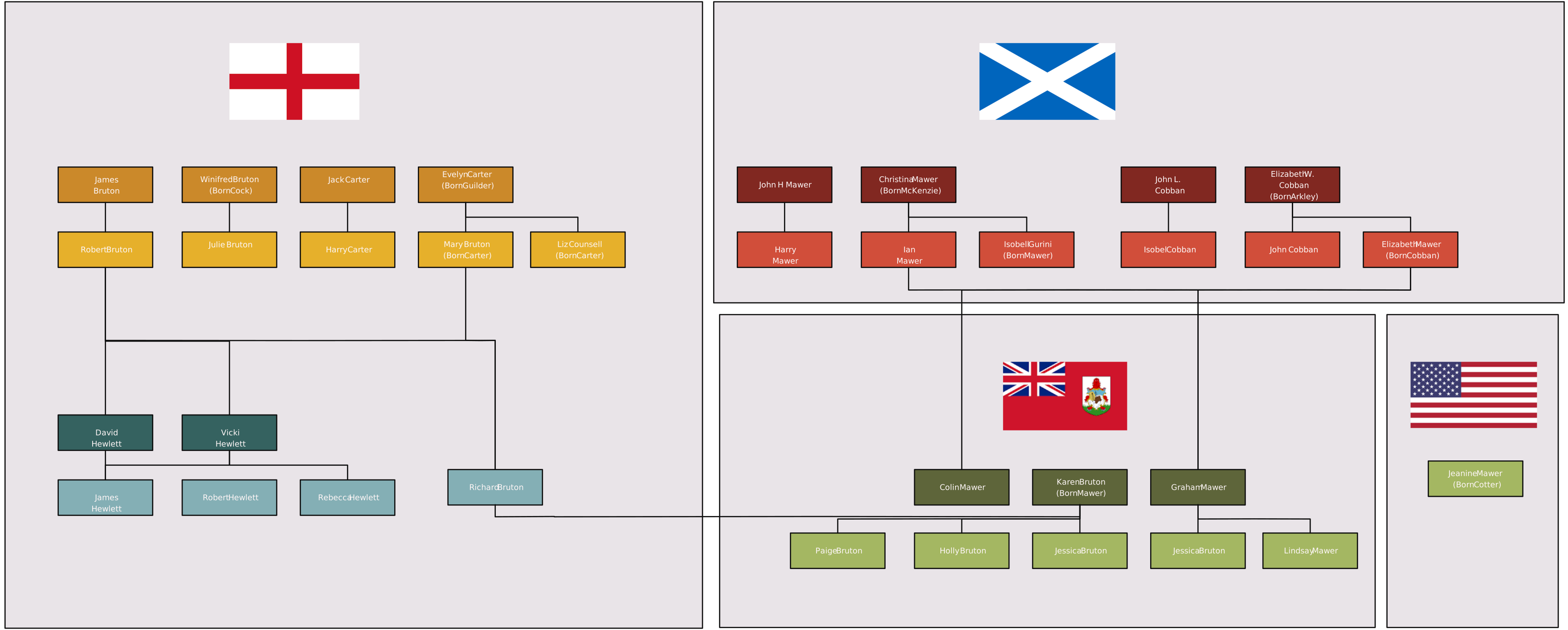
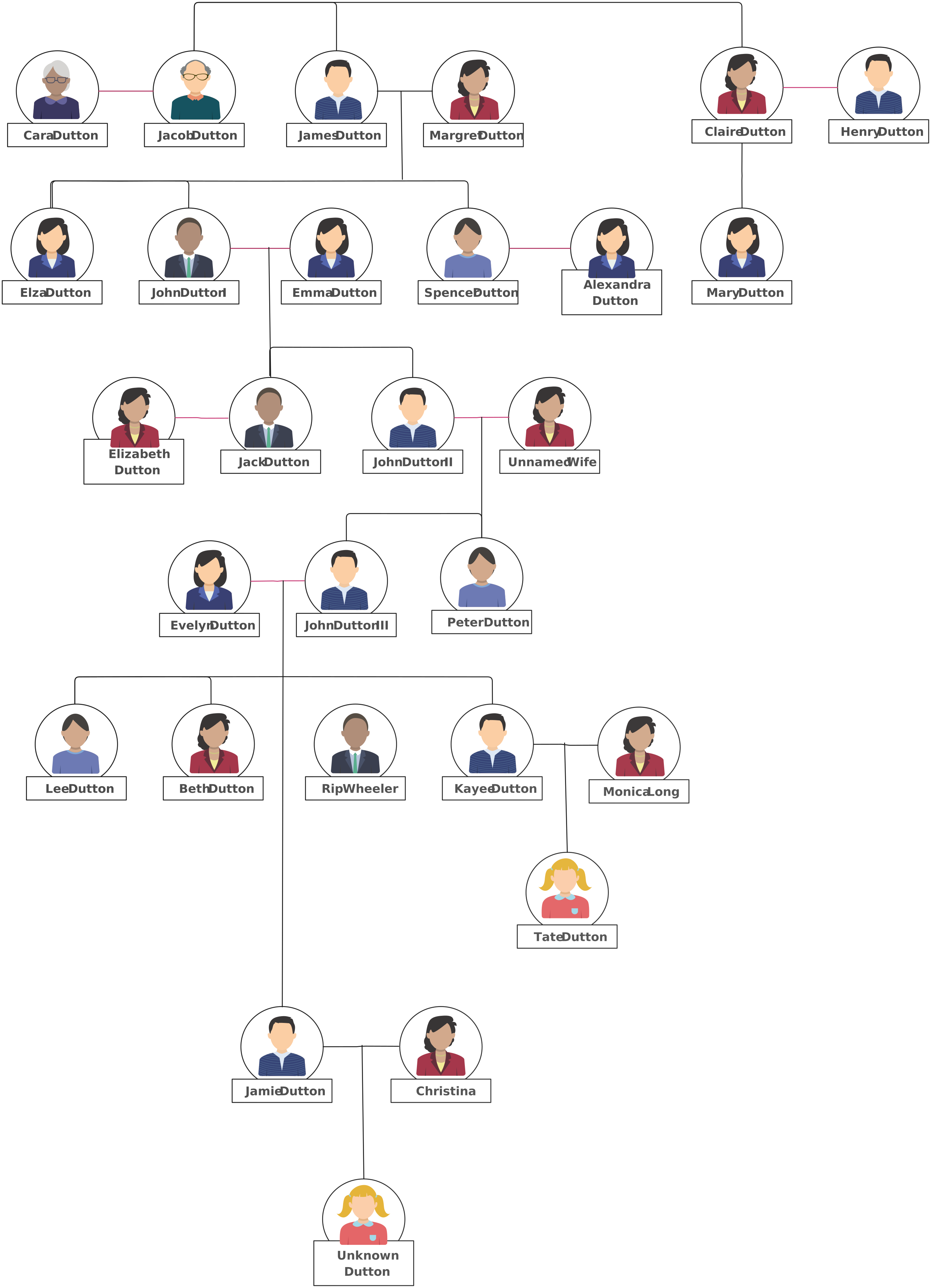
Free Family Tree Templates to Get Started


Helpful Resources for Building Family Trees
Discover the steps of making a Family Tree in Microsoft Word.
Learn how to make a Family Tree in Microsoft PowerPoint.
Find out how to make a Family Tree in Google Docs.