If you’re exploring how to make a family tree in PowerPoint, you’re likely looking for a straightforward way to map out your family history using software you already have access to. PowerPoint can create simple, structured diagrams, but it does require manual setup and adjustments as your tree grows. In this guide, you’ll learn the step-by-step process, understand the limitations you may run into, discover an alternative option and free templates that can help you build a clear, organized family tree with less effort.
What is a Family Tree?
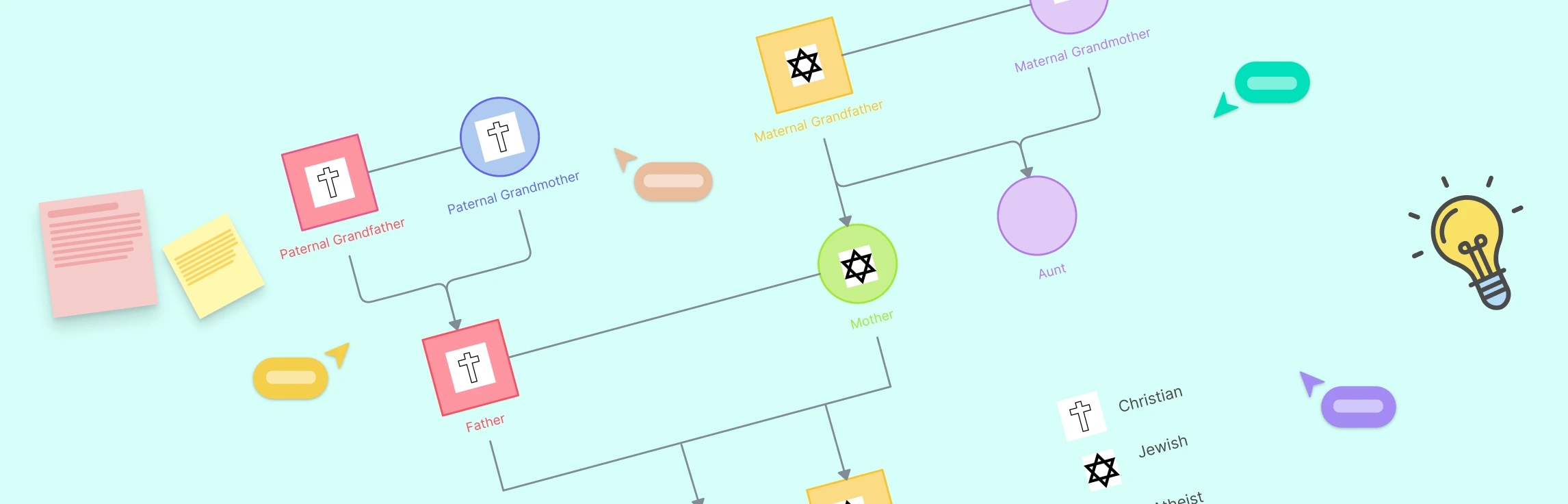
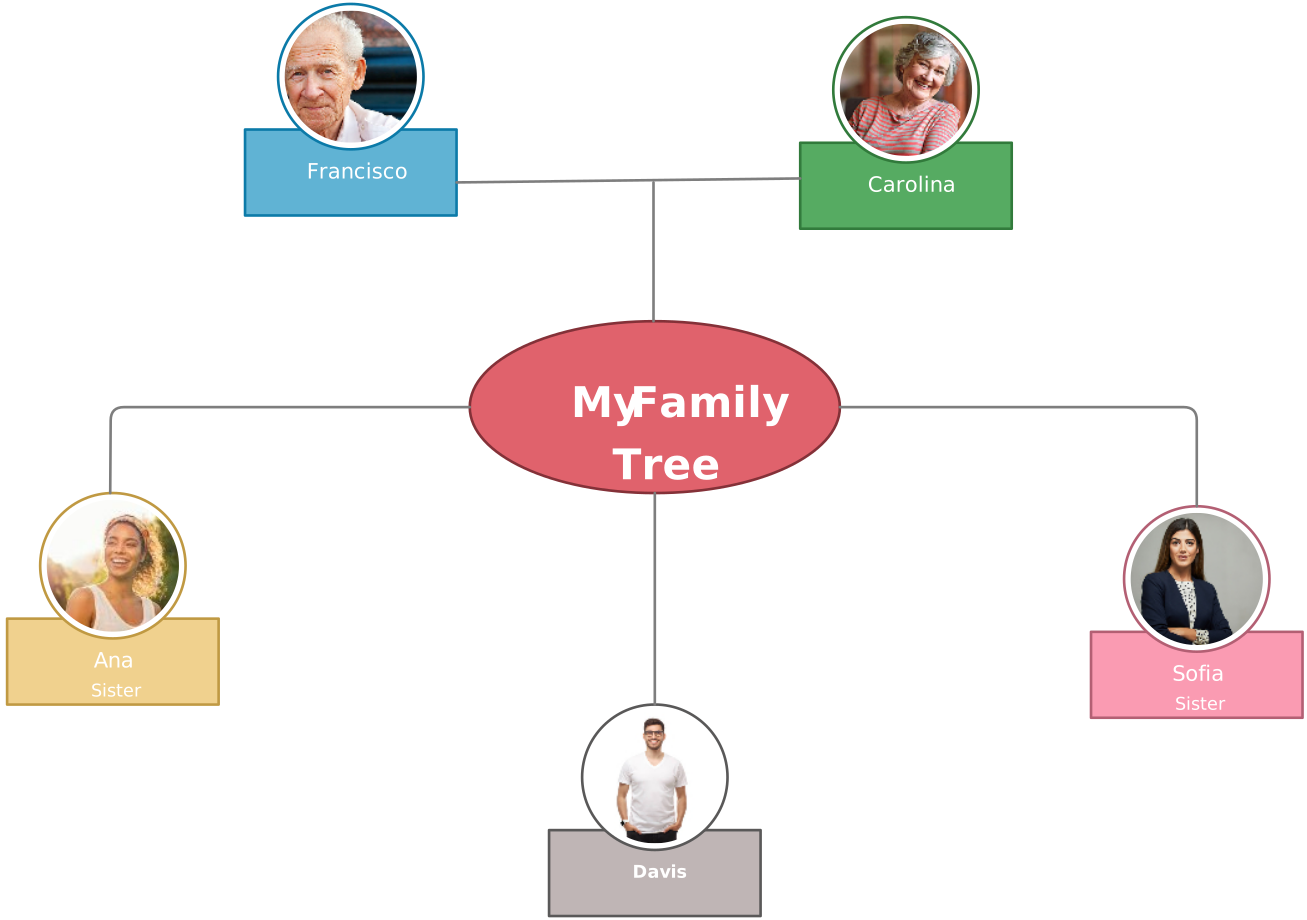
A family tree is a visual chart that helps you see where you come from and how different members of your family are connected across generations. It shows parents, grandparents, siblings, cousins, and everyone in between, making it easier to understand how each branch links to the next. You can draw it by hand or create a digital version with photos, dates, and personal details. In the end, it’s simply a clear way to trace your roots and see how your entire family fits together.

How to Create a Family Tree in PowerPoint
Step 1: Open a Blank Slide
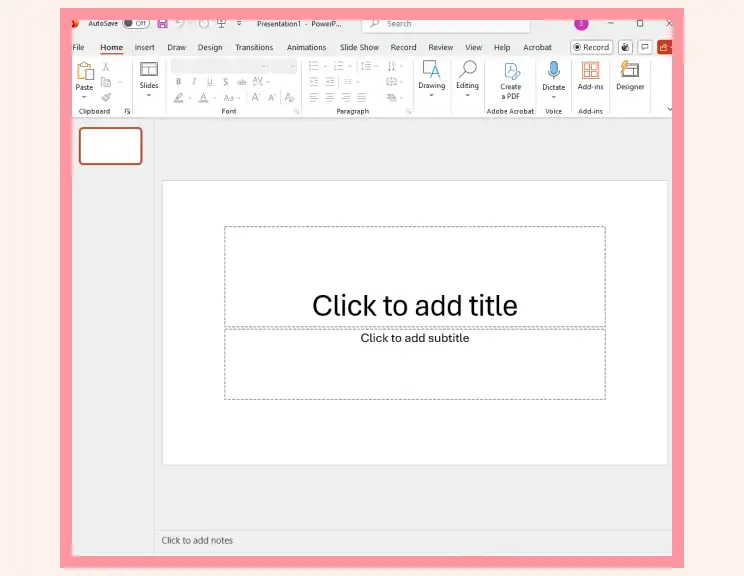
Start with a clean slide so you have plenty of room to build your layout. A blank slide is easier to work with than preset layouts, especially if you’re not using SmartArt’s fixed structure.
Step 2: Insert Shapes for Each Family Member
Go to Insert → Shapes and pick a style you like rectangles, circles, or rounded boxes. Add one shape per family member and type their details inside.
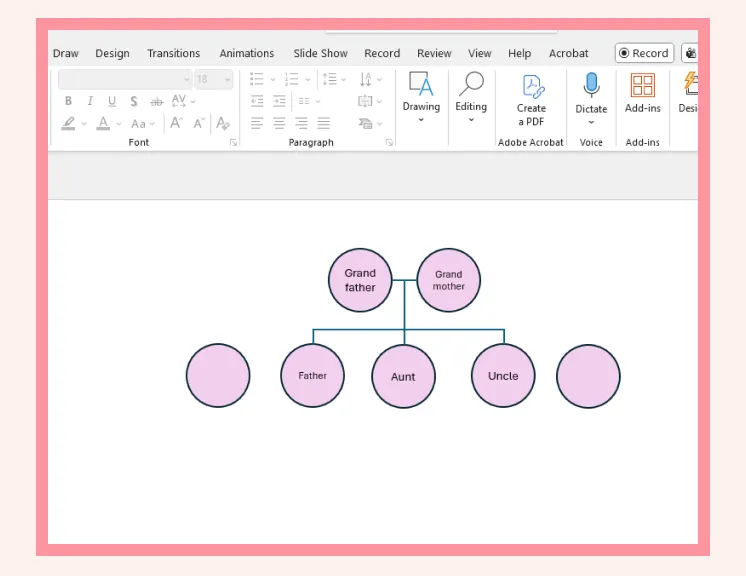
Alternative: If you prefer a more structured starting point, you can also try Insert → SmartArt → Hierarchy, but just note that it’s more rigid when the tree becomes complex.
Step 3: Connect Family Members with Lines
Use Insert → Shapes → Lines to draw parent–child and sibling connections. Place connectors carefully, as PowerPoint won’t adjust them automatically if you move shapes around.
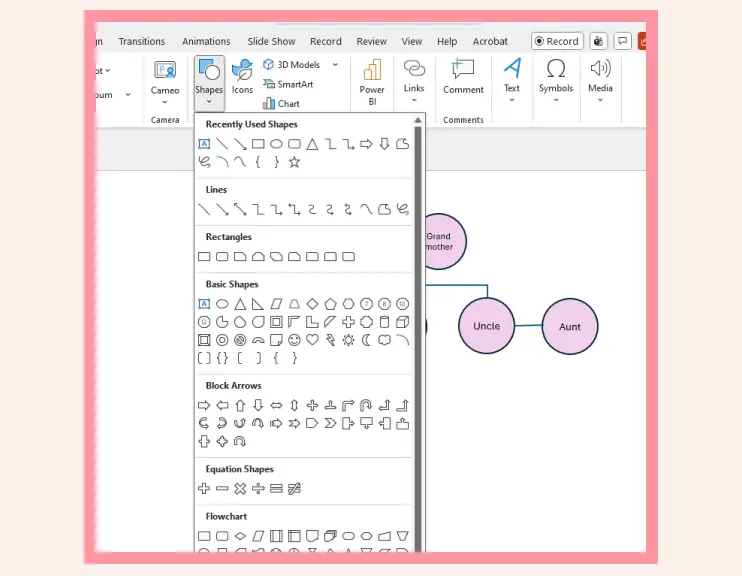
Step 4: Arrange Generations Clearly
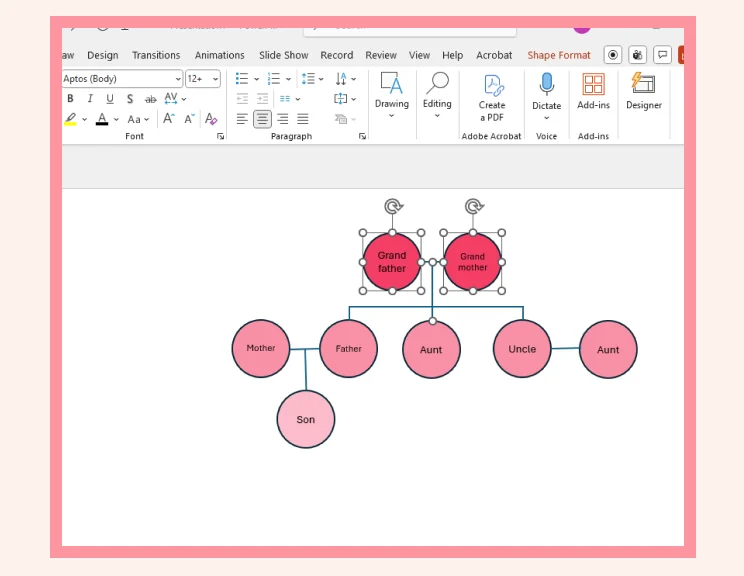
Position older generations at the top and younger ones below. Adjust spacing as needed. Manual placement gives you more control than SmartArt, especially for non-linear family structures.
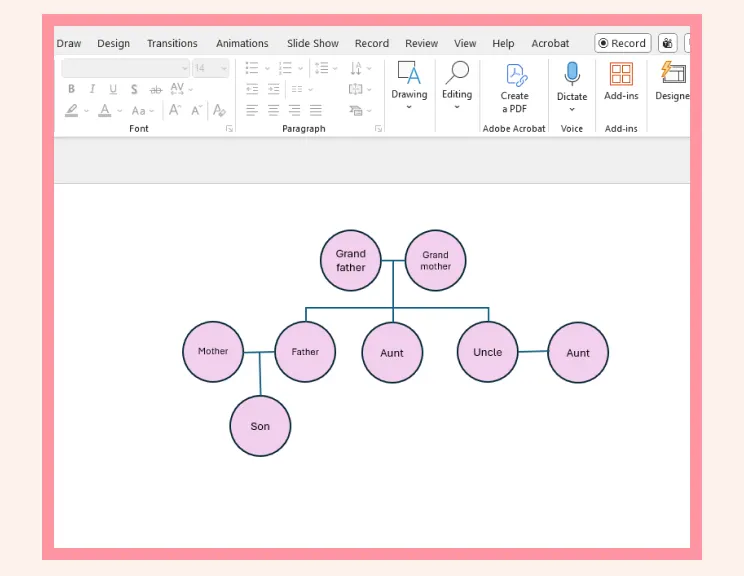
Step 5: Add Colors or Styling
Use fill colors, borders, and text formatting to highlight branches, sides of the family, or generations. Styling helps keep the diagram readable as more members are added.
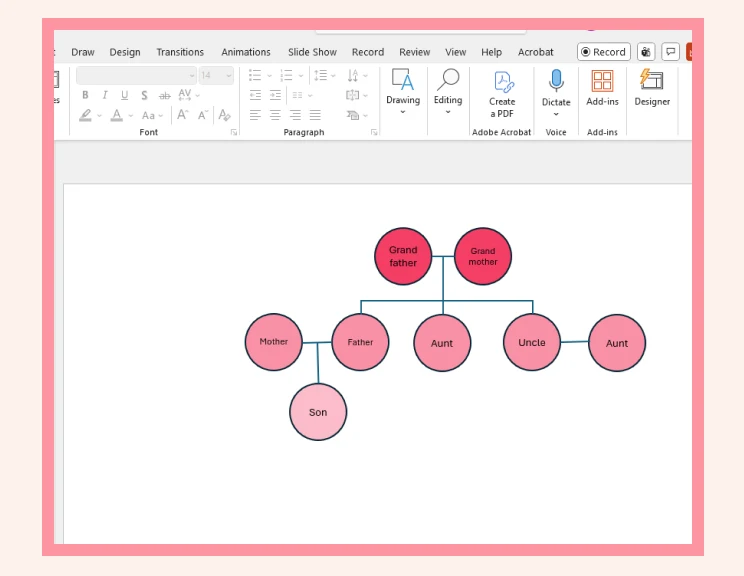
Step 6: Group and Organize Sections
Select related shapes and connectors and use Group to keep everything together. This prevents the layout from shifting when you move parts of the tree.
Step 7: Save, Share, or Export
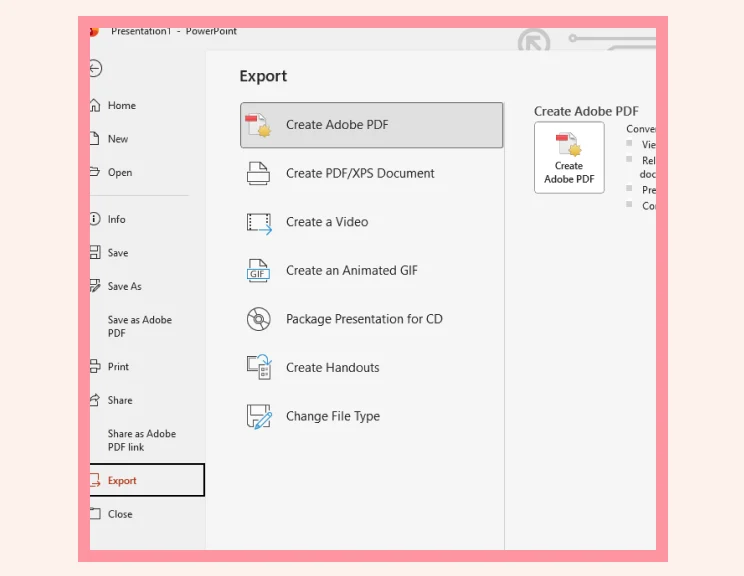
Save your slide normally, or export the family tree as an image or PDF for easy sharing. If the tree becomes too large for one slide, you can duplicate the slide and break it into sections.
Drawbacks of Building a Family Tree in PowerPoint
Creating a family tree in PowerPoint is manageable for simple layouts, but as soon as your tree grows or becomes less linear, several limitations start to show.
Not designed for complex diagrams: PowerPoint is presentation software, so large multi-generation trees can feel cramped or difficult to structure cleanly.
Manual alignment takes time: Every box and line needs to be positioned individually, especially when you’re not using SmartArt.
Connectors don’t auto-adjust: Moving a shape often leaves lines disconnected or out of place, requiring constant repositioning.
Limited support for non-traditional families: Blended families, multiple spouses, or irregular branches require manual workarounds that can make the layout messy.
Large trees don’t fit well on a single slide: You may need to shrink shapes, split the tree across slides, or zoom out, which affects readability.
Adding photos or extra details creates clutter: PowerPoint doesn’t handle layered visual data as smoothly as a diagramming tool, leading to overlap or spacing issues.
Editing becomes harder as the tree grows: Any updates such as new relatives, rearranged branches, corrected names, often require reorganizing large sections of the slide.
Why Use Creately for Making a Family Tree
Creately’s family tree creator gives you a visual workspace designed specifically for building structured diagrams, making it far easier and more flexible than trying to create a family tree in PowerPoint. Instead of wrestling with manual alignment, limited slide space, or connectors that won’t stay put, Creately lets your family tree grow naturally and stay organized.
Flexible & Easy to Build
The infinite canvas means you’re never restricted by slide size—you can expand your tree as much as you need without squeezing everything in.
Drag-and-drop editing keeps generations neatly arranged without constant manual adjustments.
Smart connectors move and adapt automatically, so you don’t have to redraw lines every time you shift a shape.
Built for Complex Family Structures
You can accurately map blended families, step-relations, multiple spouses, or adopted children without forcing everything into a rigid layout.
Creately doesn’t lock you into a fixed hierarchy—you’re free to shape branches exactly the way your family is structured.
Add photos, dates, and detailed notes without cluttering the workspace, something PowerPoint struggles with on a single slide.
Fast Setup & Clear Visuals
Start with ready-made family tree templates to skip the tedious setup PowerPoint requires.
Use colors, icons, and styling tools to clearly distinguish branches or generations.
Consistent formatting ensures your tree stays readable, even as it gets larger.
Designed for Collaboration & Sharing
Invite family members to help fill in names, add stories, or verify details in real time.
Comments and @mentions make communication simple without switching between apps.
Export your family tree cleanly as PNG, PDF, JPEG, or present it instantly with Presentation Mode with no distorted layouts or cut-off edges.
Easy to Update & Maintain Over Time
Cloud saving keeps your diagram accessible and automatically synced.
Adding new relatives or rearranging branches takes seconds without breaking the layout.
Ideal for long-term family history projects where the tree will continue to grow and evolve.
Creately Vs PowerPoint Family Tree Features Comparison
If you’re choosing between making a family tree in PowerPoint or using Creately, this comparison highlights how both tools handle layout flexibility, ease of editing, and how well they support long-term updates as your family tree grows.
Feature | Creately | PowerPoint |
Workspace Flexibility | Infinite canvas that expands in any direction as your tree grows | Single slide space that can quickly feel cramped for large diagrams |
Editing Experience | Smooth drag-and-drop controls with automatic alignment | Requires manual adjustment of shapes and lines |
Connectors & Lines | Connectors stay attached and update automatically when moved | Lines often disconnect or need repositioning after edits |
Handling Complex Families | Easily supports blended families, multiple spouses, and irregular layouts | SmartArt and slides limit non-linear or complex family structures |
Starter Templates | Multiple ready-made family tree templates fully customizable | Few relevant templates; most require building from scratch |
Visual Customization | Extensive styling options with colors, photos, icons, and formatting | Basic formatting tools; complex visuals can look cluttered |
Collaboration | Real-time collaboration with comments and shared editing | No real-time editing inside diagrams; collaboration is limited |
Scalability & Growth | Tree can grow indefinitely without breaking the layout | Adding new members often forces manual rearranging of slide elements |
Sharing & Exporting | Exports cleanly to PNG, PDF, JPEG, or embeds without layout issues | Large diagrams may not export cleanly or get cut off on slides |
Ongoing Maintenance | Designed for continuous updates and evolving family histories | Becomes harder to manage as more generations are added |
Take a look at our guide on how to make a family tree to see how easily you can build one in Creately, with practical tips for laying out generations clearly and showing family connections accurately as your tree grows over time.
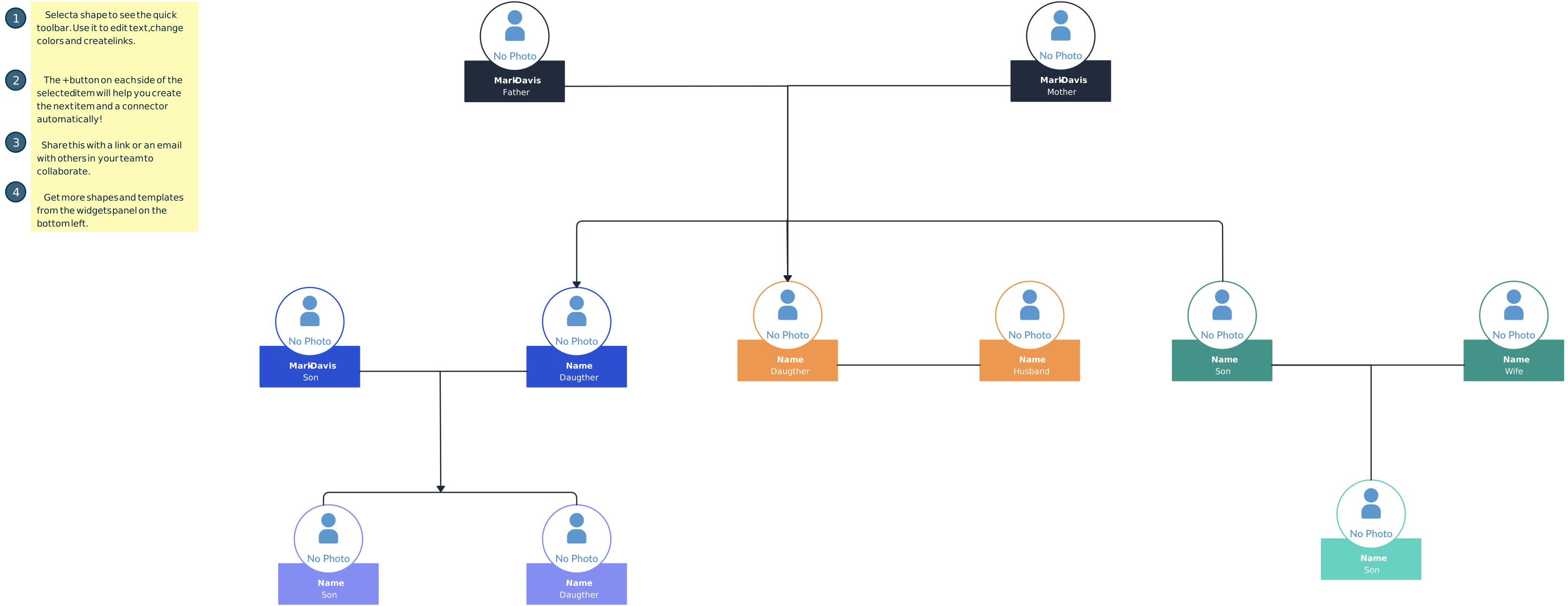
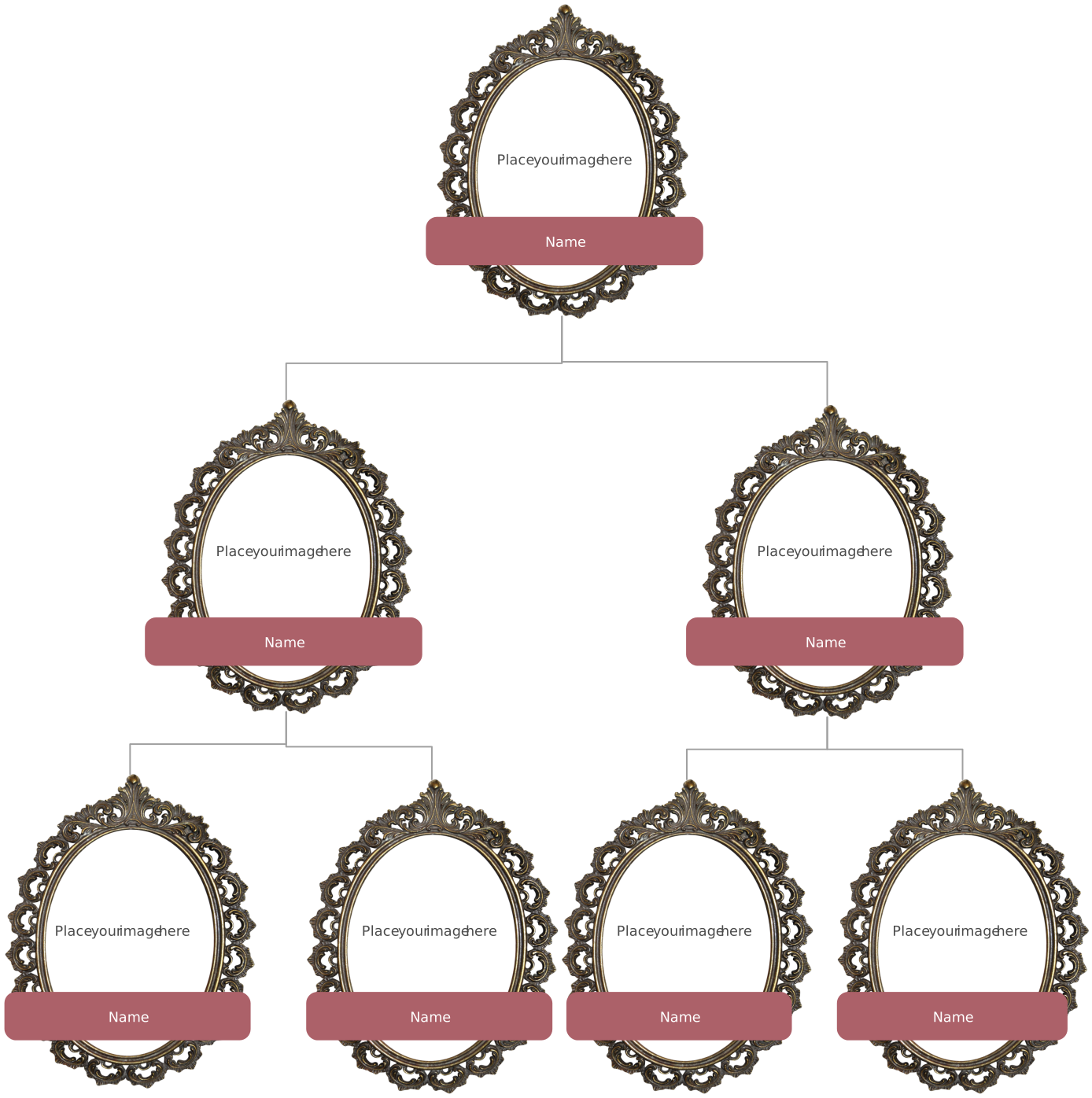
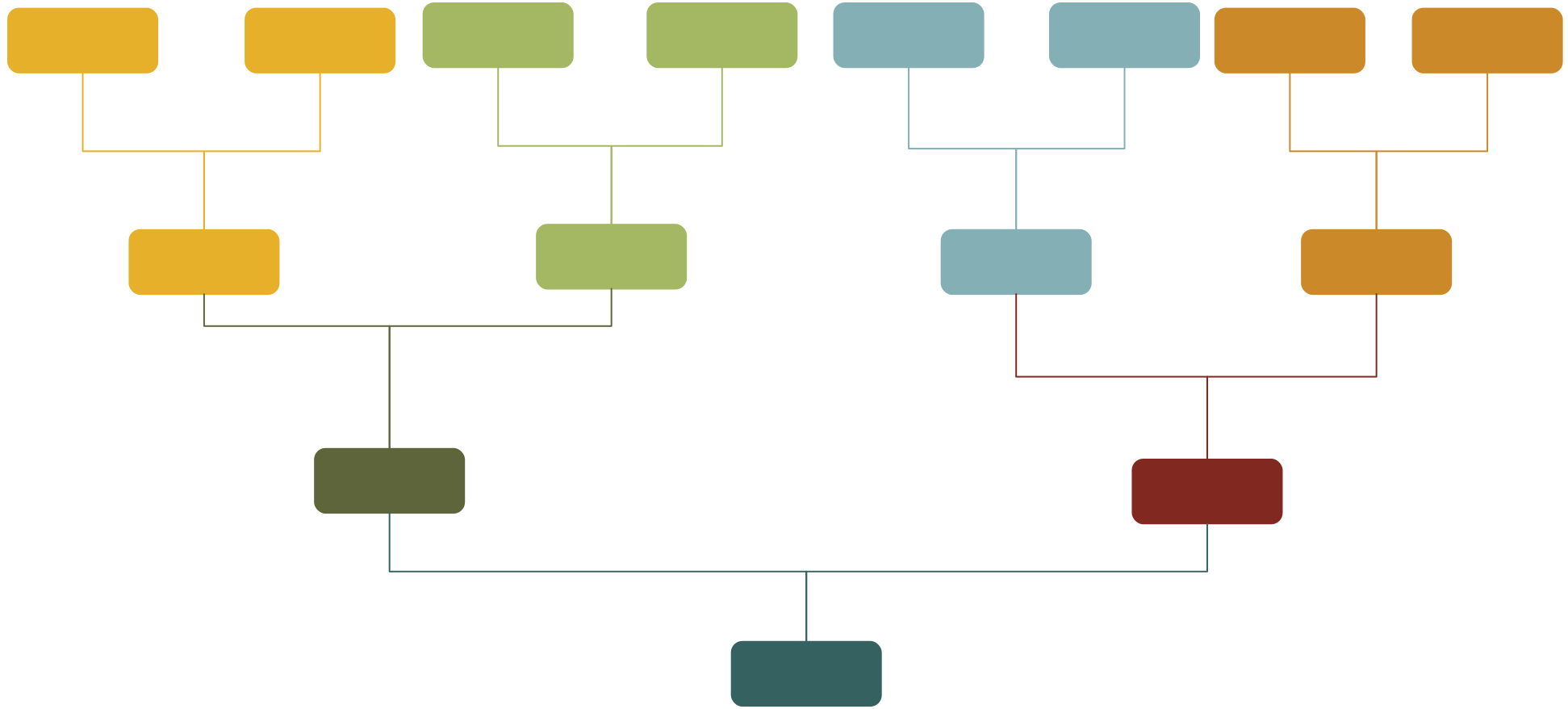
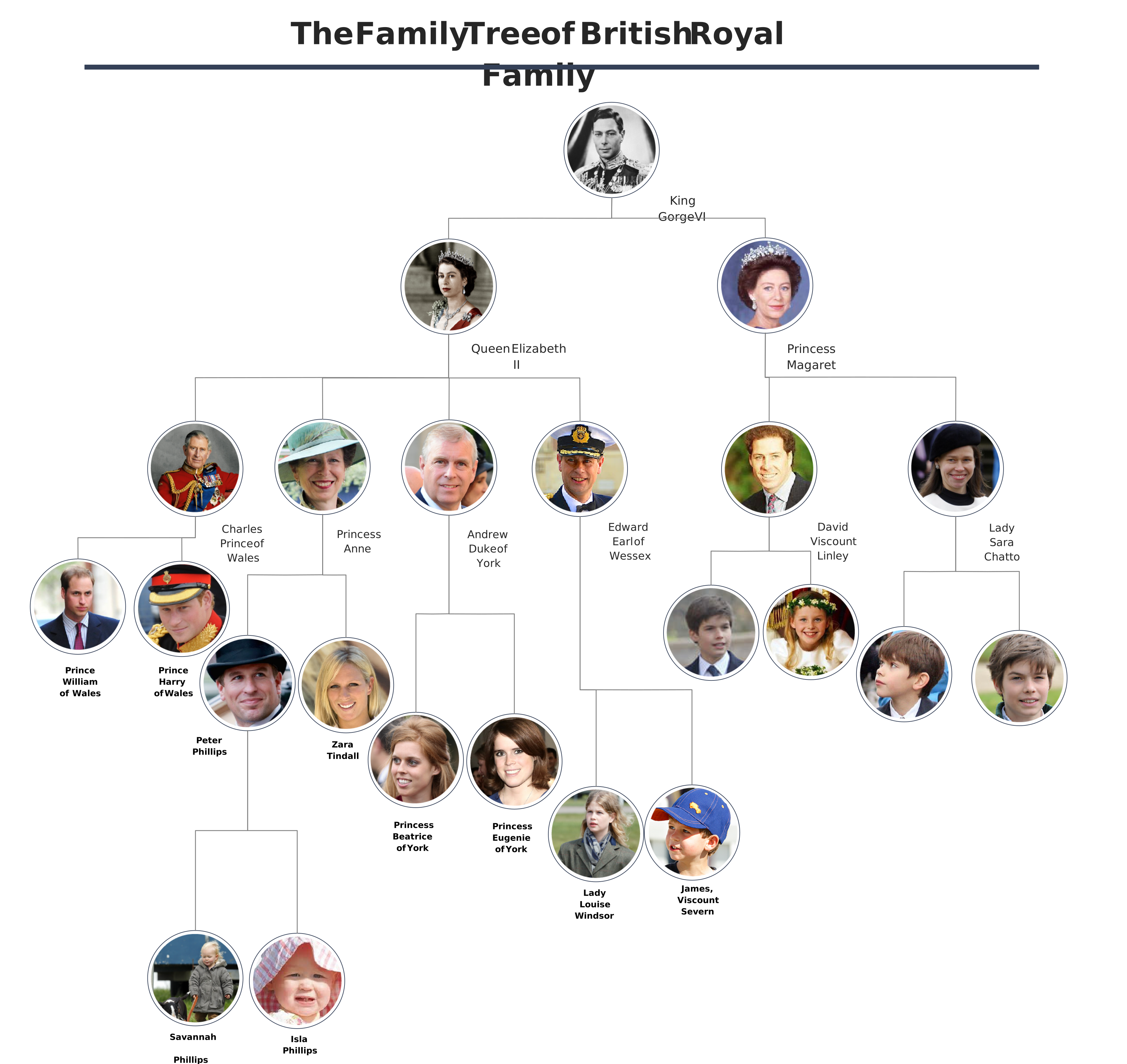
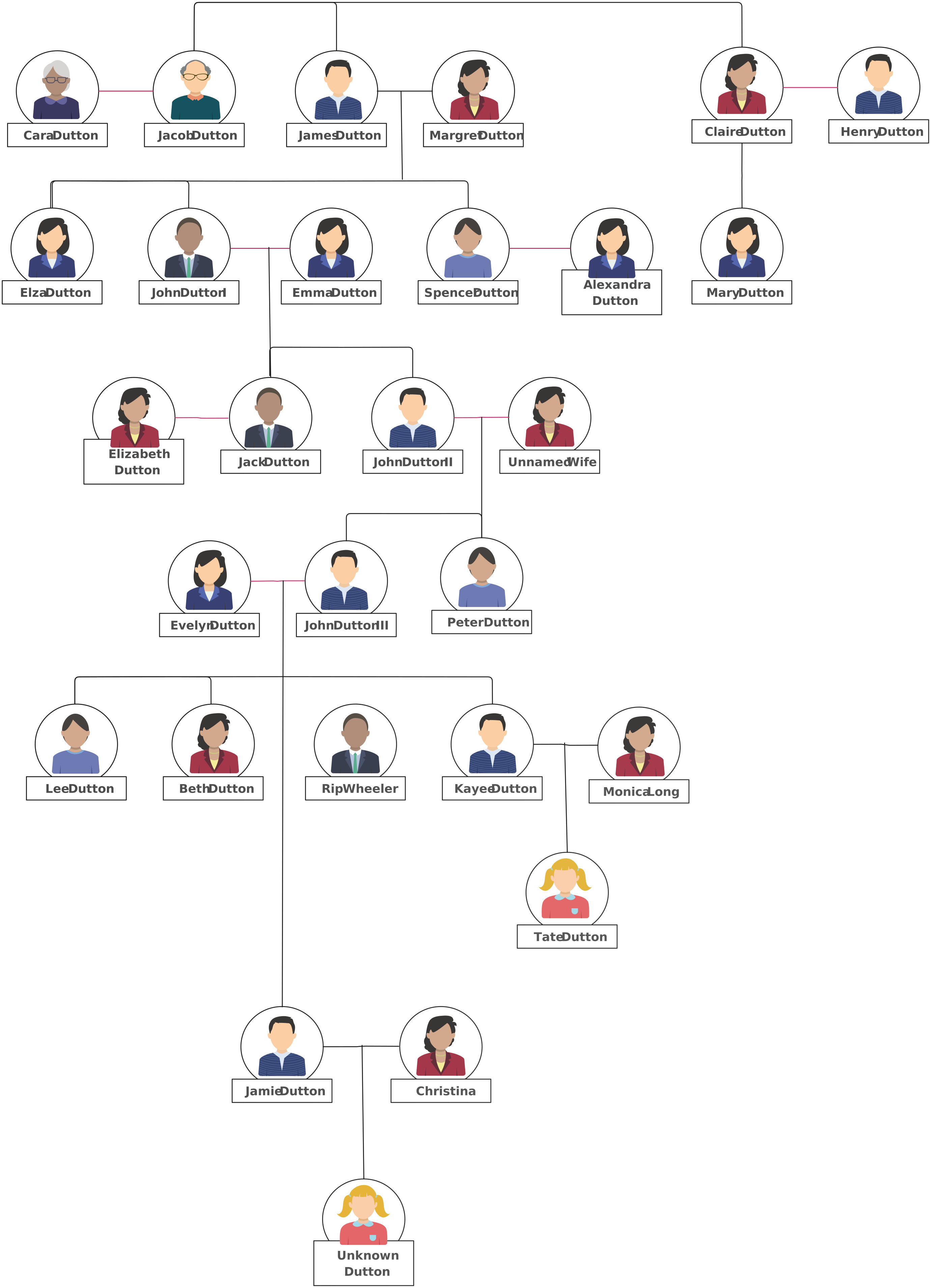
Free Family Tree Templates to Get Started



Helpful Resources for Building Family Trees
Discover the steps of making a Family Tree in Microsoft Word.
Learn how to make a Family Tree in Microsoft Excel.
Find out how to make a Family Tree in Google Docs.