Firewall Network Diagram Examples to Visualize and Secure Your Network

Updated on: 21 January 2026 | 6 min read
Sharesocial-toggle
social-share-facebook
social-share-linkedin
social-share-twitter
Link Copied!
Firewall Network Diagram Examples to Visualize and Secure Your Network

Visualizing your network’s security setup is key to keeping systems safe and organized. Firewall network diagrams help IT teams see how traffic flows, identify weak points, and plan robust defenses. In this guide, we’ll explore practical examples and templates you can use to design clear, effective firewall diagrams for any network.

What Is a Firewall in Computer Network

A firewall is like a security guard for your network. It monitors all the traffic coming in and going out, letting safe data through and blocking anything suspicious. Whether it’s stopping hackers, preventing malware, or keeping sensitive info safe, firewalls are your first line of defense. They can be physical devices, software programs, or even virtual cloud solutions — whatever your setup, a firewall keeps your network secure and under control.

A firewall network diagram is a visual map that shows where firewalls sit in your network and how traffic flows between trusted and untrusted zones. It helps teams quickly understand, plan, and secure their network.

A firewall diagrams show:

  • Firewall placement – where firewalls sit in your network.

  • Traffic flow – how data moves between zones.

  • Trust boundaries – where inspection points and security rules apply.

Free Editable Firewall Network Diagram Templates

Below are practical, real-world firewall network diagram examples you can reference or adapt for your own network documentation:

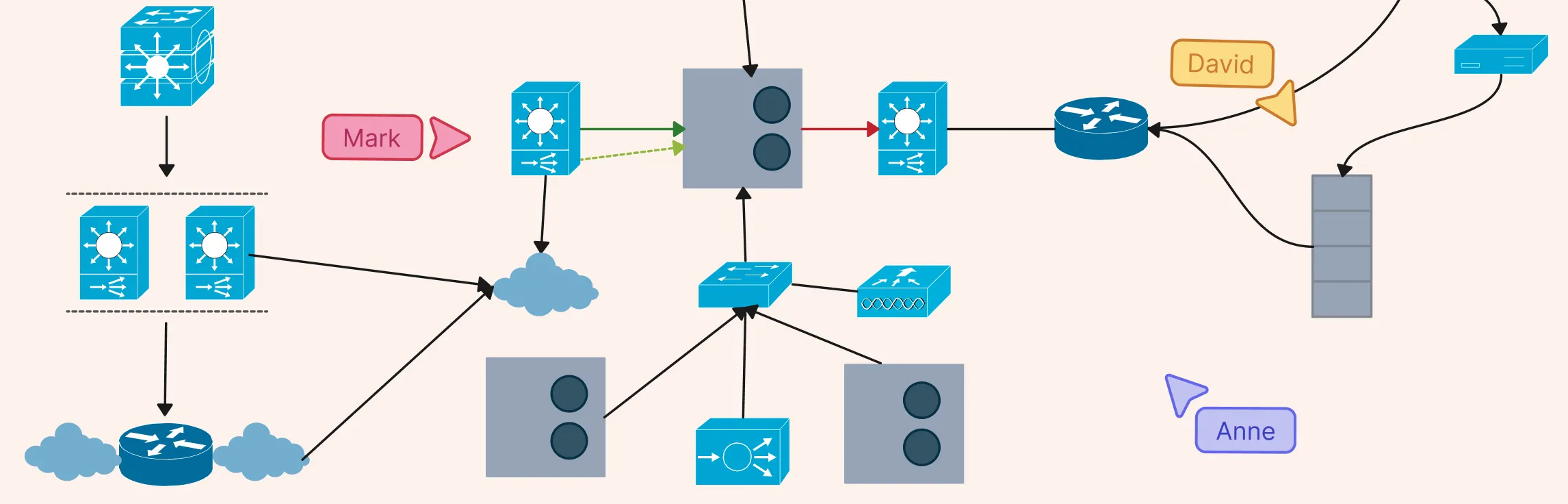
1. Internet Firewall Deployment

Shows how an internet-facing firewall protects internal resources and controls traffic between the internet, public services (DMZ), and your internal network. This type of diagram makes it clear where perimeter defenses are placed.
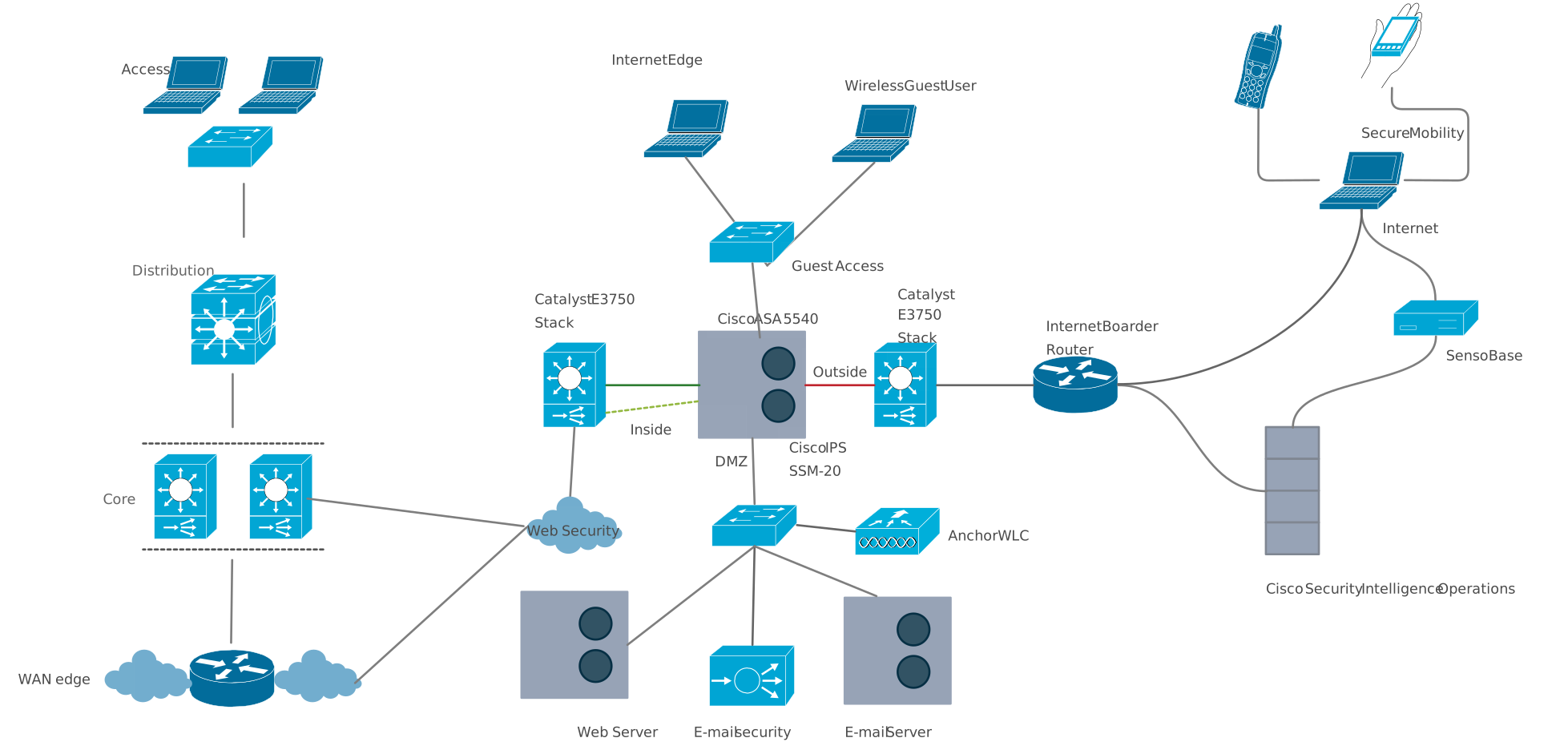
Diagram of an internet firewall deployment showing how a firewall protects an internal network from external traffic
Edit this Template
  • Ready to use
  • Fully customizable template
  • Get Started in seconds
exit full-screen Close
Internet Firewall Deployment

2. Distributed Firewall Topology

Illustrates a network with firewalls placed at multiple points, not just at the perimeter. Distributed firewall setups are common in larger enterprises where segmented traffic control improves security and reduces lateral movement.
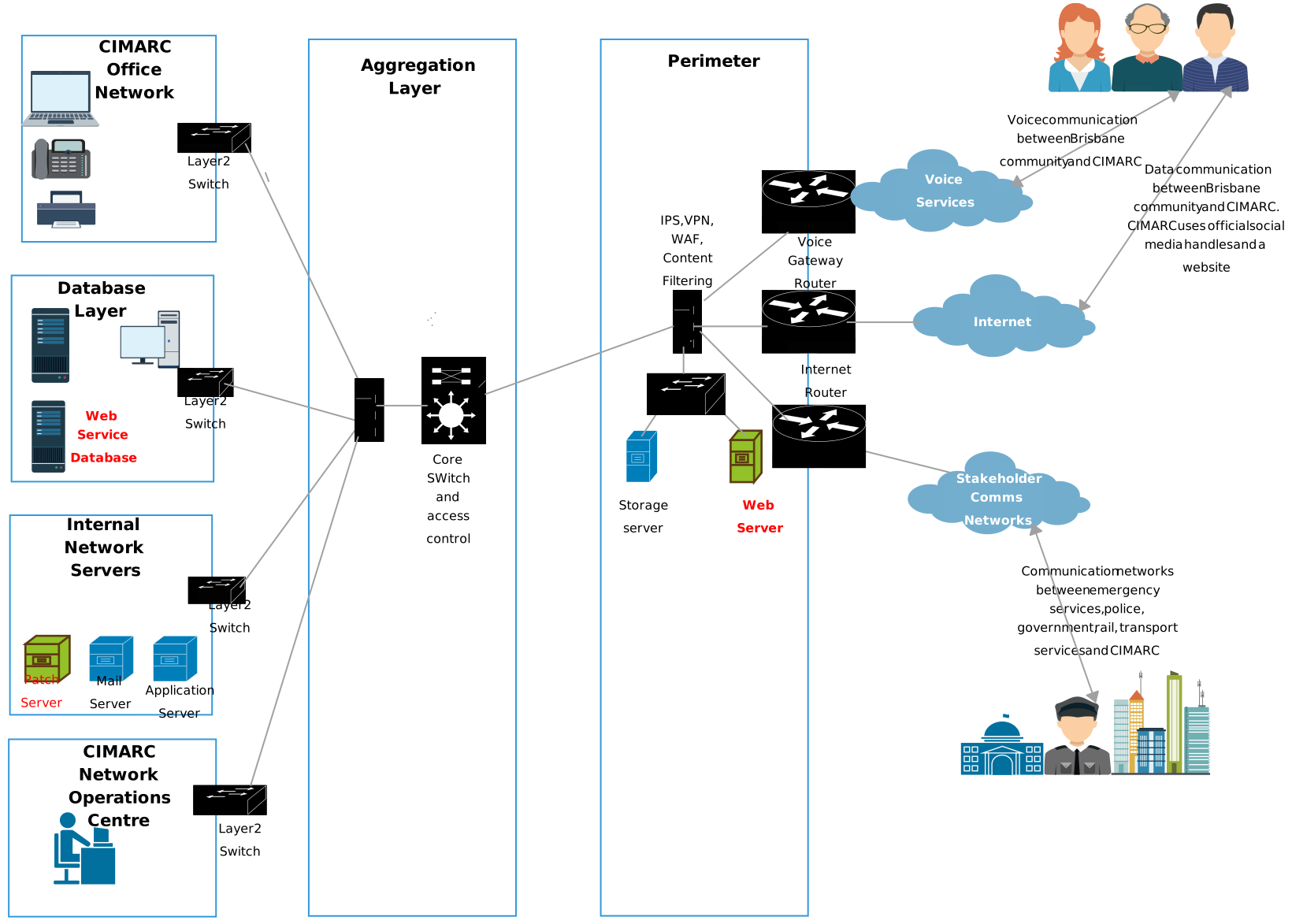
Diagram of a distributed firewall topology illustrating multiple firewalls deployed across different network segments
Edit this Template
  • Ready to use
  • Fully customizable template
  • Get Started in seconds
exit full-screen Close
Distributed Firewall Topology

3. UTM Firewall Diagram

Visualizes a unified threat management (UTM) firewall that combines multiple security functions (like filtering, antivirus, and intrusion prevention) into one device. This helps teams see how layered security tools integrate into network flow.
UTM firewall diagram showing unified threat management components protecting a network perimeter
Edit this Template
  • Ready to use
  • Fully customizable template
  • Get Started in seconds
exit full-screen Close
UTM Firewall Diagram

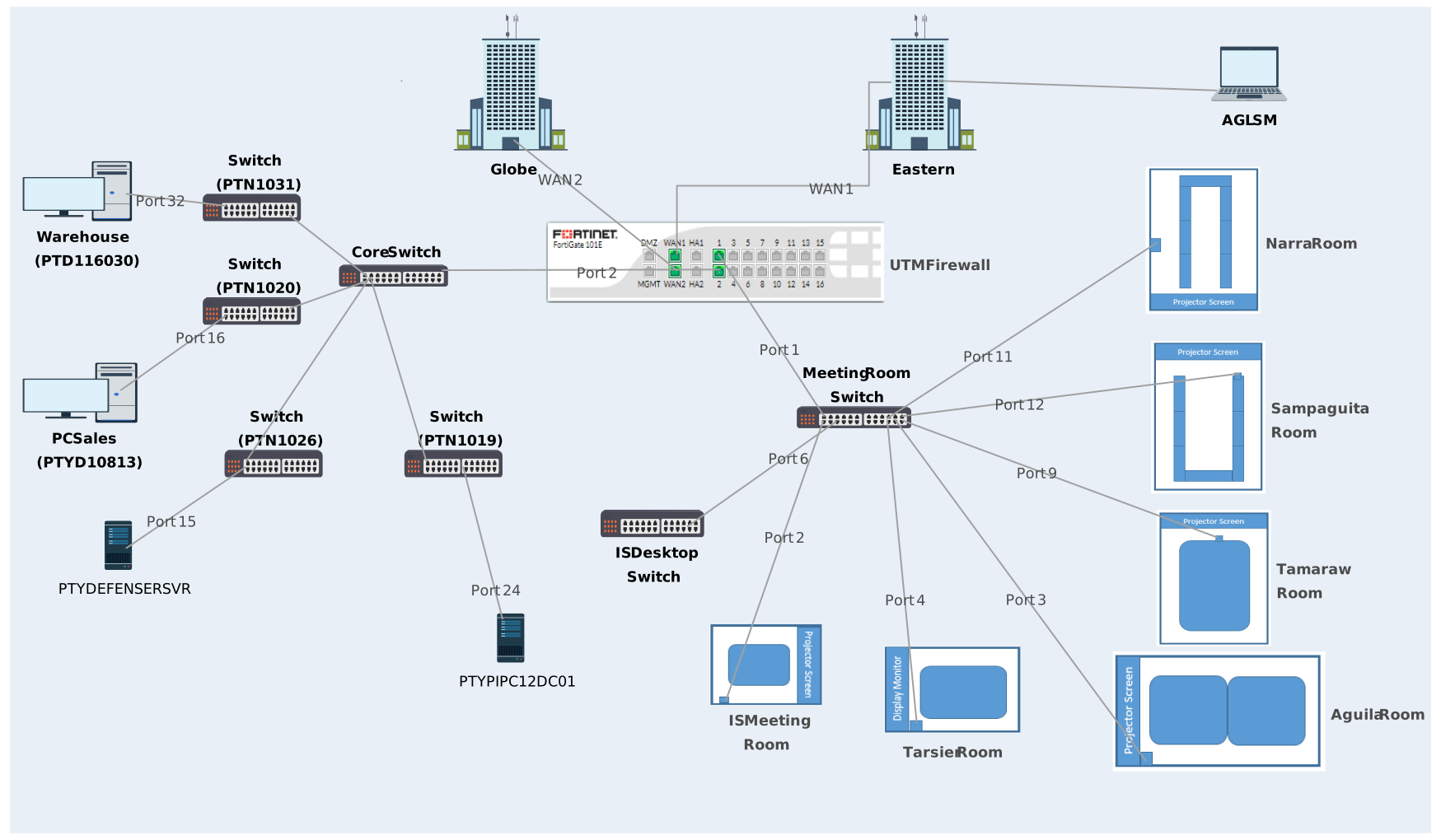
4. Firewall Zone Diagram

Focuses on visualizing different network zones (such as internal, external, and DMZ) and how firewalls enforce boundaries between them. It’s great for showing trust levels and controlled traffic paths.
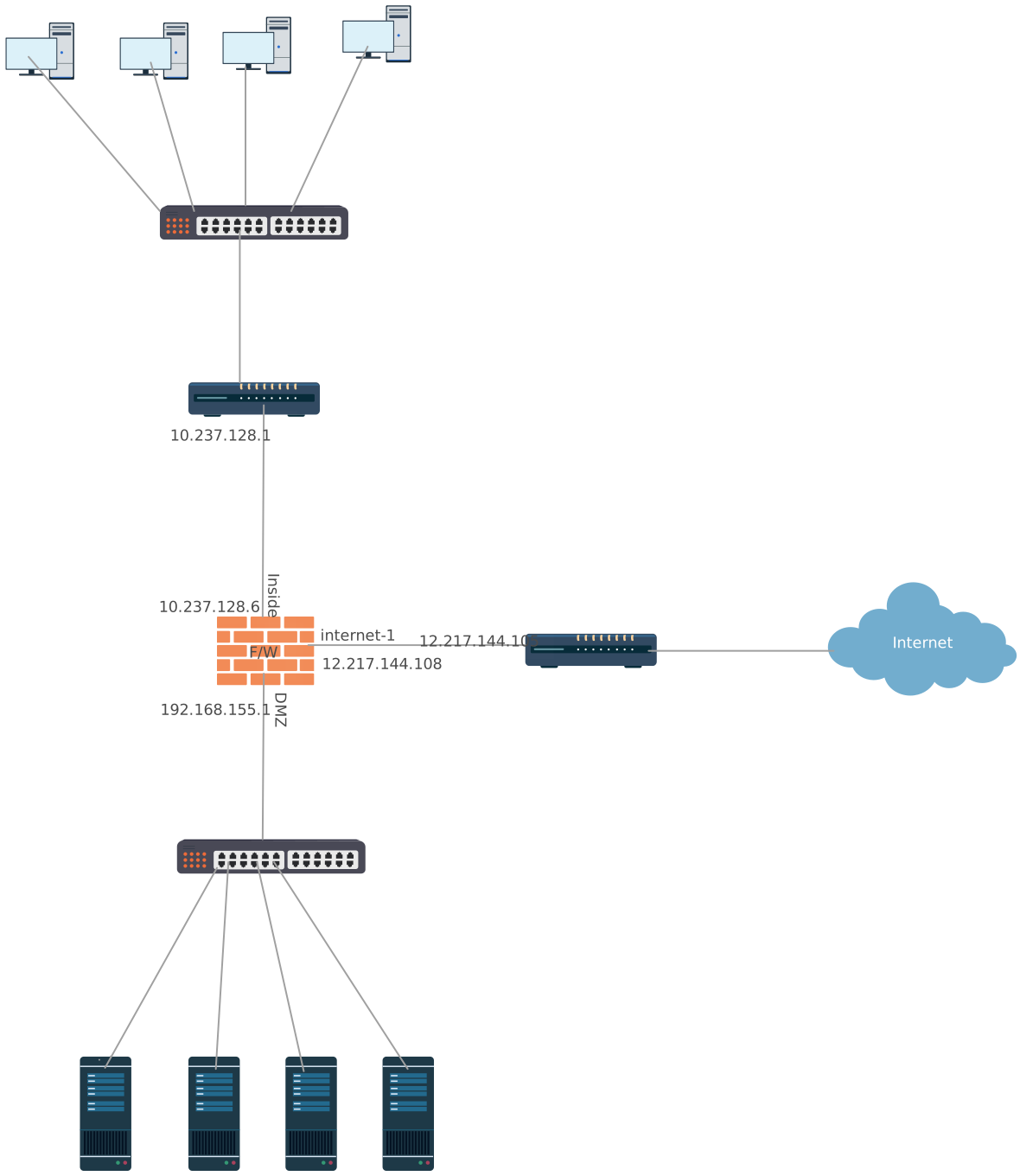
Firewall zone diagram illustrating segmented network zones separated by firewall rules and security boundaries
Edit this Template
  • Ready to use
  • Fully customizable template
  • Get Started in seconds
exit full-screen Close
Firewall Zone Diagram

5. Simple Network Firewall Diagram

A simple, clean network layout that can be adapted to include firewall icons and zones. It’s useful when you want a foundational view before adding security layers.
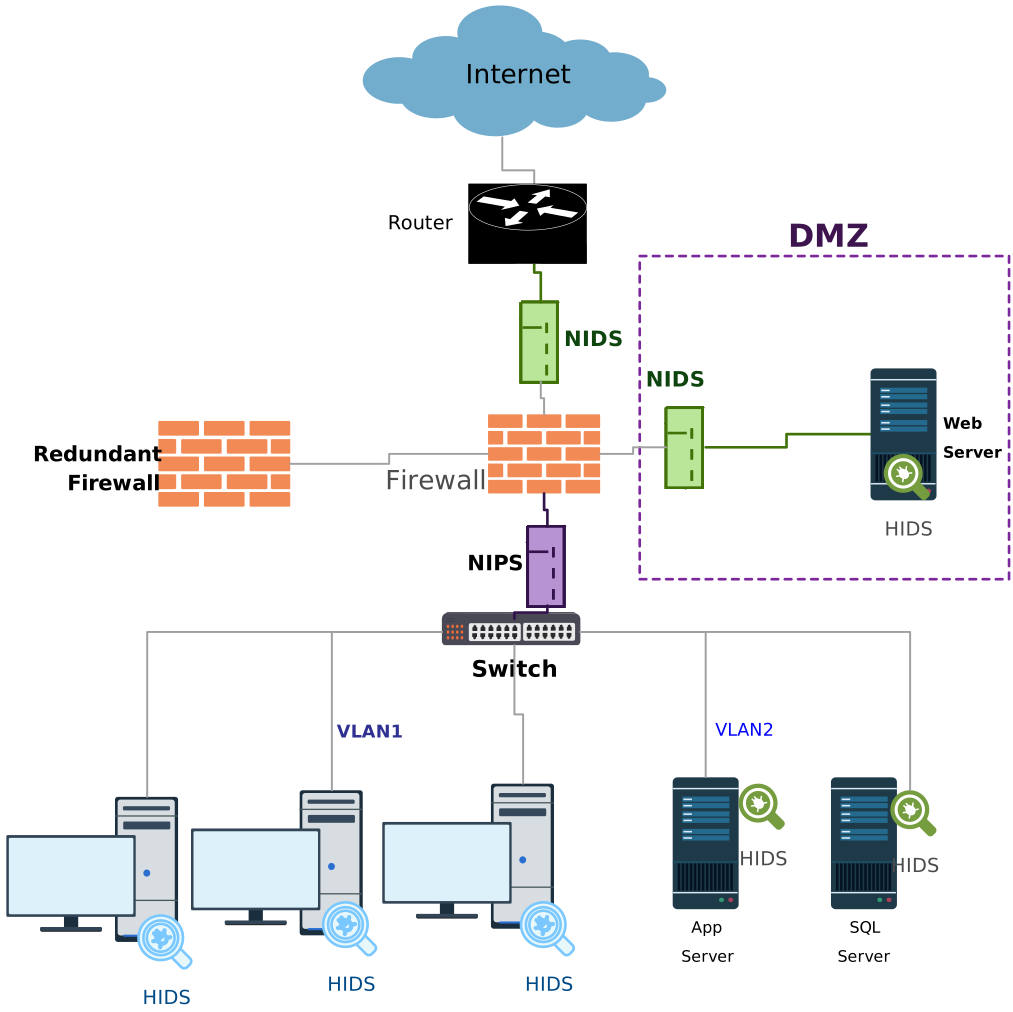
Simple network firewall diagram showing a basic firewall setup between the internet and an internal network
Edit this Template
  • Ready to use
  • Fully customizable template
  • Get Started in seconds
exit full-screen Close
Simple Network Firewall Diagram

6. Basic Firewall Network Diagram

General network structure diagrams without firewalls can also serve as a starting point. You can build on them by marking firewall positions and security segments.
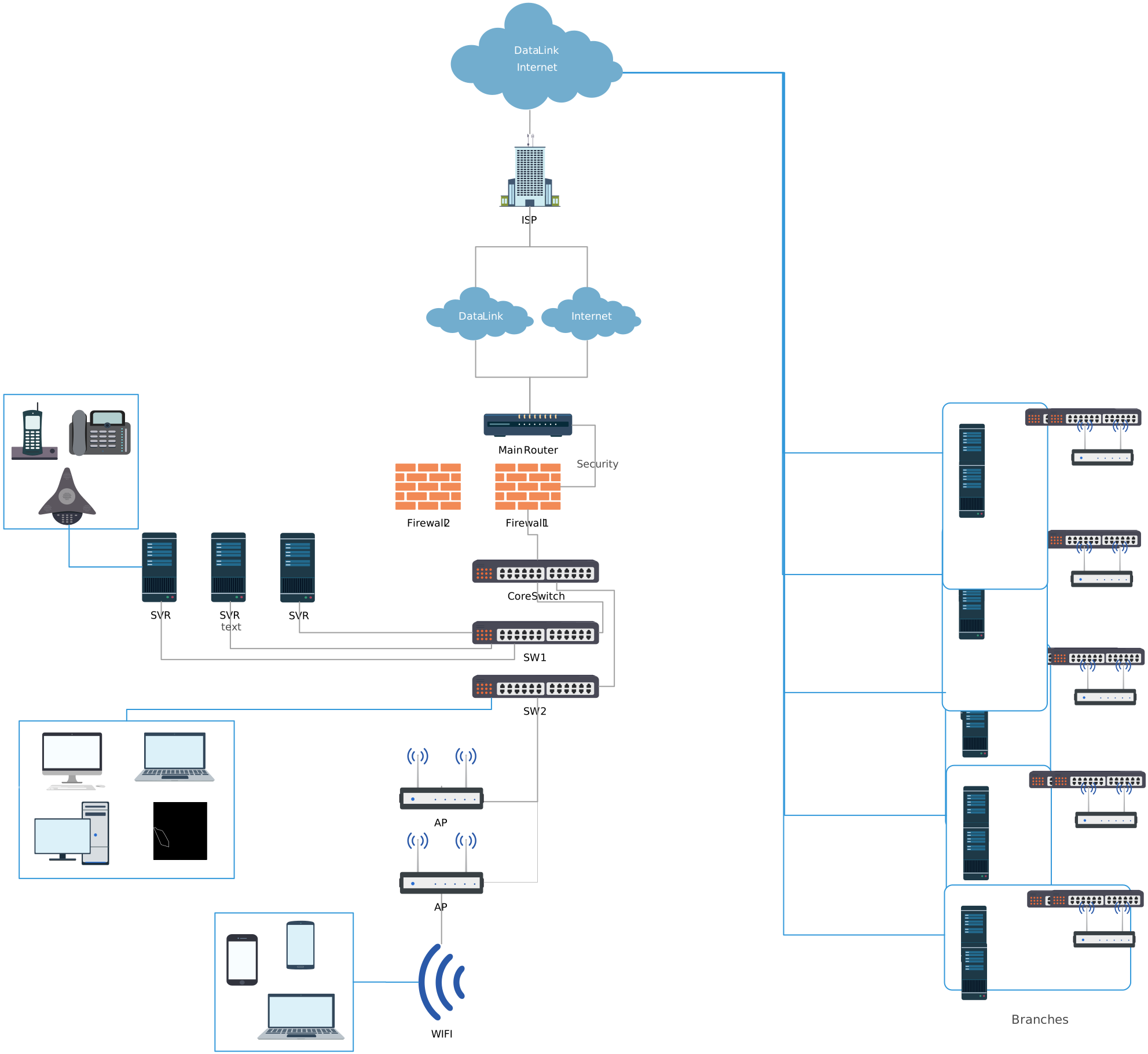
Basic firewall network diagram illustrating how a firewall controls traffic between trusted and untrusted networks
Edit this Template
  • Ready to use
  • Fully customizable template
  • Get Started in seconds
exit full-screen Close
Basic Firewall Network Diagram

7. CAD Network and Firewalls

Diagrams that merge architectural network views (CAD style) with firewall placements offer detailed layouts useful in physical infrastructure planning.
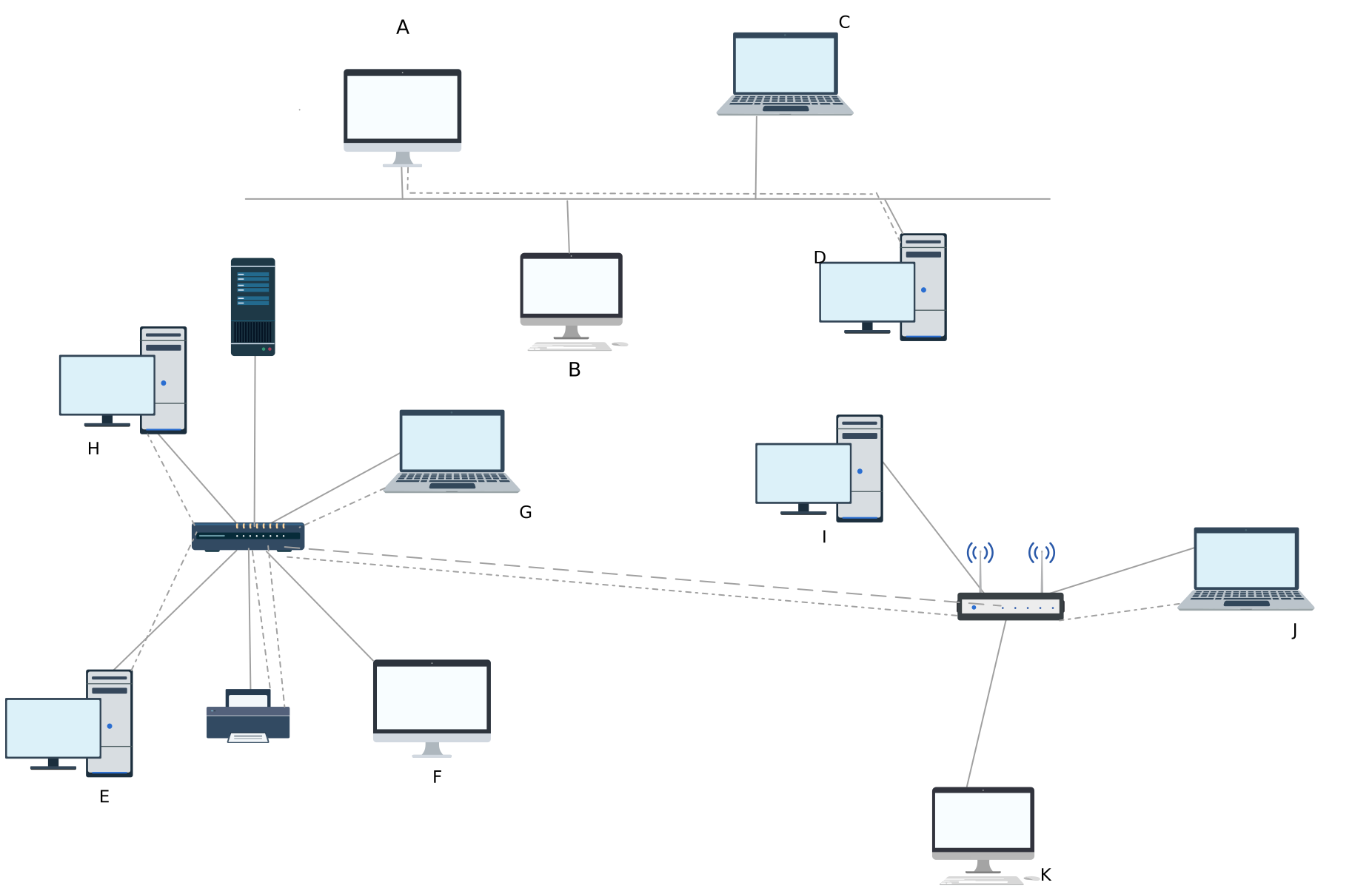
Diagram of a CAD network and firewalls showing secure connections between design systems and protected network zones
Edit this Template
  • Ready to use
  • Fully customizable template
  • Get Started in seconds
exit full-screen Close
CAD Network and Firewalls

8. IIIT Firewall

Tailored examples like institutional network firewall diagrams provide context for environments with specific access control needs (e.g., campus networks).
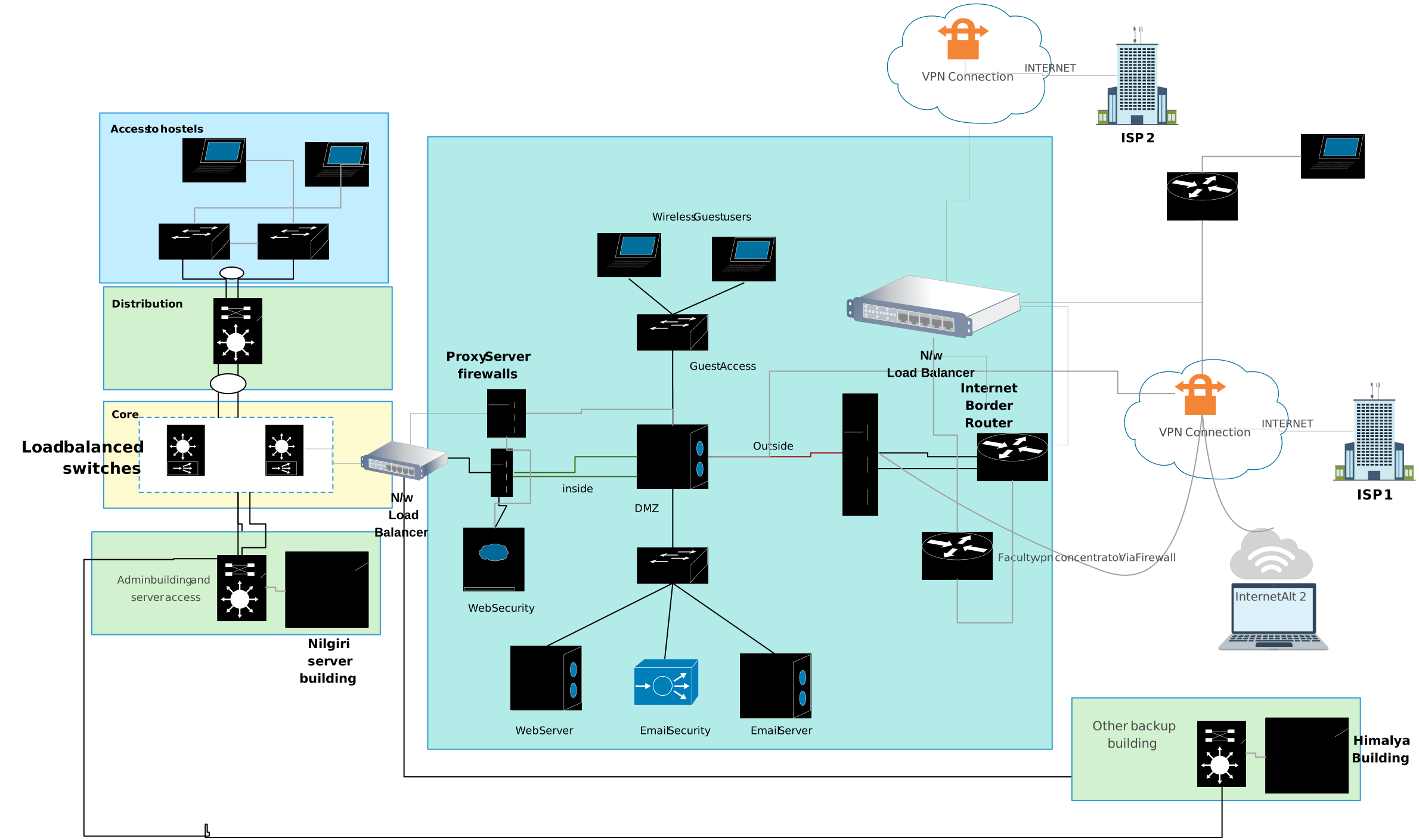
IIIT firewall diagram illustrating a campus or institutional network protected by firewall layers and security zones
Edit this Template
  • Ready to use
  • Fully customizable template
  • Get Started in seconds
exit full-screen Close
IIIT Firewall

Why Use Creately for Firewall Network Diagrams

Creately’s network diagram software helps you quickly design and document firewall network setups using ready-made templates and simple visual tools. Instead of starting from scratch, you can adapt proven layouts to match your real network.

1. Ready-made templates

Get started fast with firewall network diagram templates for common setups like perimeter firewalls, DMZs, and zone-based architectures.

2. Quick and easy editing

The quick access toolbar appears at the top of each shape, giving you instant access to colors, text, and connectors—making it easy to highlight zones and critical firewalls.

3. Clear zones and traffic flow

Use containers, colors, and arrows to clearly separate internal networks, external networks, DMZs, and cloud segments, and show how traffic moves between them.

4. Context, collaboration, and sharing

Add notes and attachments for firewall rules, collaborate in real time with your team, and use presentation mode or exports to share diagrams for reviews, audits, or training.

FAQs About Network Diagrams with Firewalls

How are firewalls deployed?

Firewalls can be network-based or host-based. Network-based firewalls protect entire networks by filtering traffic at the perimeter, while host-based firewalls protect individual devices or servers. Some setups also use a combination of both, especially in layered security strategies, for maximum protection.

What are security zones?

Security zones are segments of a network with different trust levels. Firewalls control traffic between these zones to enforce security policies. Common zones include:

  • Internal network – fully trusted systems like employee workstations and core servers.

  • External network – untrusted sources such as the internet.

  • DMZ (demilitarized zone) – semi-public areas for web or email servers, accessible from the internet but isolated from core systems.

  • Management zones – restricted areas for administrative access and monitoring.

What are the common types of firewalls?

Firewalls come in several types, each designed for specific security needs:

  • Packet-filtering firewalls check basic information like IP addresses, ports, and protocols to allow or block traffic. They are simple and fast but don’t consider connection context.

  • Stateful firewalls track the state of active connections, allowing smarter filtering based on session history. This provides better protection than basic packet filters.

  • Application-level or proxy firewalls inspect traffic at the application layer, blocking suspicious activity specific to applications, such as web or email attacks.

  • Next-generation firewalls (NGFW) combine traditional filtering with advanced features like intrusion prevention, application awareness, and threat detection, providing modern, comprehensive protection.

Why use multiple layers of firewalls?

Layered firewalls are part of a defense-in-depth approach. Using multiple firewalls—perimeter firewalls, internal firewalls, and host-based firewalls—creates several lines of defense. If one layer is breached, others continue to protect the network, limiting the impact of attacks and reducing the risk of lateral movement within the network.

What symbols are used in firewall network diagrams?

Common symbols help make diagrams clear and readable:

  • Firewall – represented as a brick wall, shield, or flame icon.

  • Router – shown as a circle or labeled box, directing traffic between networks.

  • Switch – a box with multiple connection lines, connecting multiple devices in a network.

  • Server – a tower or rack icon representing web, database, or application servers.

  • Client/workstation – a desktop or laptop icon representing end users.

How to create an effective network diagram with firewall?

To make firewall diagrams effective:

  • Label all devices, zones, and connections clearly.

  • Group related devices logically using shapes or shading to define zones.

  • Use a legend to explain symbols, colors, and line styles.

  • Keep diagrams organized and simple so they’re easy to analyze, share, and update as your network changes.

Author
Amanda Athuraliya
Amanda Athuraliya Communications Specialist

Amanda Athuraliya is the communication specialist/content writer at Creately, online diagramming and collaboration tool. She is an avid reader, a budding writer and a passionate researcher who loves to write about all kinds of topics.

linkedin icon
View all posts by Amanda Athuraliya →
Leave a Comment