Working with shapes, connectors, and layouts inside a spreadsheet can take extra time and care, especially as your genogram becomes more detailed. This guide walks you through the essentials of how to make a genogram in Excel so you can do it confidently, while also helping you understand when a more specialized diagramming tool might offer a smoother, more efficient experience.
What is a Genogram?
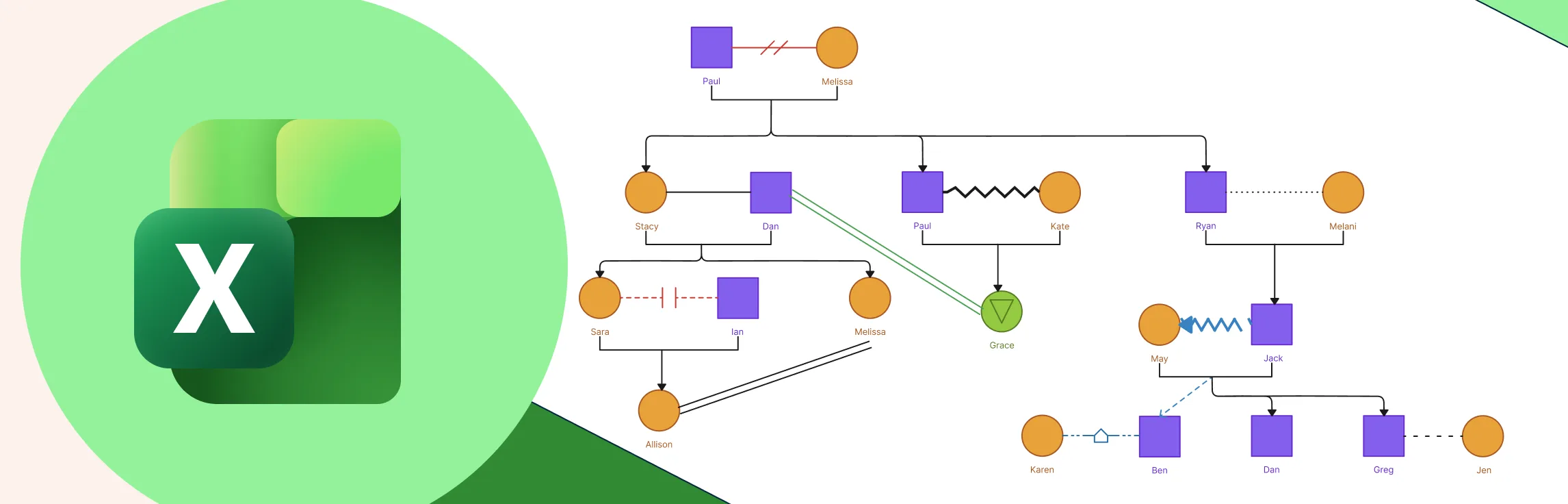
A genogram is a visual map that helps you understand the people in a family and the relationships, patterns, and histories that connect them. It goes beyond a simple family tree by capturing details like medical conditions, emotional dynamics, and significant life events, giving you a clearer picture of how a family functions over time. Whether you’re studying family patterns, supporting someone through therapy, or organizing your own family history, a genogram offers a simple, visual way to make sense of complex stories and see insights you might otherwise miss.

How to Create a Genogram in Excel
Creating a genogram in Excel mostly comes down to using Shapes, Connectors, and thoughtful positioning. The steps below will show you how to draw a genogram in Excel while making the most of what Excel provides.
Step 1: Set Up a New Excel Workspace
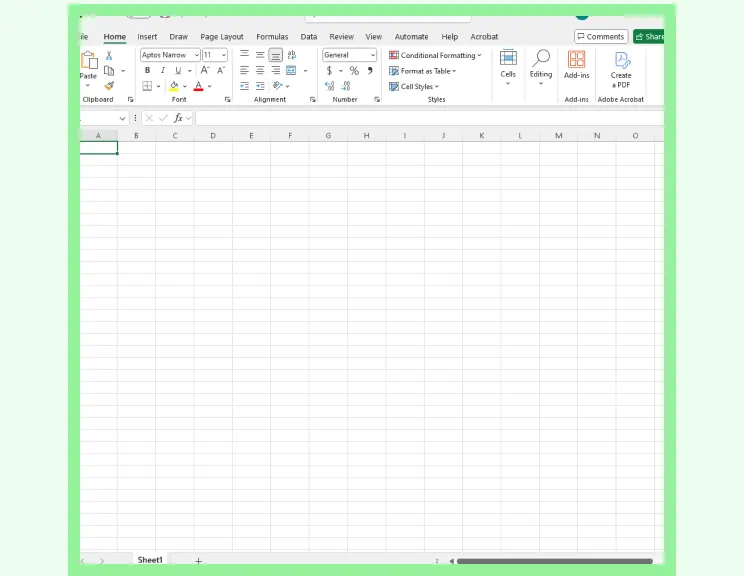
Open a blank sheet and turn off gridlines to create a smooth visual area. Increasing row height and column width gives you more space to arrange symbols without feeling cramped.
Step 2: Insert Basic Genogram Symbols
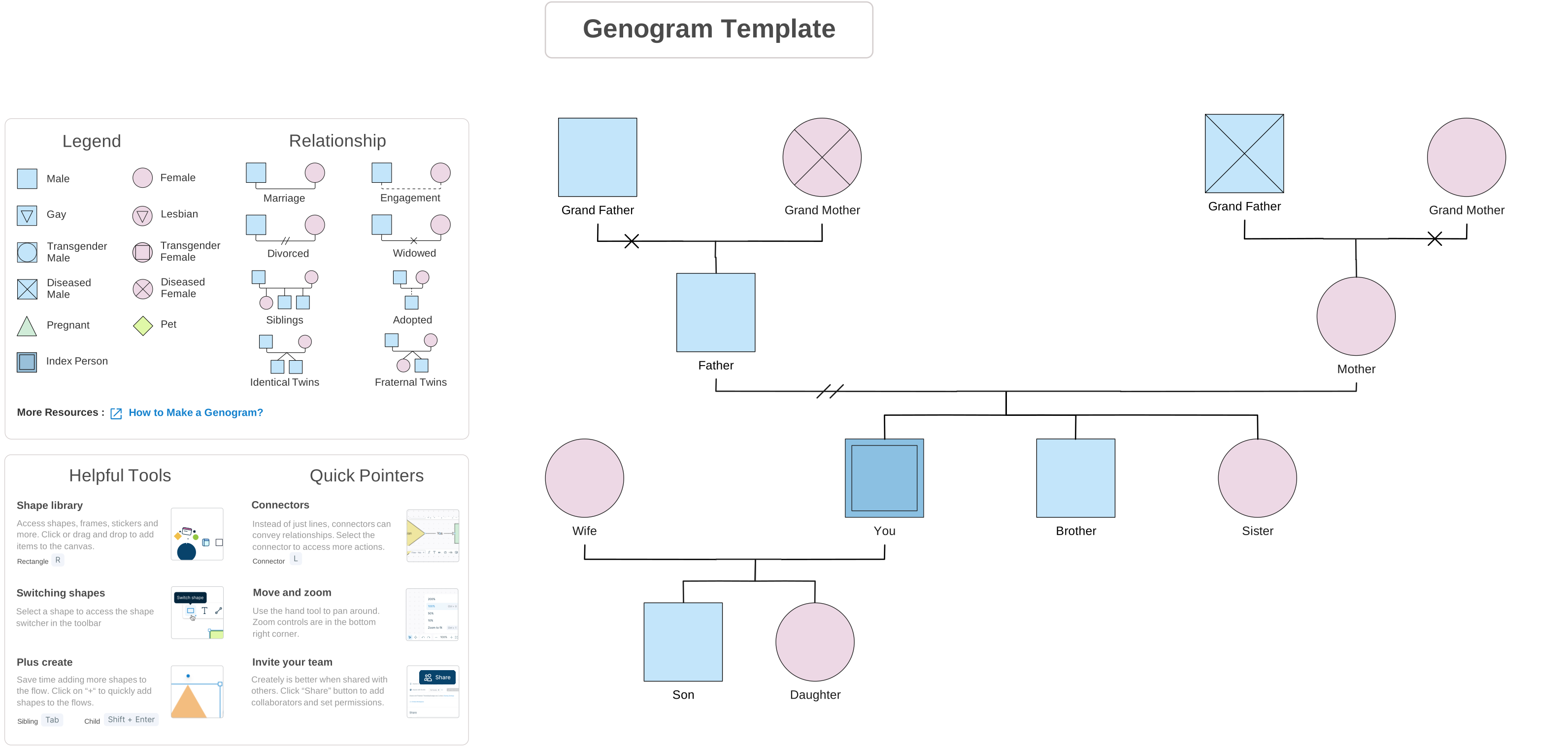
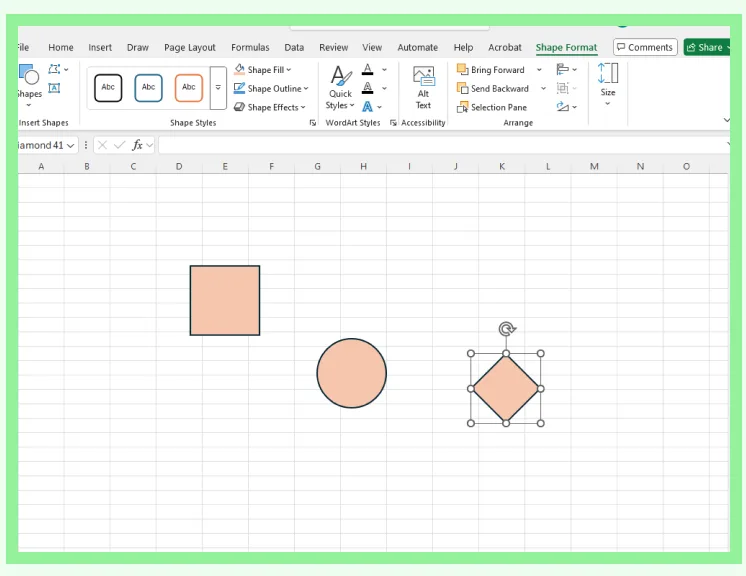
Go to Insert → Shapes and choose the standard genogram symbols:
- Square for male
- Circle for female
- Diamond for unspecified or unknown
You can type directly inside each shape to add names or details. Formatting shapes manually takes a bit of setup, but it ensures accuracy for traditional genogram standards.
Alternative: Using SmartArt You can also explore Insert → SmartArt to create a quick, family-tree–style layout, but it’s generally not suitable for genograms. SmartArt relies on fixed hierarchies, doesn’t allow genogram-specific symbols, and makes it difficult to show emotional or medical patterns. Because genograms require flexible placement and detailed notation, using Shapes offers far more accuracy and control.
Step 3: Add Relationship Lines
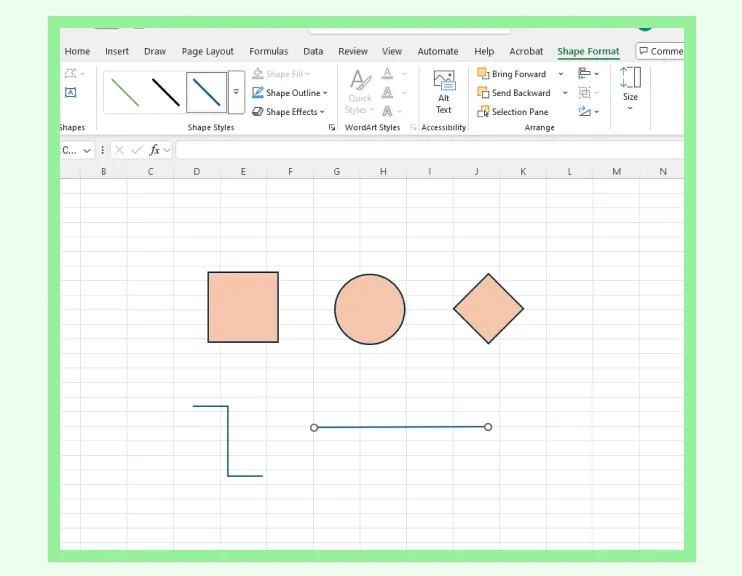
Use straight or elbow connectors to represent marriage, partnerships, and parent–child relationships. These connectors attach to shapes and move with them, though larger diagrams may require periodic alignment adjustments as complexity increases.
Step 4: Build Generations in Rows
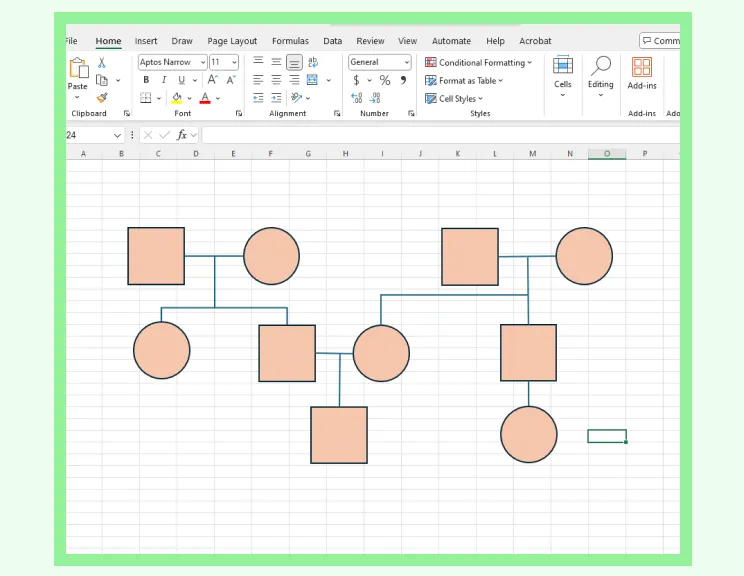
Arrange each generation horizontally: grandparents at the top, parents in the middle, children below. Use Align and Distribute tools to keep spacing neat and readable. Because Excel doesn’t auto-space diagram elements, this step is where most manual adjustment happens.
Step 5: Add Family Details and Patterns
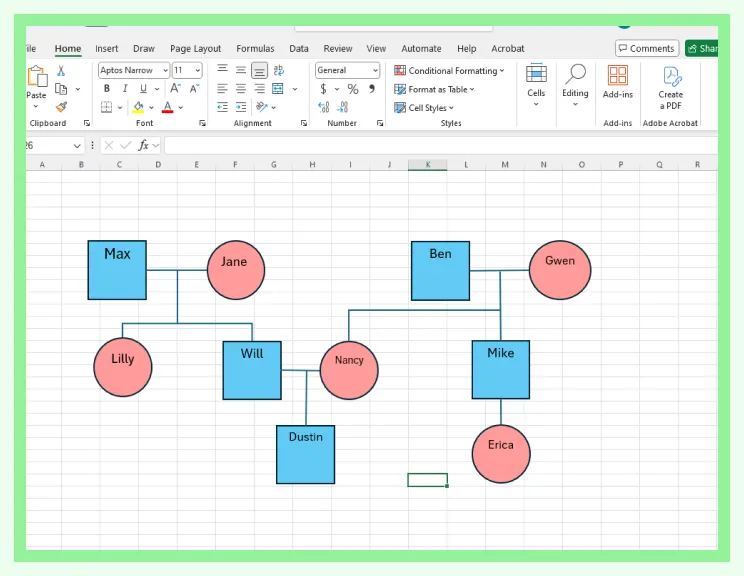
To capture genogram information such as medical history, emotional dynamics, or significant life events, you can:
- Add labels near individuals
- Use colored fills or outlines
- Insert small icons or symbols
Excel gives you flexibility here, though as more details are added, maintaining clarity may require careful placement.
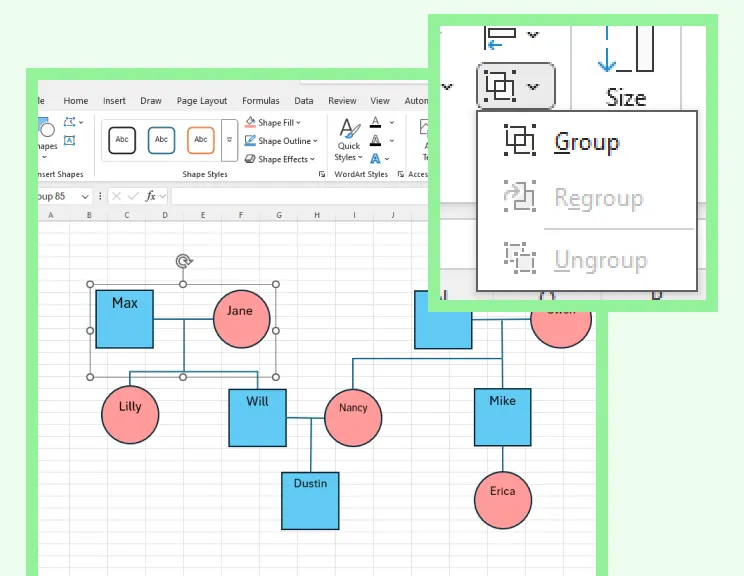
Step 6: Group and Organize
Once structure and details are in place, group related shapes and lines. This prevents accidental shifts and makes it easier to move entire sections if you need to reorganize the layout later.
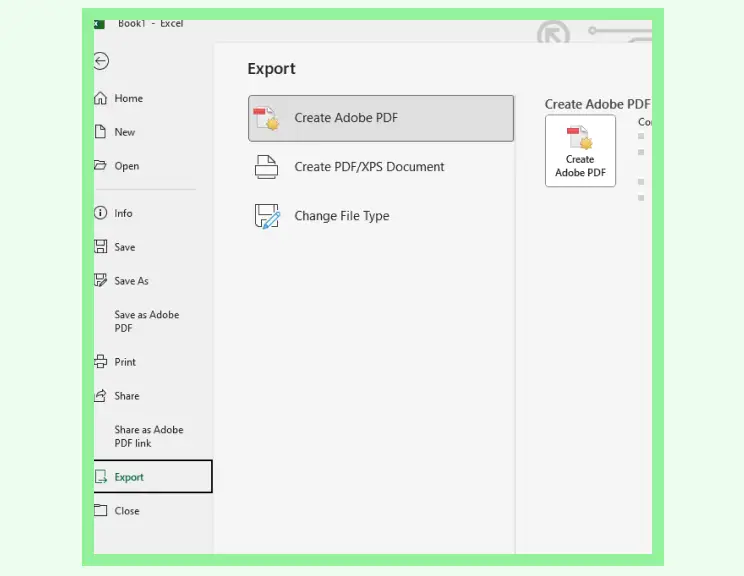
Step 7: Export or Print
Export your genogram as a PDF or adjust print settings to fit it onto a single page. This ensures your diagram remains clean and consistent when shared or printed.
Limitations of Making Genograms in Excel
Now that you understand how to do a genogram in Excel, let’s look at some of its limitations. Excel is great for simple visuals, but you’ll quickly notice a few challenges when trying to build and maintain more detailed genograms:
No built-in genogram symbols, so every element must be created and formatted manually.
Shapes and connectors need careful alignment, which becomes time-consuming as the diagram expands.
Excel doesn’t support automatic layout or spacing, making updates or structural changes require significant rearranging.
Emotional, medical, and behavioral patterns are harder to represent clearly without dedicated notation tools.
Large diagrams can become cluttered quickly, reducing readability and making it challenging to view the family system as a whole.
If you need more flexibility, clarity, and built-in genogram tools, a dedicated diagramming platform like Creately can make the process much smoother.
Why Use Creately to Build Genograms
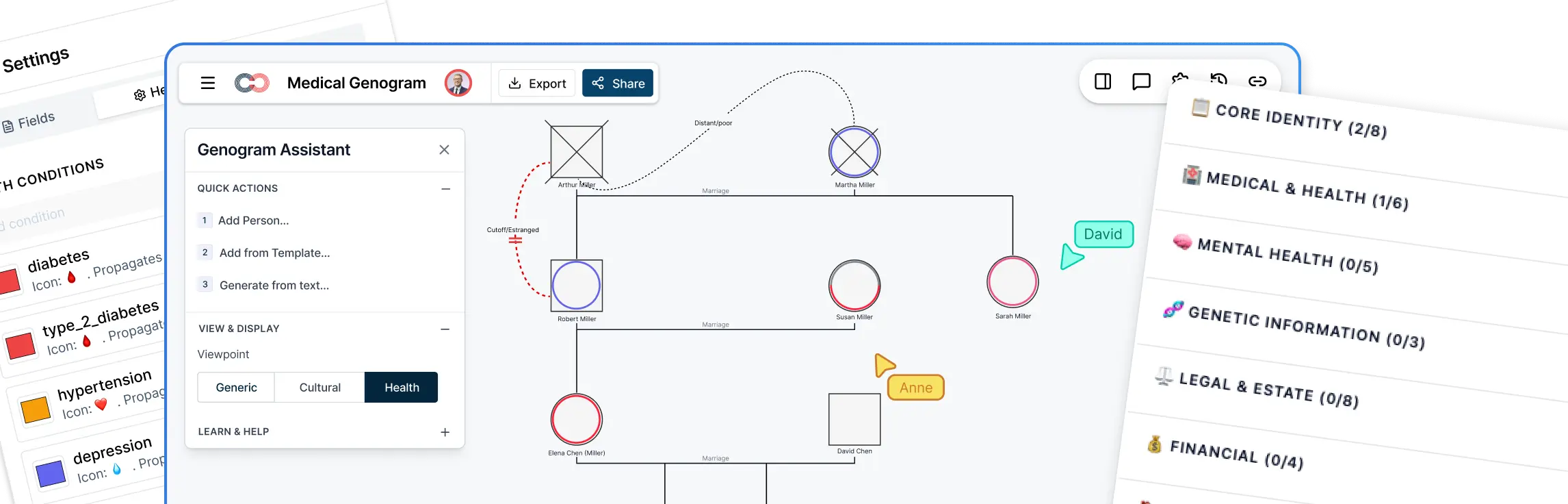
Ready to create a clear, accurate genogram without the manual work? Try Creately’s genogram maker and explore all the features built to make mapping detailed family diagrams faster, clearer, and far easier than doing everything by hand.
Purpose-Built Genogram Tools
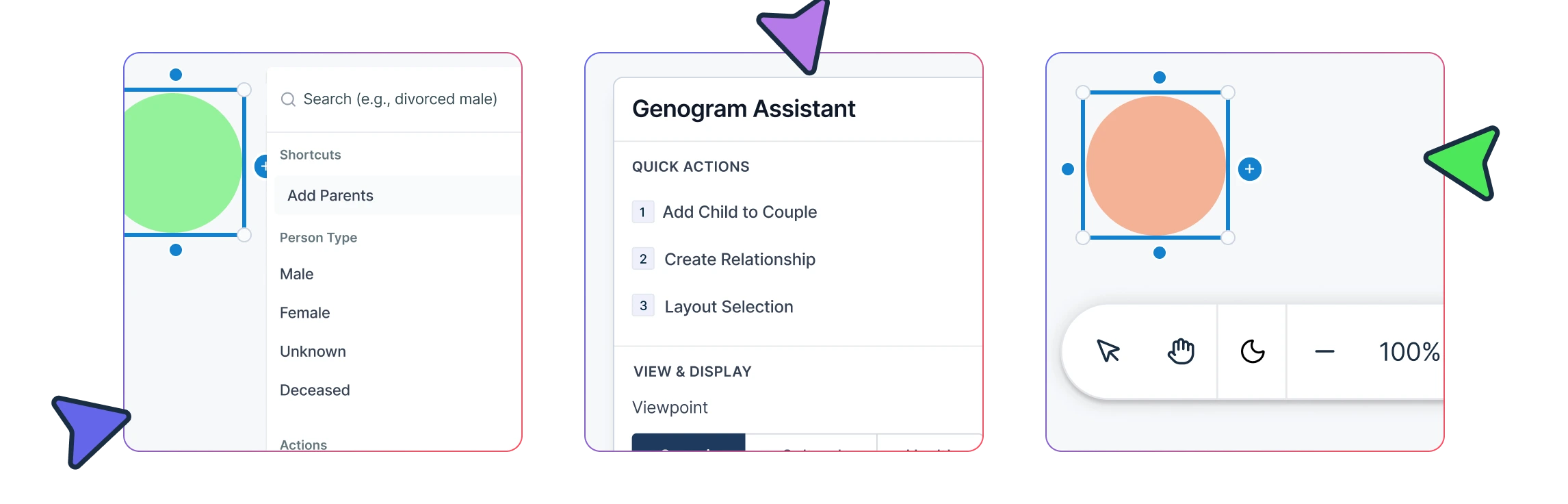
Comprehensive genogram symbols library for genders, relationships, and family structures.
Smart relationship and emotional connectors for marriages, separations, conflict lines, adoptions, and close bonds.
Child-connector bar for adding children quickly with clean, auto-adjusted spacing.
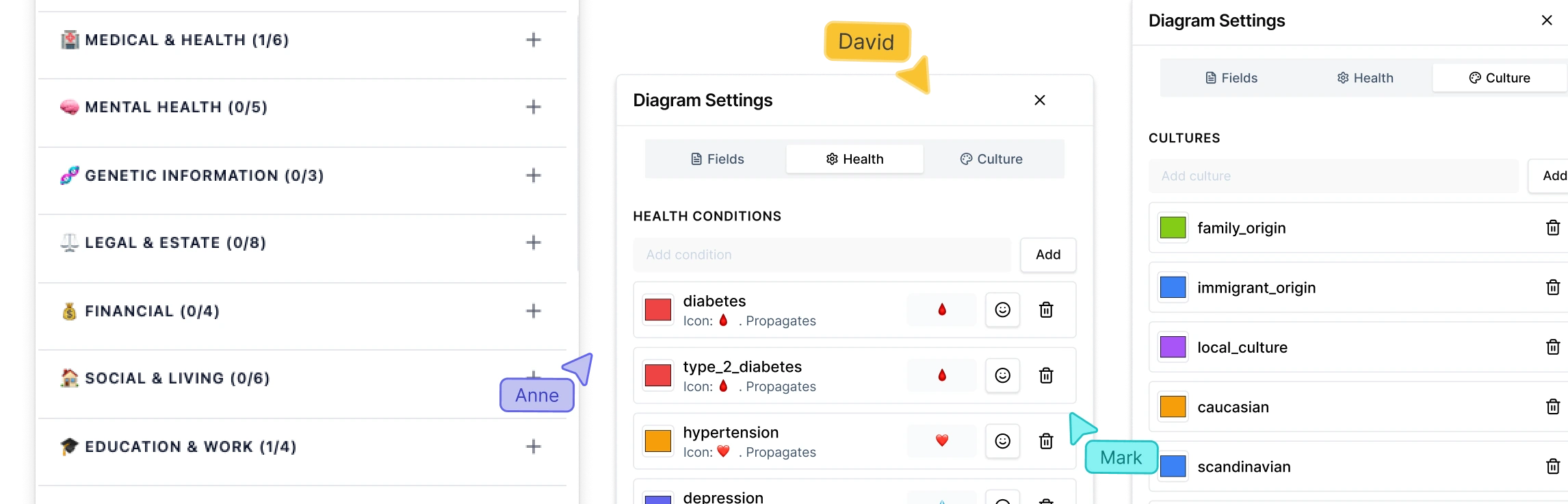
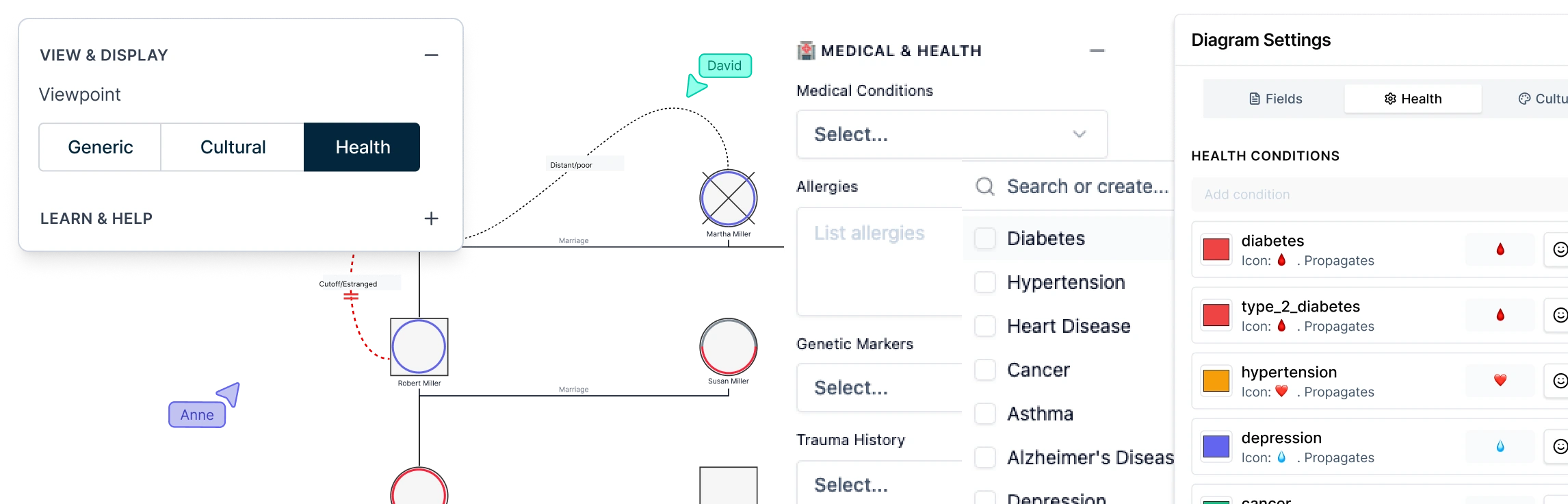
Color-coding options for medical, behavioral, emotional, or generational patterns.
Intelligent Layout & Diagram Flexibility
Auto-aligned family structures that keep generations tidy and evenly spaced.
Freeform infinite canvas for mapping multi-generational or blended families without space limits.
Easy drag-and-drop rearrangement with connectors that stay attached.
Side-by-side compare view to analyze patterns or changes across different genograms.
Templates, Notes & Contextual Detail
Customizable genogram templates for therapy, social work, education, and genealogy.
Ability to attach case notes, documents, migration details, or events directly to individuals.
Identity layers and tags for capturing traits, histories, or other contextual information.
Collaboration, Security & Sharing
Export options in PDF, PNG, SVG, and JPEG for reports, sessions, or teaching materials.
Secure sharing via password-protected links.
Access controls with Viewer, Commenter, and Editor roles.
Protected workspaces ideal for sensitive family information.
Excel Vs Creately Genogram Features Comparison
If you’re deciding whether to build your genogram in Excel or switch to a tool designed for visual mapping, this quick comparison highlights what each option makes easy, and where you might want more flexibility.
Feature | Excel | Creately |
Genogram Symbols | No built-in symbols; all shapes must be created manually | Full genogram symbol library (genders, relationships, emotional patterns) |
Relationship Connectors | Manual connectors that need frequent adjustment | Smart connectors that auto-align and stay attached when shapes move |
Layout Management | Fully manual; spacing must be adjusted shape by shape | Auto-aligned layouts that keep generations tidy and balanced |
Canvas Space | Limited to spreadsheet grid; large diagrams become cramped | Infinite canvas ideal for multi-generation or complex family structures |
Emotional & Medical Patterns | Must be created manually with shapes, colors, or text | Built-in emotional, medical, and behavioral markers |
Adding Children | Requires manual drawing and alignment | Smart child-connector bar auto-distributes spacing |
Templates | None; must build from scratch | Ready-to-use templates for therapy, social work, genealogy, and education |
Data & Notes | Notes added manually as text boxes | Attach case notes, documents, and contextual metadata to individuals |
Comparison View | Not available | Side-by-side compare mode for analyzing patterns or generational changes |
Export Options | Standard Excel exports (PDF, PNG via print) | High-quality PDF, PNG, SVG, JPEG exports |
Collaboration | Limited; file sharing only | Real-time collaboration with roles (Viewer, Commenter, Editor) |
Security | Password protection for entire workbook only | Secure, role-based access with password-protected workspaces |
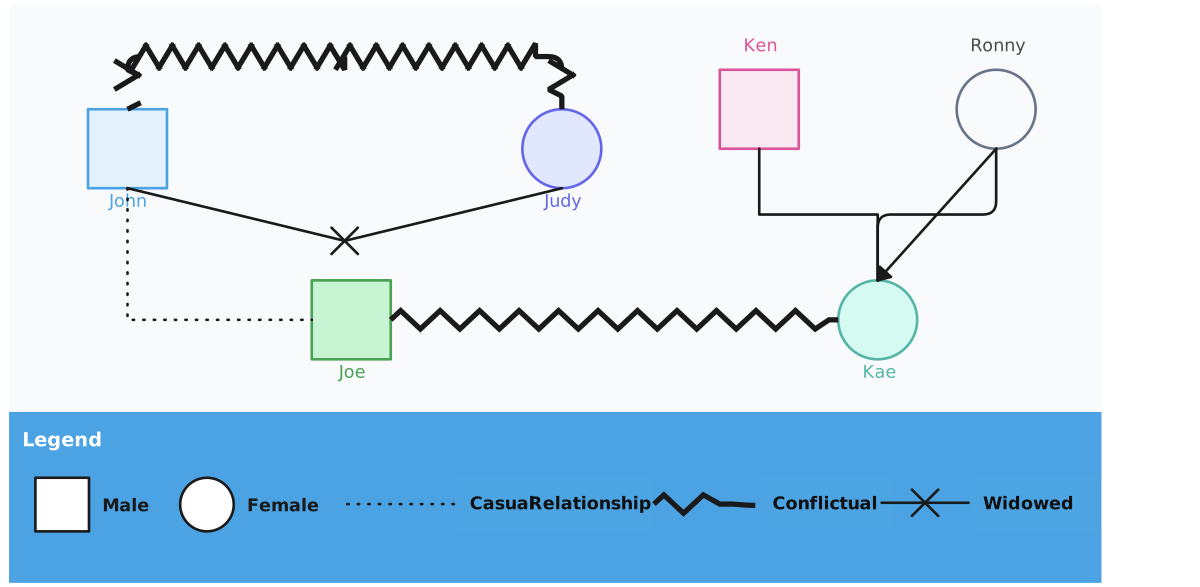
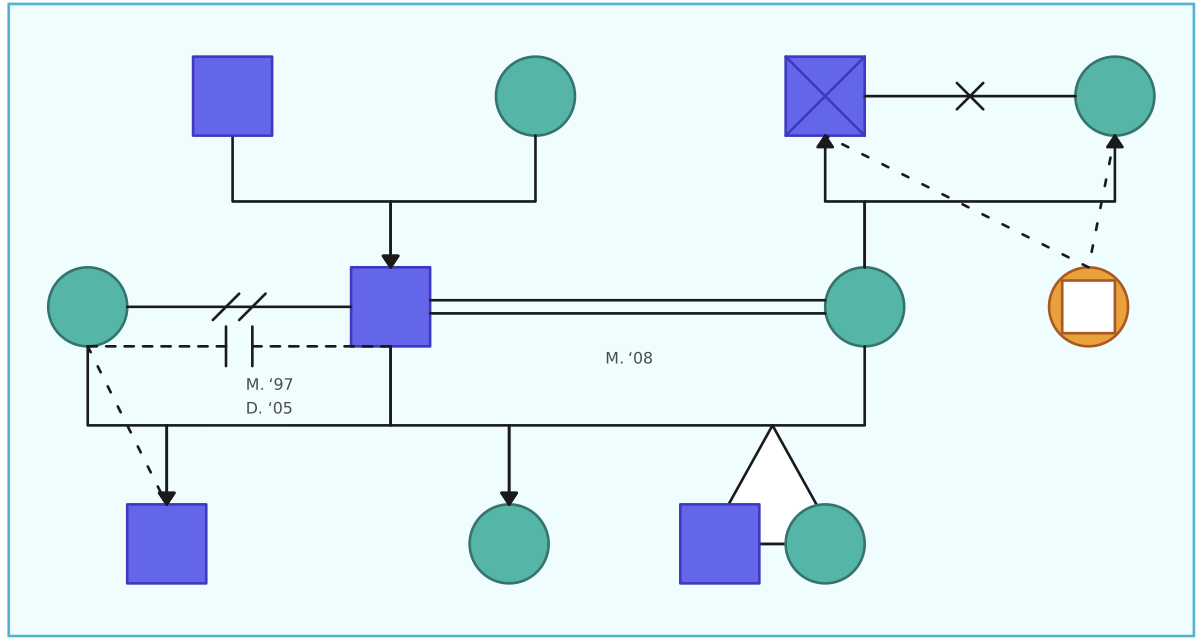
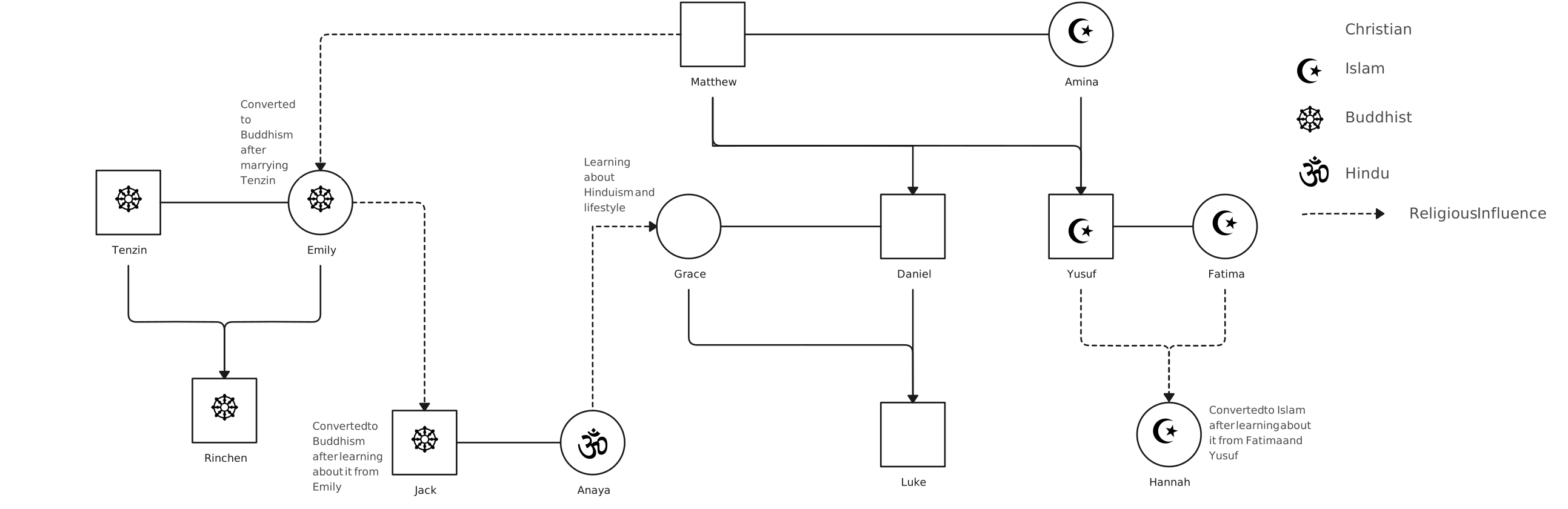
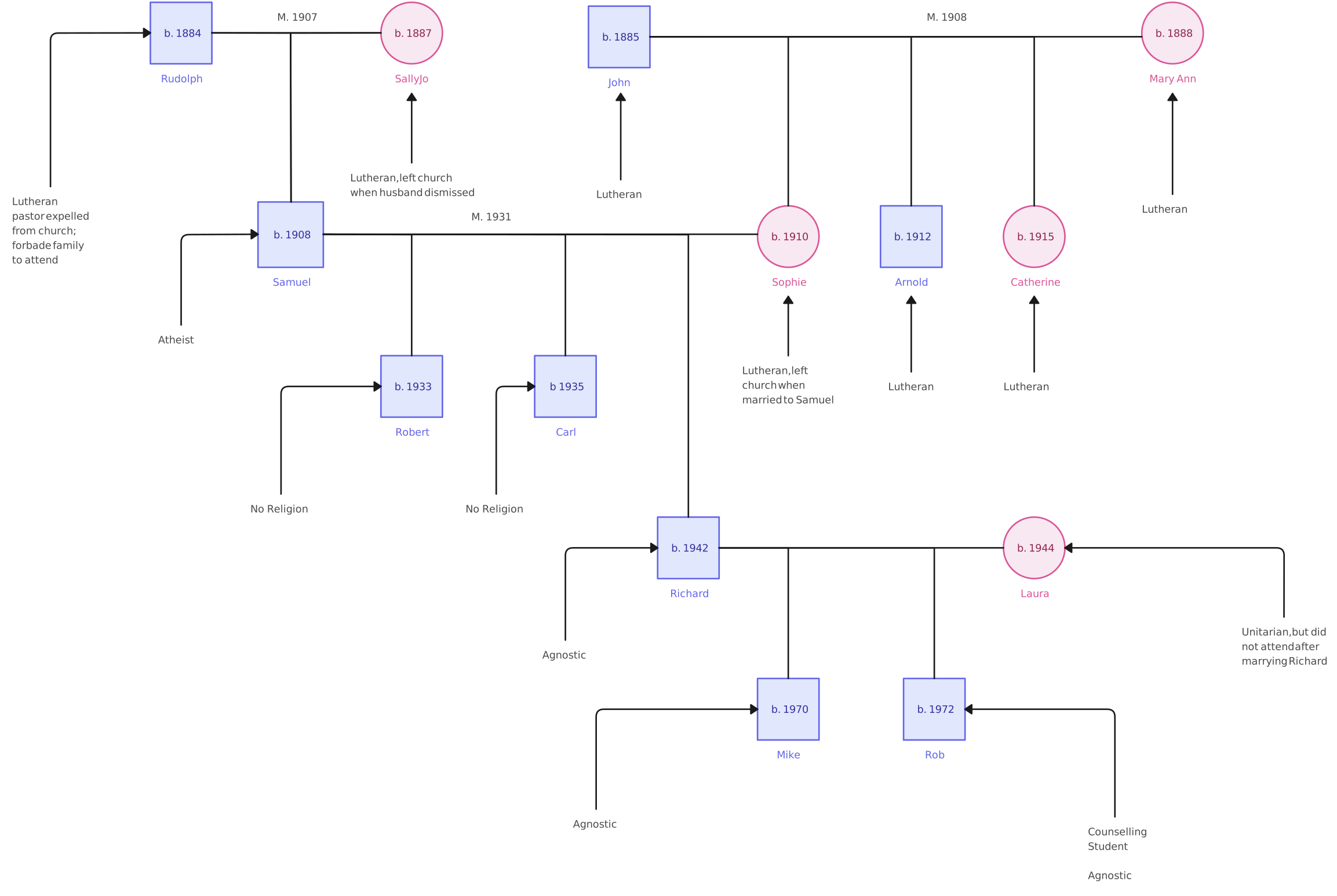
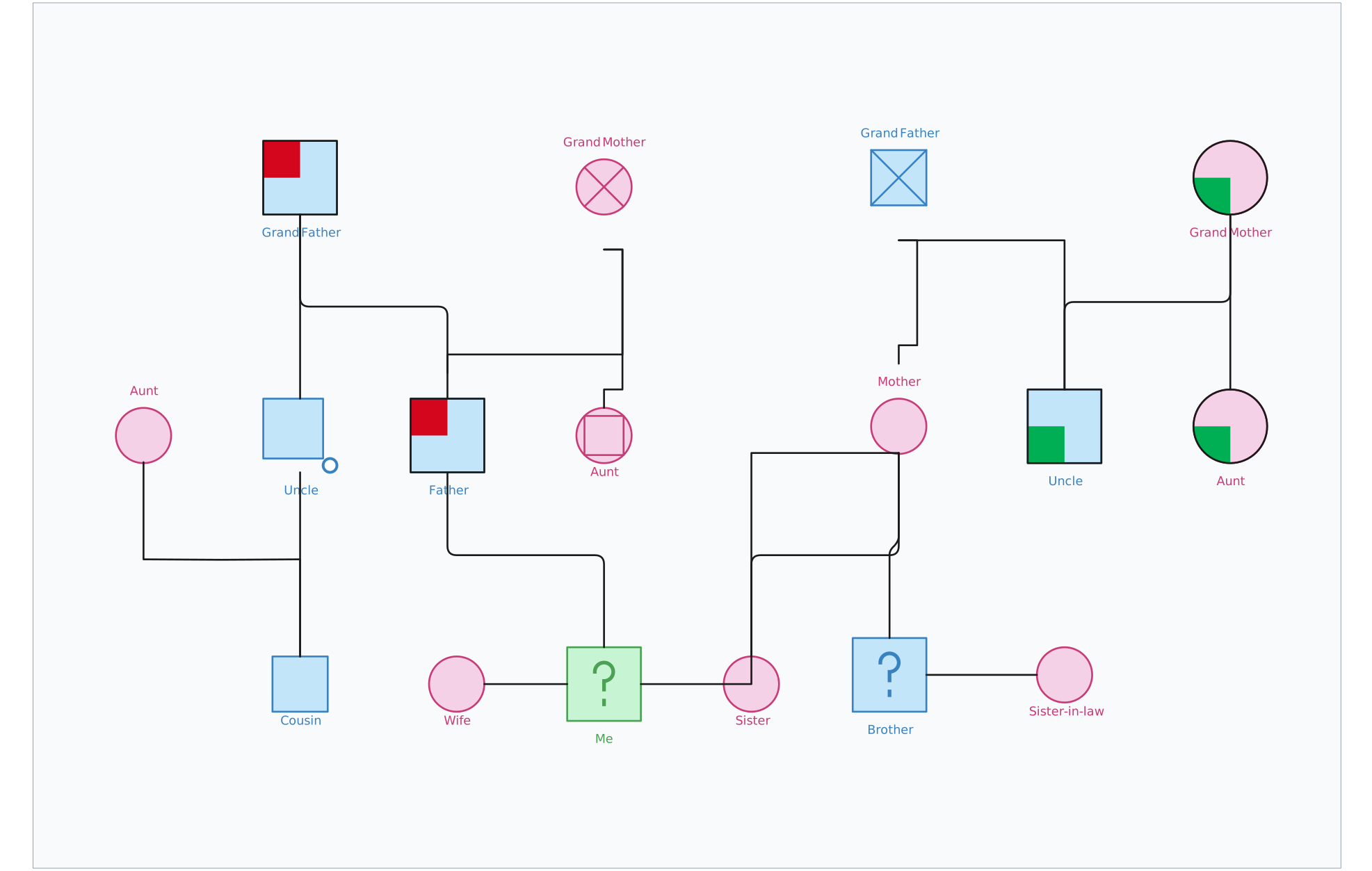
Free Genogram Templates to Get Started



Helpful Resources for Building Genograms
Learn how to use Creately to make a genogram in 7 steps.
Learn how to use Microsoft Word to make a genogram.
Learn how to use Microsoft PowerPoint to make a genogram.
Learn how to use Google Docs to make a genogram.
Discover the different symbols used in building genograms.