This guide walks you through how to create a mind map in Excel in a simple, friendly way so you can turn scattered thoughts into a clear visual plan. You’ll learn what a mind map is, the exact steps to build one using Excel’s tools, where the method starts to feel limiting, and the smarter alternatives available. By the end, you’ll know exactly how to structure your ideas quickly and confidently.
What is a Mindmap?
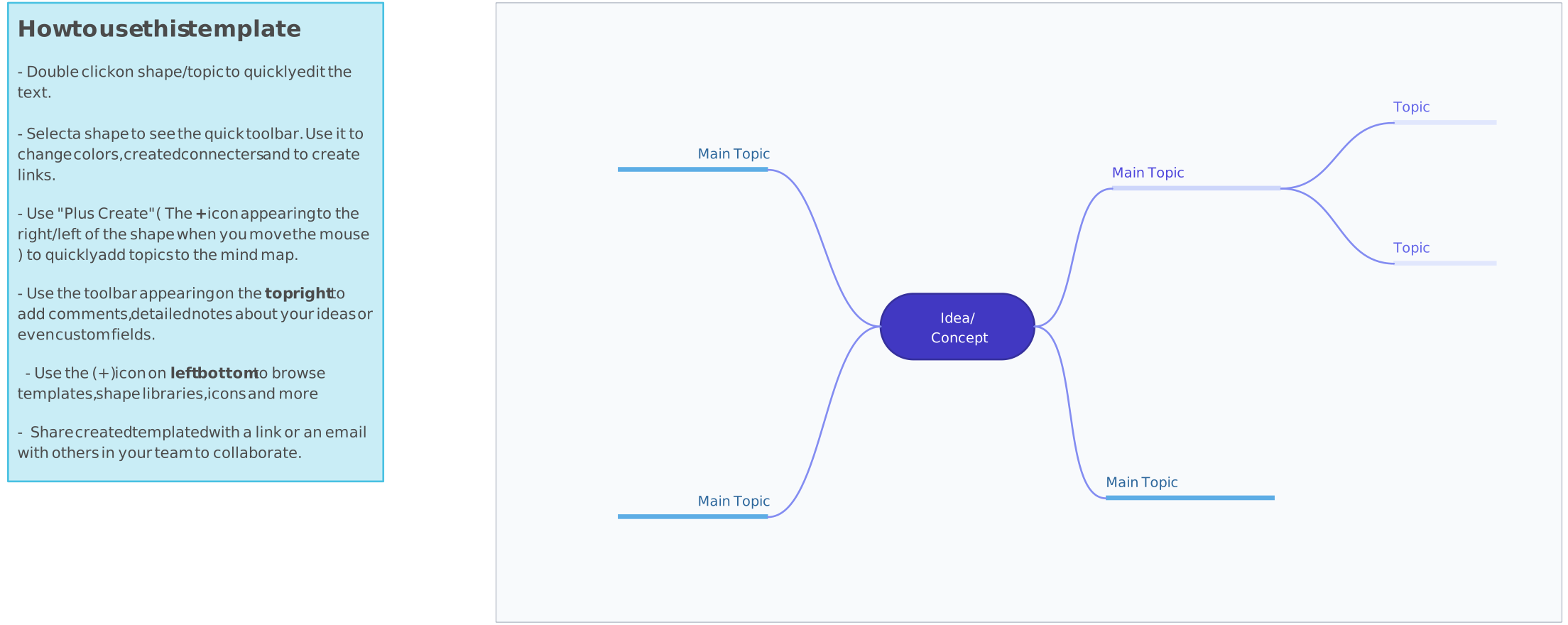
A mind map is a simple visual way to untangle everything swirling in your head. Instead of staring at a long list or a blank page, a mind map lets you start with one idea in the center and branch out naturally, just like your thoughts do. It helps you see connections, spot gaps, and organize ideas without overthinking the structure. Whether you’re planning a project, studying, or brainstorming something new, a mind map gives you a clear, creative space to think faster and make sense of everything at a glance.

How to Make a Mindmap in Excel
If you’ve ever wondered how to create a mind map in excel without getting overwhelmed by shapes and lines, these simple steps will guide you through the process in a clear, friendly way.
Step 1: Start with a blank worksheet
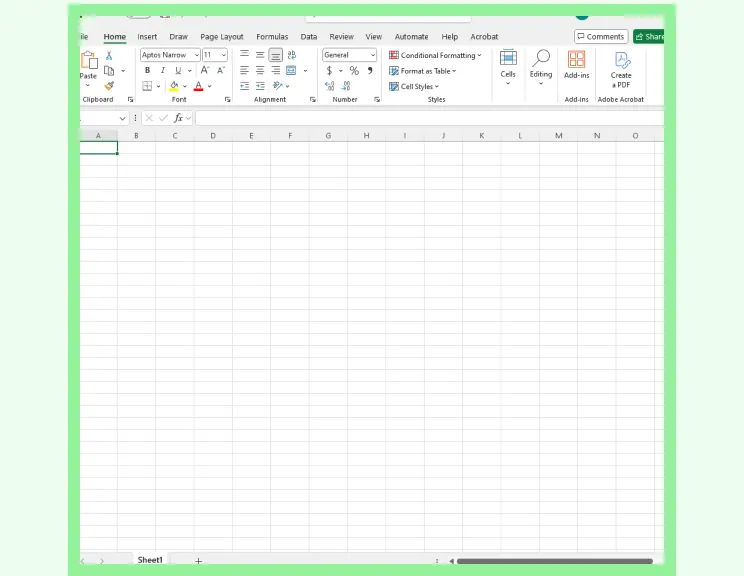
Open a clean Excel sheet to give yourself plenty of room to think. You won’t be using the grid like you normally do and this space becomes your makeshift canvas. Excel isn’t built specifically for freeform diagrams, but it gives you enough flexibility to get started.
Step 2: Add your central idea
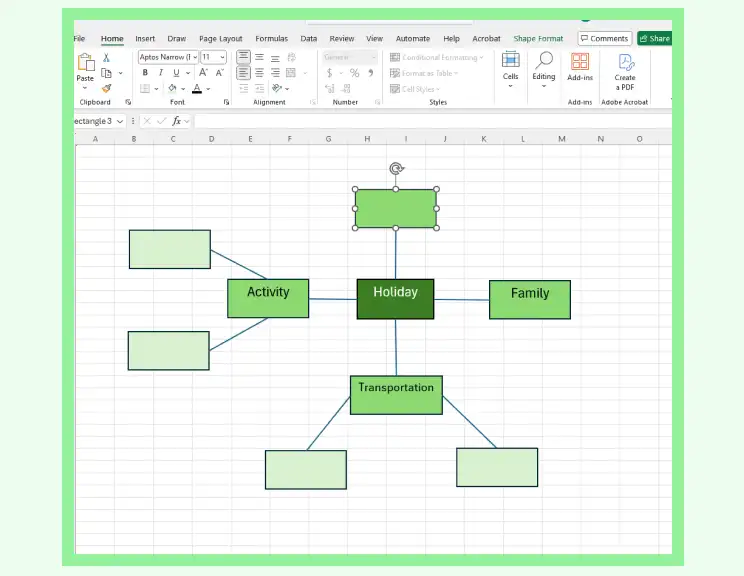
Insert a shape and place it in the middle of the sheet. Type in your main topic. This becomes the heart of your mind map, the idea everything else connects back to. Keeping it short and clear makes expanding your map much easier.
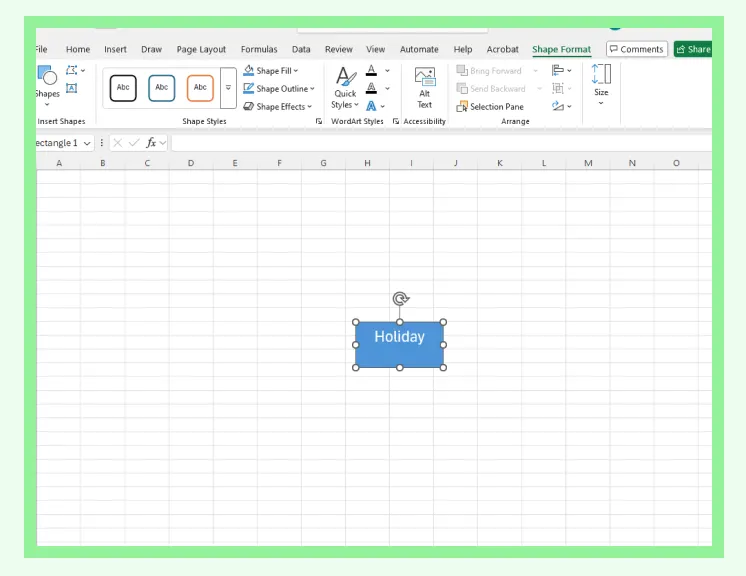
Alternative: If you prefer something pre-formatted, you can use SmartArt, but it tends to feel more rigid than working with simple Shapes.
Step 3: Create branches for your main categories
Add shapes around your central idea to represent your core themes. Spread them out so you don’t feel cramped later. Since Excel won’t organize your layout automatically, giving yourself generous spacing from the start helps your map stay clean as it grows.
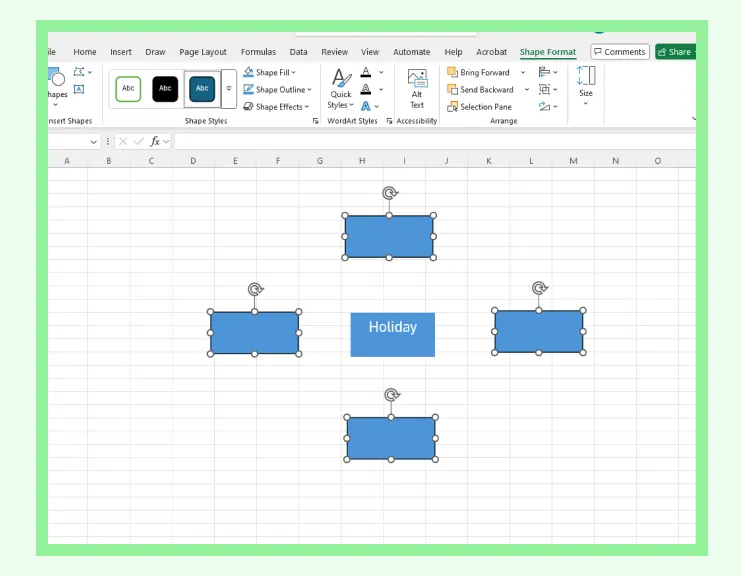
Alternative: SmartArt lets you add nodes quickly, but you may find its layout harder to customize freely.
Step 4: Connect your ideas with lines
Use the “Lines” tool to draw connectors from your central idea to each branch. Adjust the angles so the map feels readable and balanced. Excel’s connectors won’t reposition themselves when you move shapes, so expect to do a bit of quick tidying as you refine the layout.
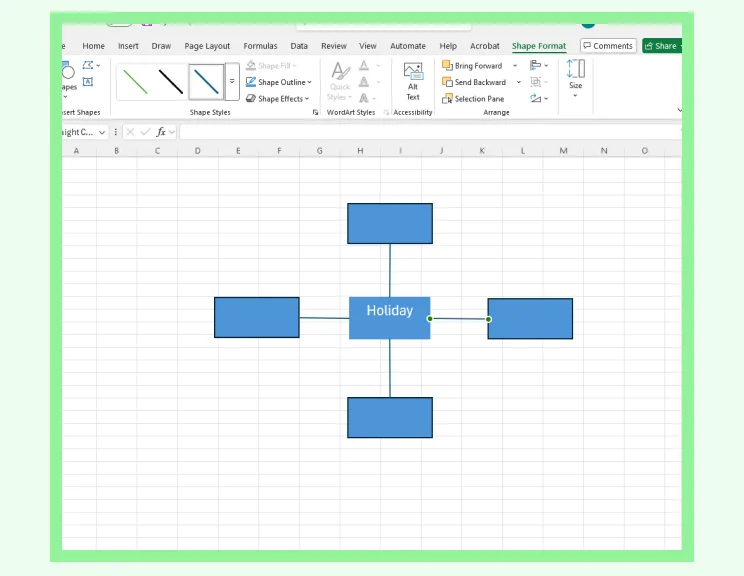
Step 5: Add sub-ideas and supporting points
Expand your main branches by adding smaller shapes. These could be notes, examples, tasks, or anything that completes the picture. As your map becomes more detailed, move items around until everything has enough breathing space.
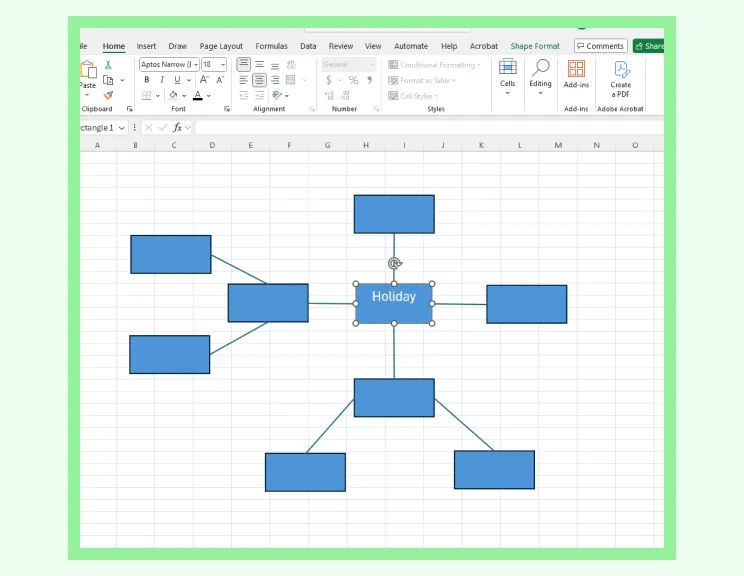
Step 6: Style your mind map for clarity
Apply color coding, bold headings, or different shape styles to make your map easier to understand at a glance. SmartArt offers ready-made design themes if you want a quick visual upgrade, while Shapes let you fine-tune every detail manually. Both work—just choose what feels faster for you.
Step 7: Review, rearrange, and refine
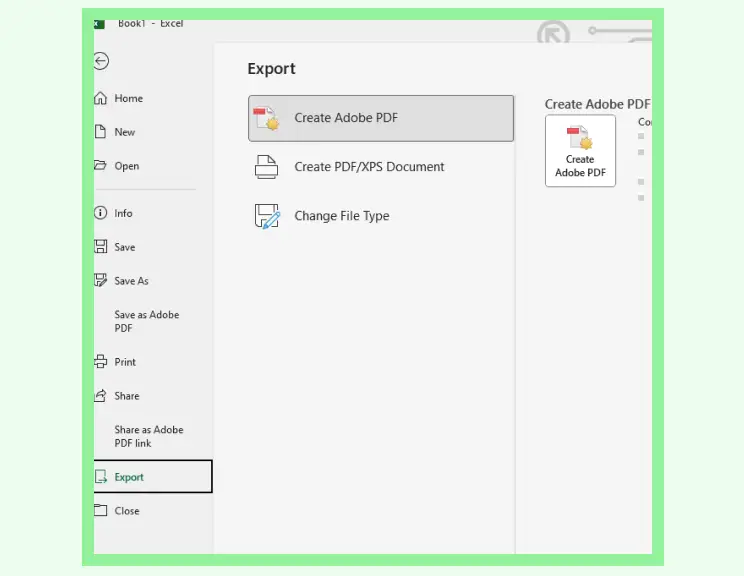
Once your mind map looks the way you want, export it so you can use it outside Excel. You can save the worksheet as a PDF, take a screenshot, or copy the diagram into PowerPoint or Word. Just keep in mind that Excel doesn’t offer specialized export options for diagrams, so choosing the right format helps keep your layout intact and easy to share with your team or class.
Drawbacks of Mind Mapping with Excel
Even though Excel can help you sketch out a simple mind map, there are a few limitations that become noticeable as your ideas grow. Here’s what to keep in mind before you dive into mind mapping in Excel:
Everything has to be arranged manually, which can slow you down once your map grows. Moving one Shape often means adjusting the lines and spacing around it too.
Connectors don’t stay attached when you shift things around, so you may find yourself constantly fixing lines just to keep the map readable.
Layouts can get cramped quickly, since Excel wasn’t designed for freeform visual thinking. You have to create your own structure instead of relying on automatic organization.
No auto-branching or smart hierarchy, meaning you need to build every layer of your map piece by piece. Great for control, but not ideal when you’re trying to think fast.
Formatting takes more effort—colors, styles, and spacing all require hands-on adjustments, especially in bigger maps.
Exporting isn’t optimized for diagrams, so sharing your mind map sometimes means screenshots or workarounds to keep everything looking sharp.
Creativity can feel a bit boxed in, since Excel is built for data, not visual brainstorming. It works, but it doesn’t always feel intuitive or fluid.
If you ever feel like you’re fighting the tool instead of thinking freely, a dedicated visual workspace like Creately can make the whole process much smoother.
Benefits of Using Creately for Mindmapping
Creately’s mind map creator gives you a space built specifically for fast thinking, smooth collaboration, and clean visual organization—everything that feels a bit tricky to manage in Excel. Here’s how its features come together to make mind mapping noticeably easier.
Visual Clarity & Layout
Auto-organizing branches keep the mind map clean and balanced as it grows.
Beautiful themes and smart formatting make your ideas look polished instantly.
An infinite canvas gives you unlimited room to expand without feeling cramped.
Speed & Ease of Use
Ideas flow faster with a freeform workspace that feels natural to use.
Ready-made mindmap templates for every scenario help you start quickly without facing a blank page.
AI-Powered Mind Mapping
Generate a complete mind map instantly from a simple prompt using the AI mind map generator.
Expand or refine branches with AI suggestions to develop deeper insights.
Turn messy notes into structured, visually clear mind maps without manual layout work.
Collaboration & Teamwork
Real-time collaboration lets teammates join, comment, and build ideas together.
Easy linking and embedding help you connect notes, documents, and related diagrams seamlessly.
Presentation mode gives you a clean, distraction-free view, perfect for walking teams through project plans, workflows, or strategy diagrams during meetings.
Sharing & Accessibility
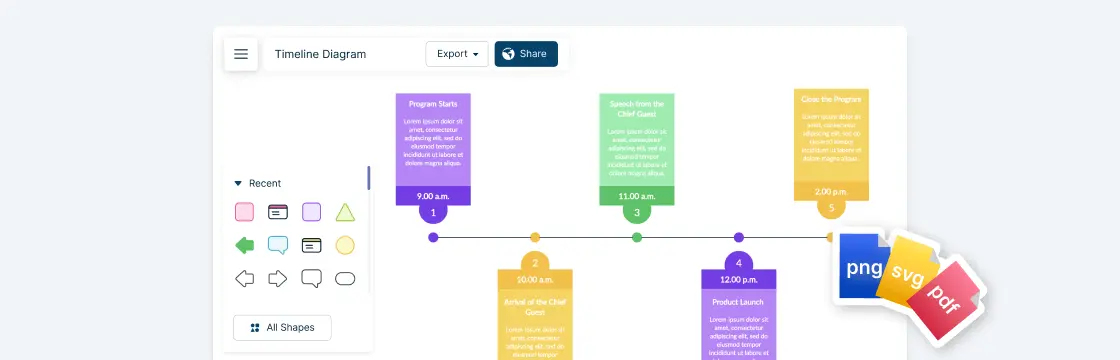
Smooth exporting in PNG, SVG, PDF, and presentation-ready formats.
Share your diagram instantly with a link, allowing others to view or collaborate without needing to download or manage large files.
Creately Vs Excel Mindmapping Features Comparison
If you’re trying to decide whether to do mind mapping in Microsoft Excel or switch to a dedicated visual workspace, this quick comparison shows how the two tools stack up side by side.
Feature / Experience | Creately | Excel |
Freeform Canvas | Infinite, flexible workspace built for visual thinking | Limited to worksheet space; feels restrictive for larger maps |
Layout & Organization | Auto-organizing branches and smart positioning | Fully manual; shapes and lines need constant adjustment |
Connectors | Stay attached and adjust as you move ideas | Move independently; require retouching and realignment |
Templates | Mind map templates for brainstorming, planning, studying | No mind map templates; must build from scratch |
Styling | Ready-made themes and consistent formatting | Manual formatting; time-consuming with bigger maps |
Collaboration | Real-time multi-user editing and comments | No real-time collaboration for diagrams |
Linking & Notes | Attach files, notes, and links directly to nodes | Limited; mostly text placed inside shapes |
Exporting | High-quality PNG, SVG, PDF, and presentation exports | Basic exports; often requires screenshots |
Ready to build a mind map without the struggle? Jump into our step-by-step guide on how to make a mind map in Creately and start mapping your ideas effortlessly.
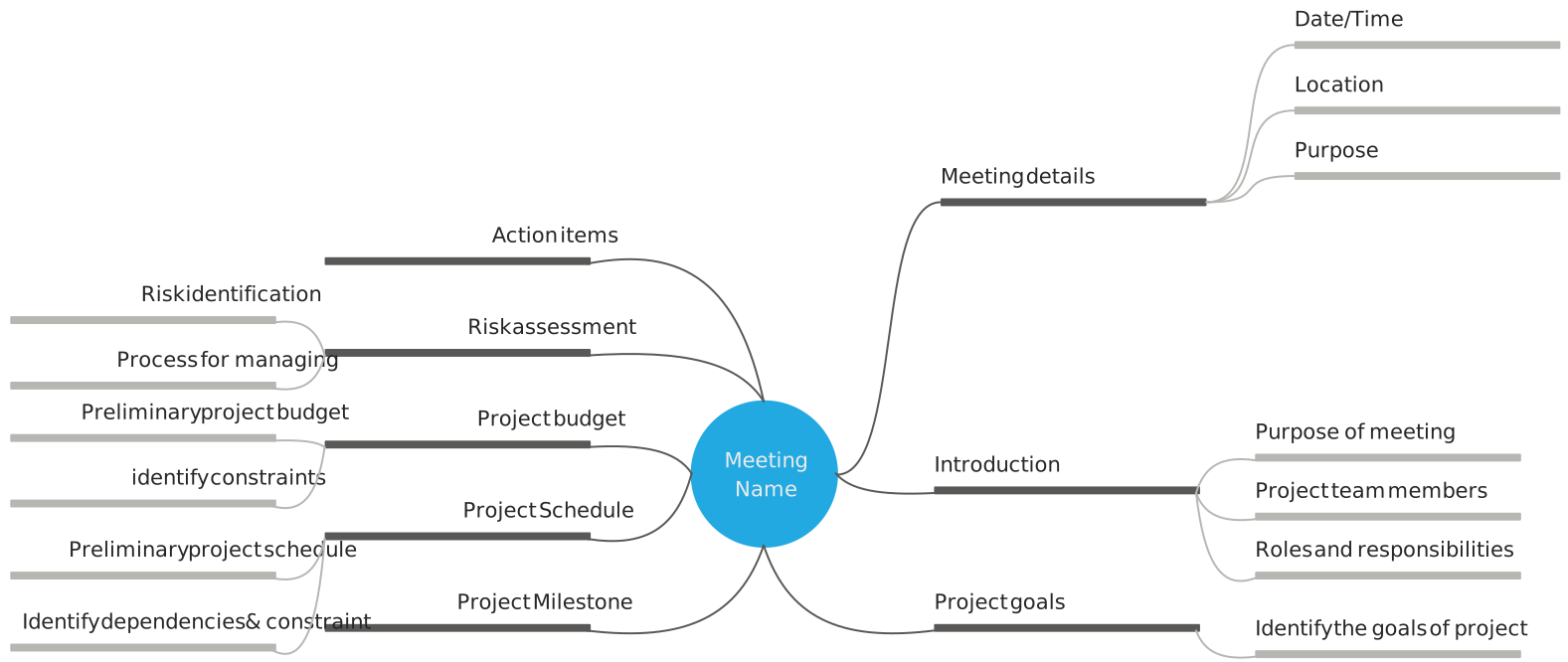
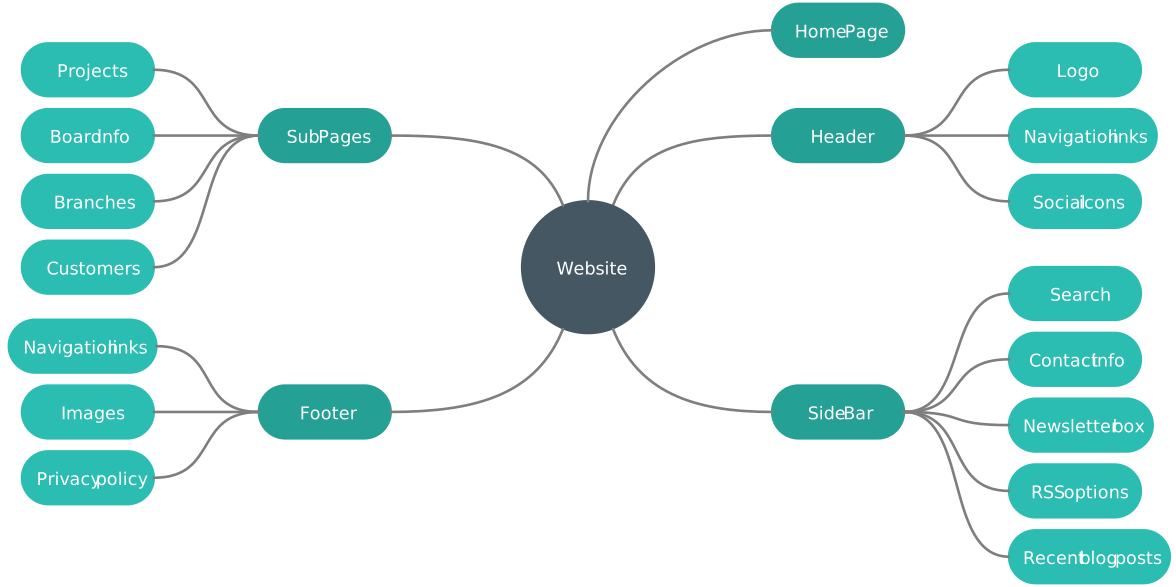
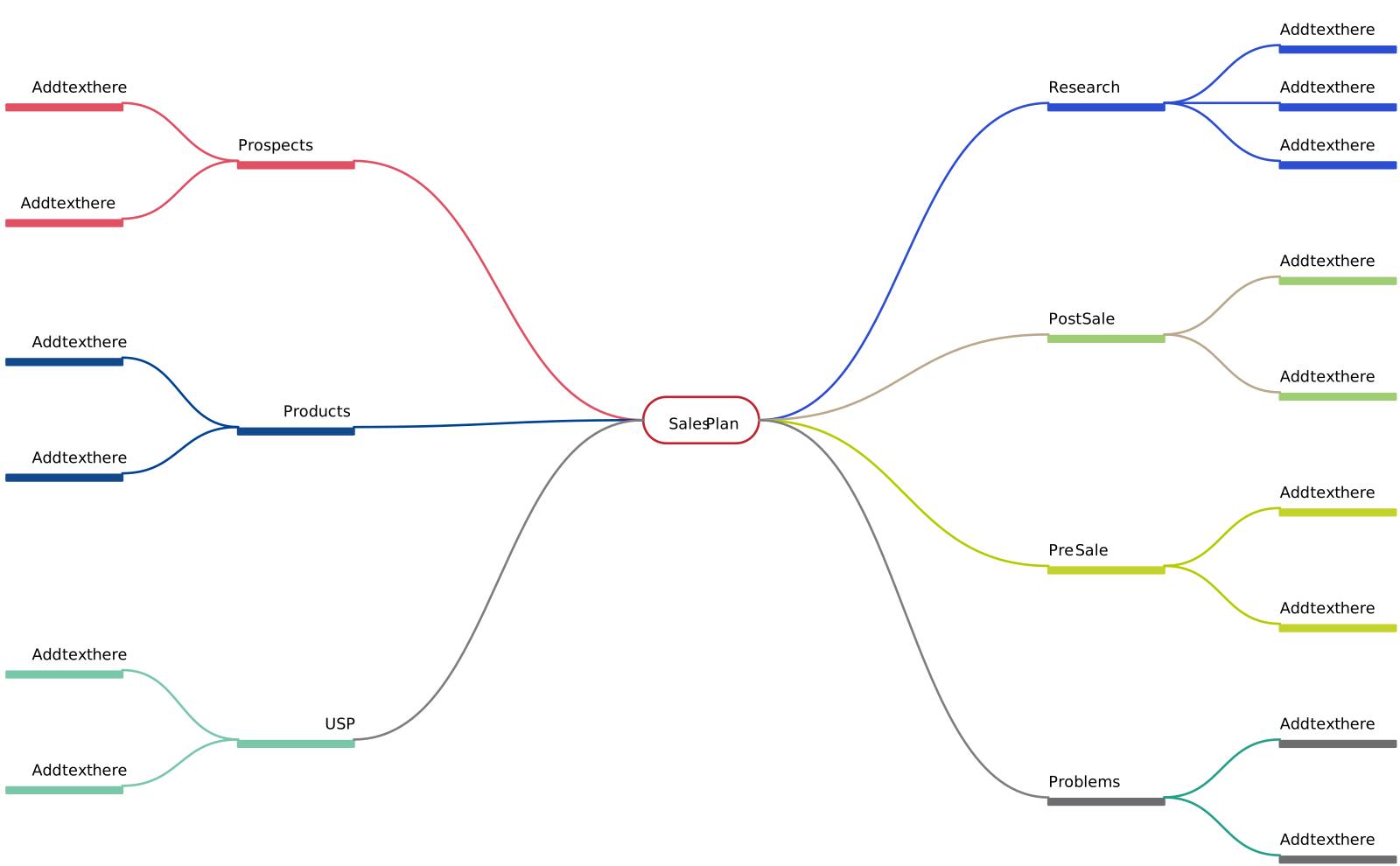
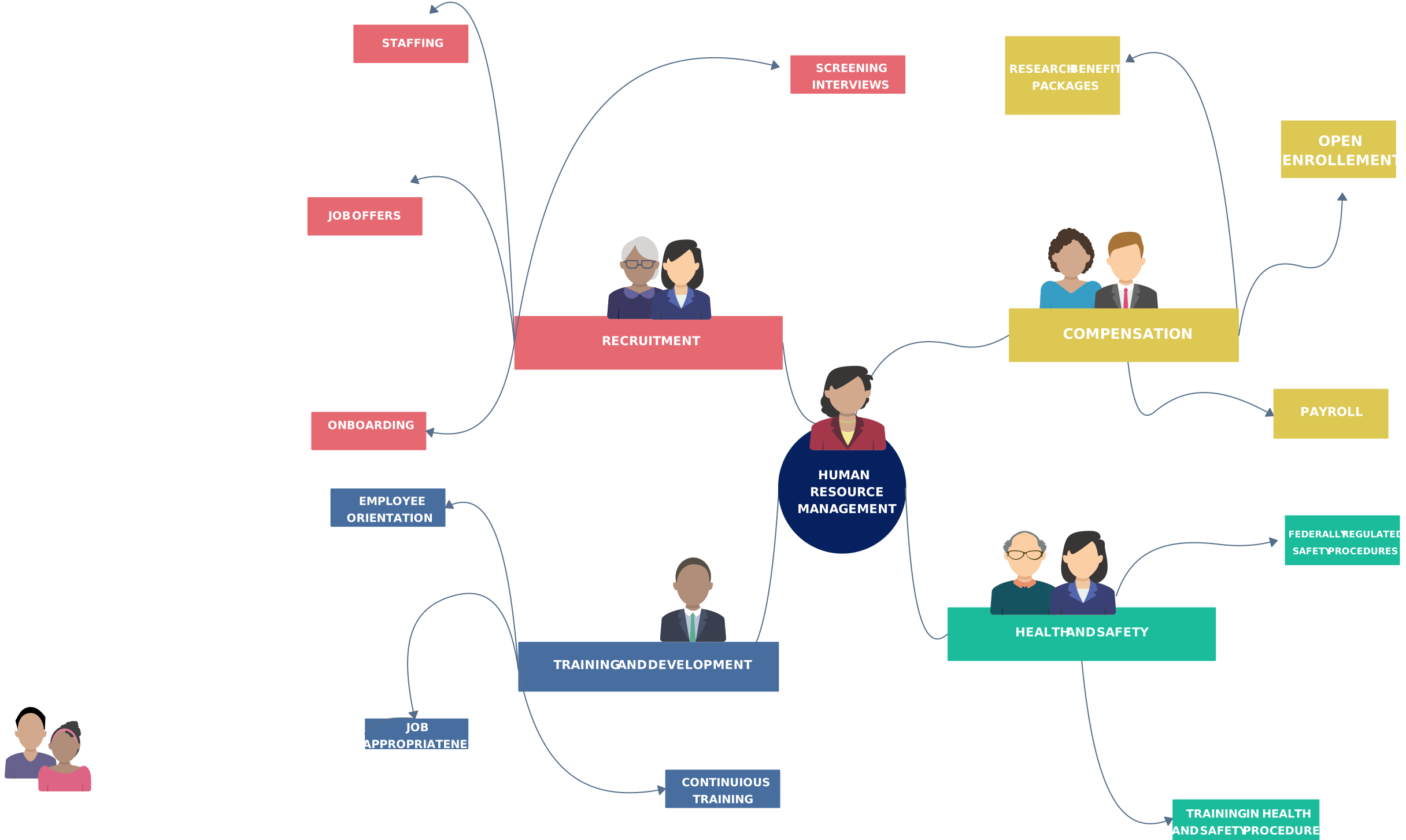
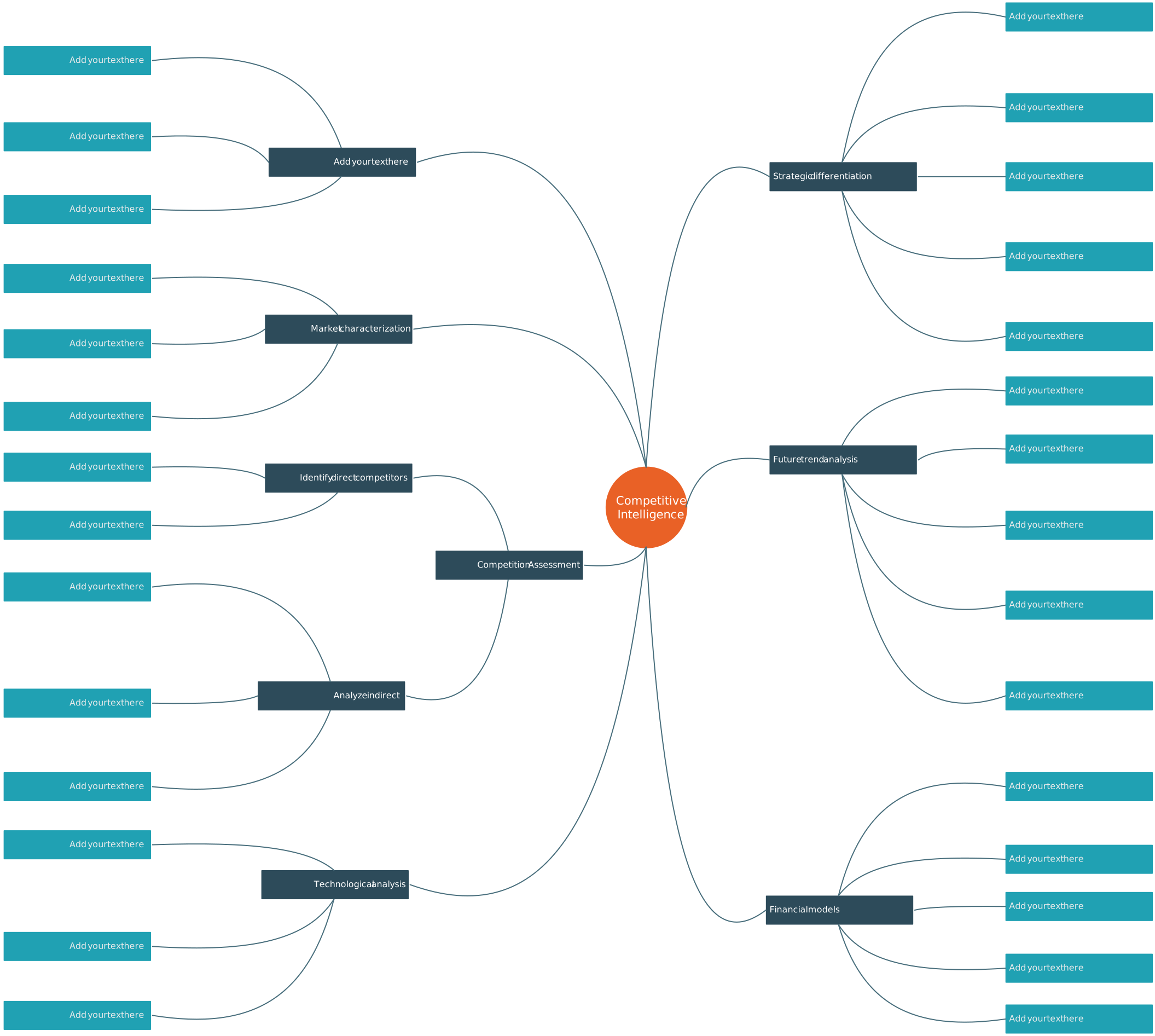
Free Mindmap Templates to Get Started



Helpful Resources for Building Mindmaps
Discover different ways to make mindmaps.
Learn about the differences between a concept map and a mind map.
Learn how to make a Mindmap using Microsoft PowerPoint.