This guide shows you how to draw a mind map in PowerPoint in a clear, approachable way, helping you turn scattered ideas into a structured visual. You’ll get a quick overview of what a mind map is, learn the step-by-step process to build one using PowerPoint, understand where the tool starts to feel challenging, and explore an easier alternative. By the end, you’ll feel confident organizing your ideas into a mind map that’s clean, clear, and presentation-ready.
What is a Mindmap?
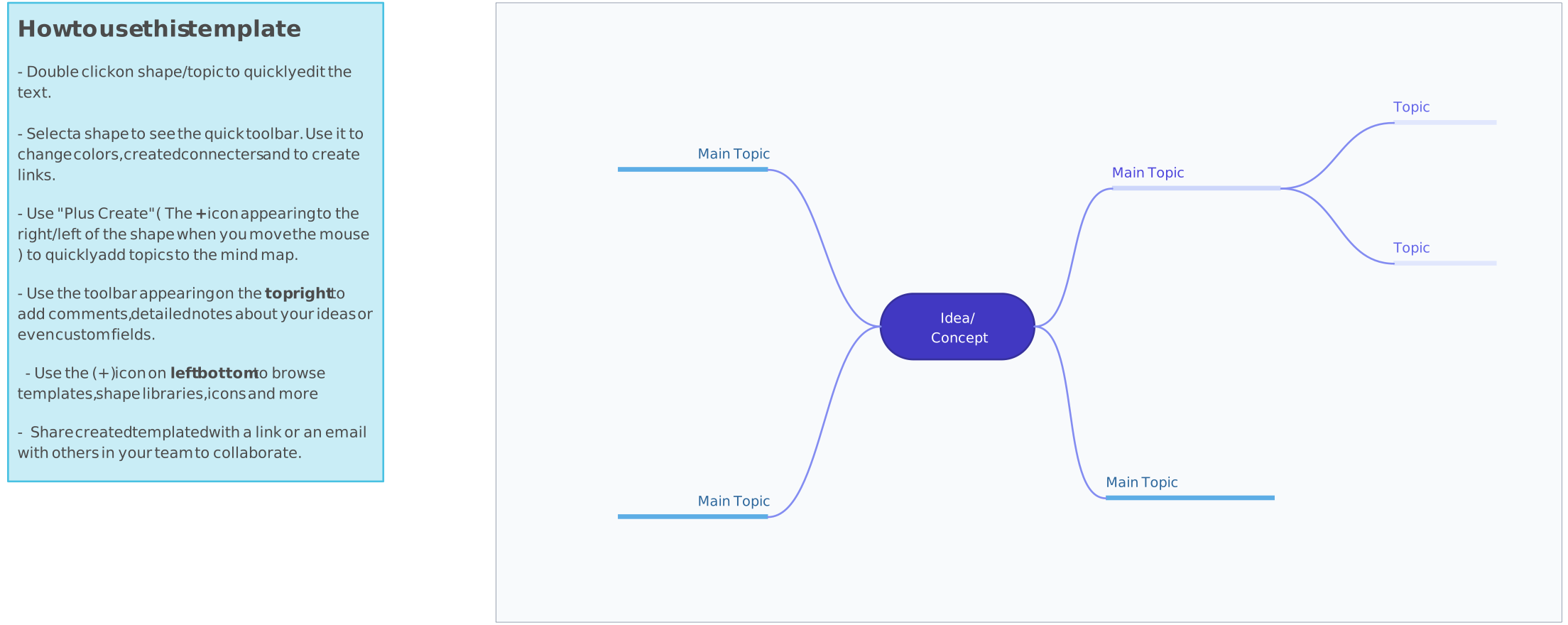
A mind map gives you a simple visual way to sort through all the ideas buzzing around in your head. Instead of facing a blank page or a long, overwhelming list, you place one main idea in the center and let your thoughts branch out naturally from it. This helps you spot patterns, uncover missing pieces, and organize information without getting stuck on structure. Whether you’re brainstorming, studying, or planning a project, a mind map offers a clear and creative space to think more freely and make sense of everything at a glance.

How to Create a Mind Map in PowerPoint
Before you start building your mind map, here’s a simple walkthrough that shows exactly how to create one in PowerPoint without feeling overwhelmed.
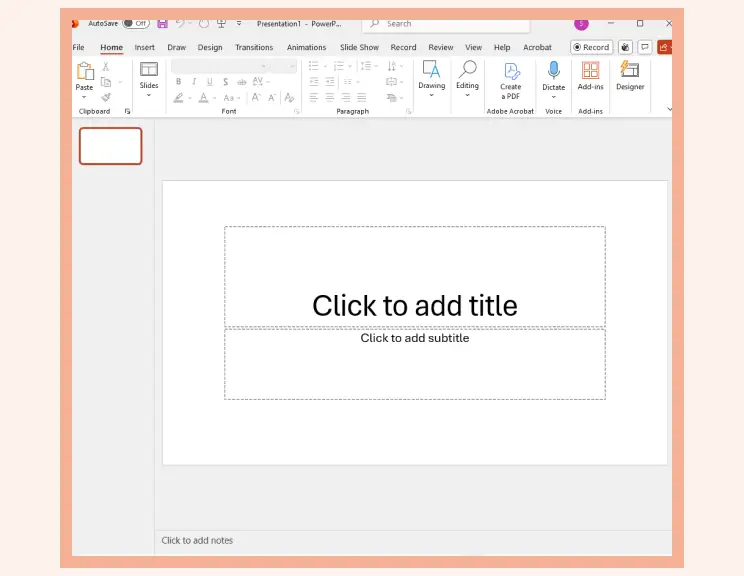
Step 1: Open a blank slide
Start with a clean, distraction-free slide so you have plenty of room to think. PowerPoint’s wide layout gives you space to spread out your ideas without feeling boxed in, especially during early brainstorming.
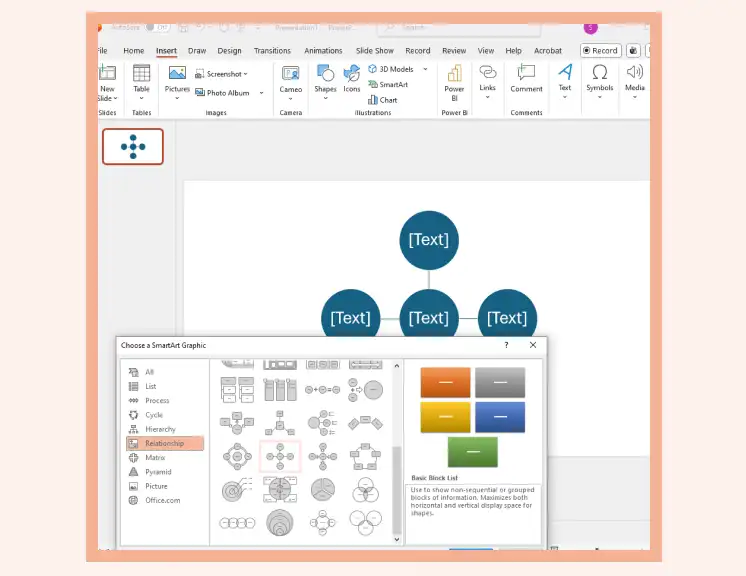
Step 2: Add your central idea with SmartArt
Go to Insert → SmartArt and select a layout from the relationship tab. These options automatically place a central idea with surrounding branches, giving you a structured starting point for your mind map. Type your main topic into the center position, and this becomes the anchor for everything else.
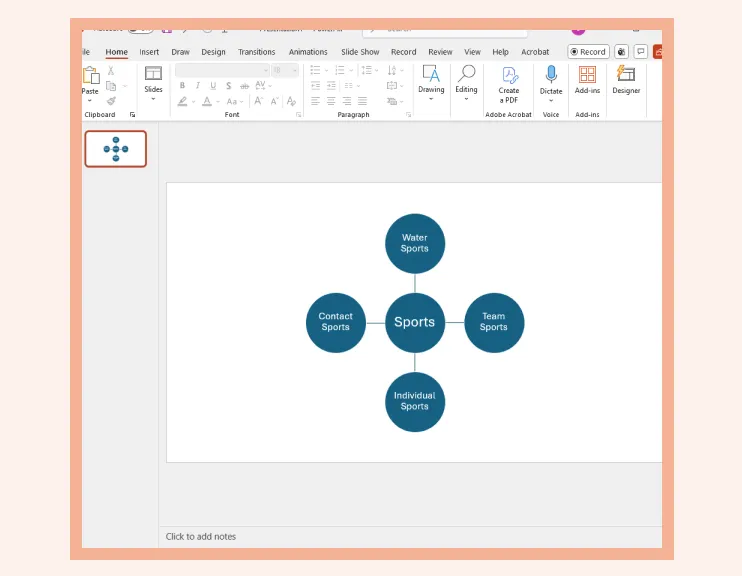
Step 3: Add main branches
Click on the outer shapes that appear around your central idea and type in your main categories. Each of these shapes represents a branch connected to your core topic.
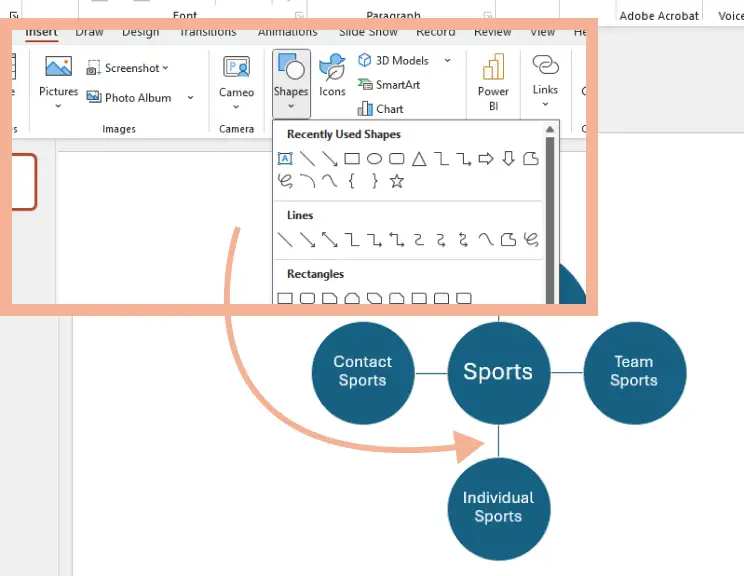
Step 4: Connect ideas with lines or arrows
While SmartArt layouts visually link ideas, you may want clearer or more customized connections. Insert → Shapes → Line or Arrow, then draw lines between related nodes. This is especially helpful if you want to show cross-relationships between branches or emphasize certain flows. If you reposition elements, you may need to adjust the lines slightly to keep the diagram tidy.
Step 5: Add sub-ideas for more detail
In the SmartArt Text Pane, press Tab to indent a bullet and create a sub-idea under a main branch. These could be notes, examples, tasks, or anything that supports the bigger idea. As your map grows, shift items around until everything feels balanced and easy to scan.
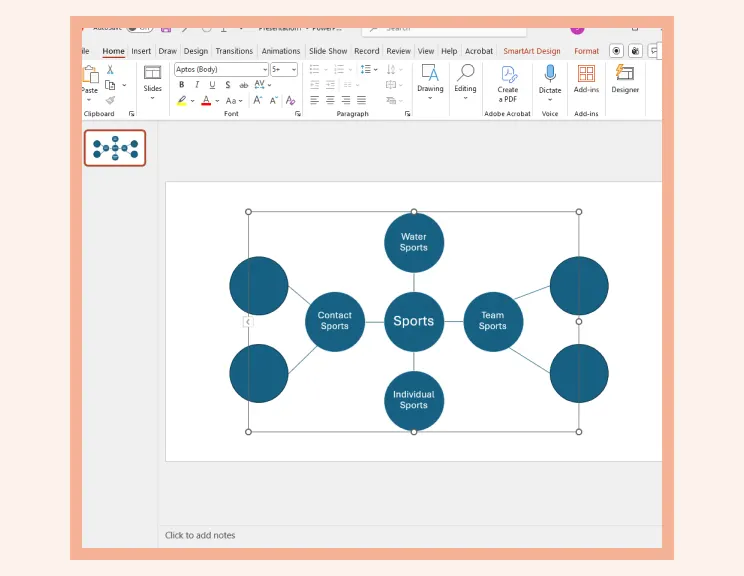
Step 6: Style your mind map for clarity
Use SmartArt Design and Format tools to change colors, themes, fonts, and effects. Applying visual contrast helps distinguish main ideas from sub-ideas and makes your mind map easier to interpret at a glance.
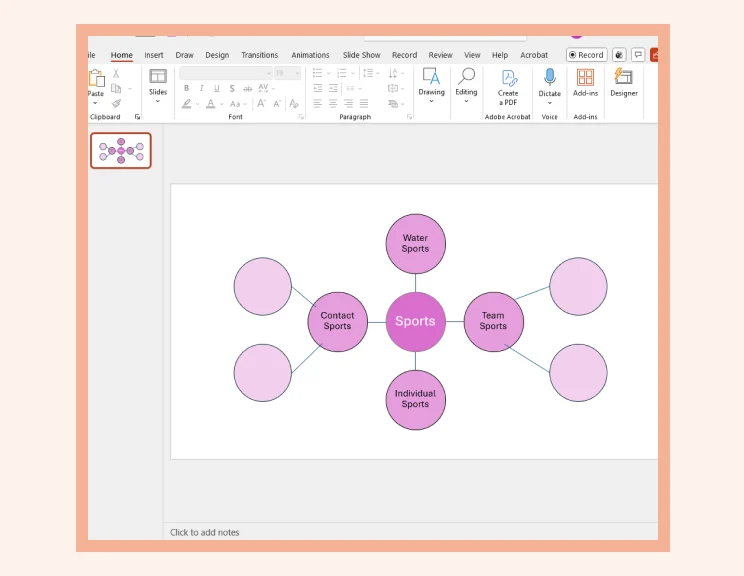
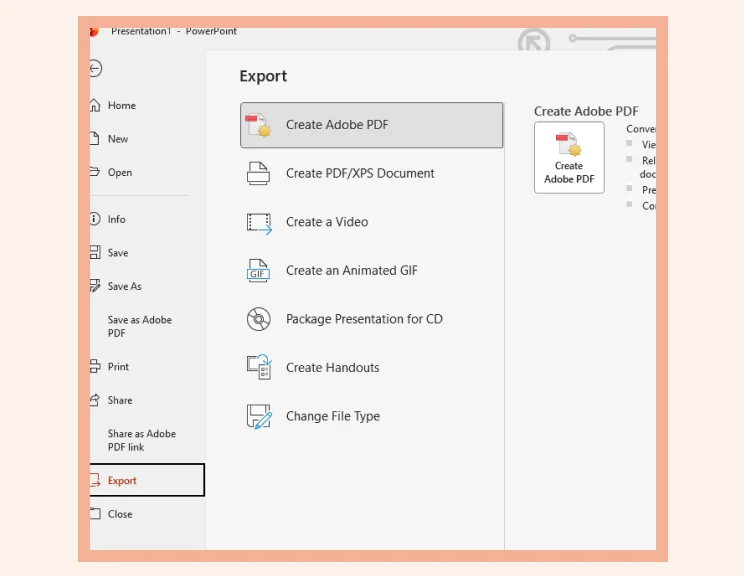
Step 7: Finalize your layout and present or export
Once your mind map looks the way you want, save it as a PNG, export the slide as a PDF, or present it directly.
Challenges with PowerPoint Mind Mapping
Even though PowerPoint can handle simple mind maps, a few obstacles tend to show up once your ideas start to expand.
Everything needs to be arranged by hand, which can get time-consuming as your map grows and branches multiply.
Connectors don’t move automatically, so shifting one idea often means fixing the lines attached to it.
Slides have limited space, making larger or more detailed mind maps feel a bit cramped or cluttered.
SmartArt can feel restrictive, especially when you want a more open, creative layout that doesn’t fit its preset structure.
Keeping a balanced layout takes effort, since PowerPoint isn’t designed to auto-organize shapes or maintain consistent spacing.
Styling can get repetitive, particularly when you’re editing many shapes and want everything to look uniform.
Harder to use for fast brainstorming, because the manual steps slow you down when ideas are flowing quickly.
If it ever feels like the tool is slowing you down instead of helping you think, switching to a dedicated visual workspace like Creately can make everything flow much more naturally.
Benefits of Using Creately to Make Mindmaps
Creately’s mind map creator gives you a workspace built for fast thinking, effortless collaboration, and clean visual structure, things that can feel a bit harder to manage in a PowerPoint mindmap. Here’s how its features come together to make mind mapping smoother and more intuitive.
Smooth Formatting
Creately automatically arranges branches so your mind map stays tidy and well-balanced as it expands.
Its ready-made themes and intelligent formatting tools give your ideas a polished look with almost no effort.
And with an infinite canvas, you can keep adding and reorganizing thoughts without running into the space limits you often feel in PowerPoint.
Quick & Easy Setup
The freeform canvas lets your ideas come together quickly, without the manual arranging that slows you down in PowerPoint.
Its collection of ready-to-use mindmap templates gives you an instant starting point, so you’re never stuck staring at an empty slide wondering where to begin.
AI-Powered Mind Mapping
Quickly produce a full mind map from a single prompt using the AI mind map generator.
Use AI-driven recommendations to grow or fine-tune branches for richer ideas.
Transform scattered notes into an organized, well-structured mind map without doing the layout yourself.
Team Collaboration
Creately allows multiple people to contribute, comment, and brainstorm together in real time, making mind mapping a shared experience instead of a solo task.
You can attach notes, links, and supporting files directly to your map, keeping everything connected and easy to access as ideas develop.
Presentation mode helps you walk teams through your mind map with a clean, focused view that keeps everyone aligned during discussions or workshops.
Sharing & Exporting
Export your mind maps effortlessly in PNG, SVG, PDF, or presentation-ready formats so they’re easy to use in reports, slides, or documents.
You can also share your mind map with others via a simple link, making it easy for teammates and stakeholders to view or collaborate without passing around heavy files.
Creately Vs PowerPoint Mind Mapping Features Comparison
If you’re weighing the difference between creating your mindmap in PowerPoint or using a purpose-built visual tool, this quick comparison makes it easy to see how each option measures up.
Feature / Experience | Creately | PowerPoint |
Freeform Canvas | Unlimited, flexible canvas designed for visual thinking and large maps | Limited slide space that quickly feels cramped for detailed mind maps |
Layout & Organization | Auto-organizes branches and keeps layouts balanced as ideas grow | Fully manual placement; maintaining clean spacing takes effort |
Connectors | Lines stay attached and adjust automatically when nodes move | Connectors don’t move with shapes and often need manual adjustment |
Templates | Purpose-built mind map templates for brainstorming, planning, and studying | No true mind map templates; relies on Shapes or rigid SmartArt layouts |
Styling | Smart themes and consistent formatting for polished visuals | Manual formatting; becomes time-consuming as maps expand |
Collaboration | Real-time editing and commenting for smooth teamwork | No live collaboration for diagrams |
Linking & Notes | Attach notes, files, and links directly to nodes without clutter | Limited; mainly text inside Shapes with few attachment options |
Exporting | Clean exports to PNG, SVG, PDF, and presentation-ready formats | Basic export options; often requires screenshots for best quality |
Ready to create a mind map the easy way? Head over to our step-by-step guide on how to make a mind map in Creately and start bringing your ideas to life with zero hassle.
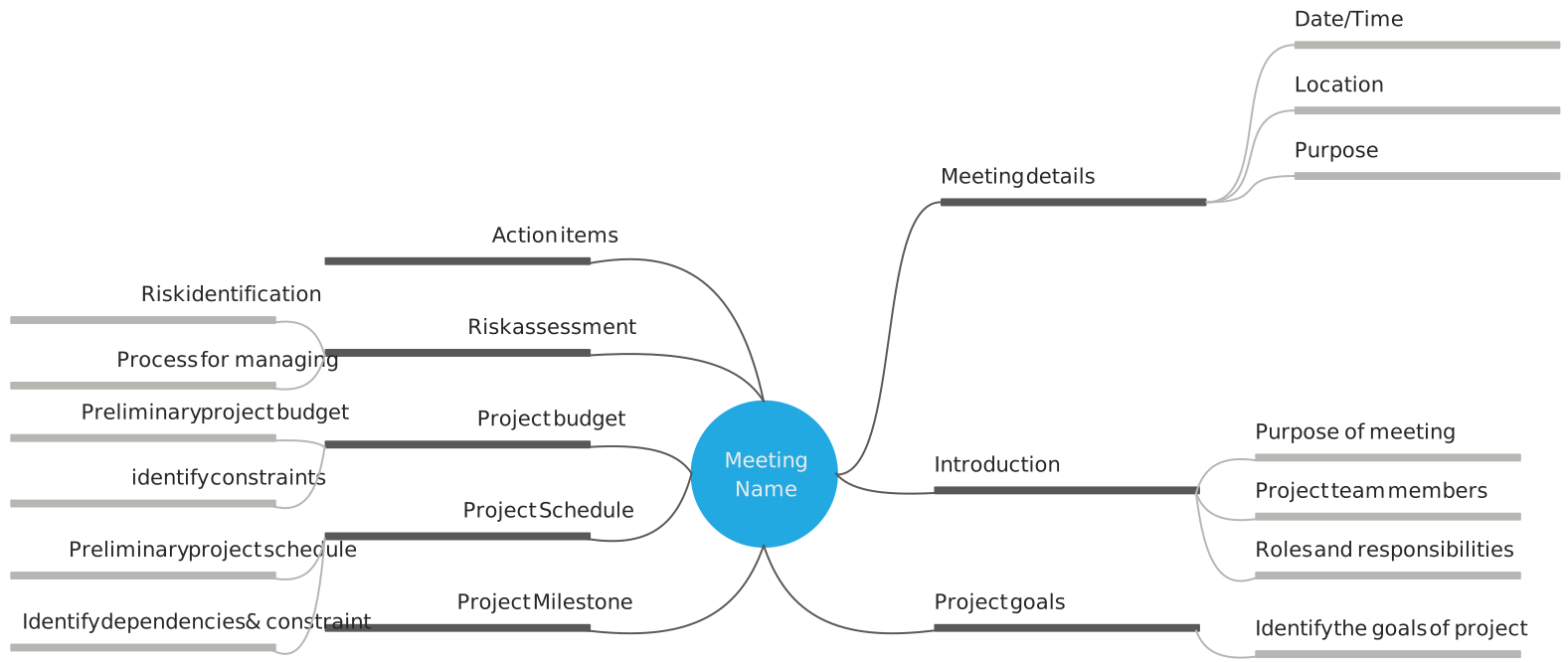
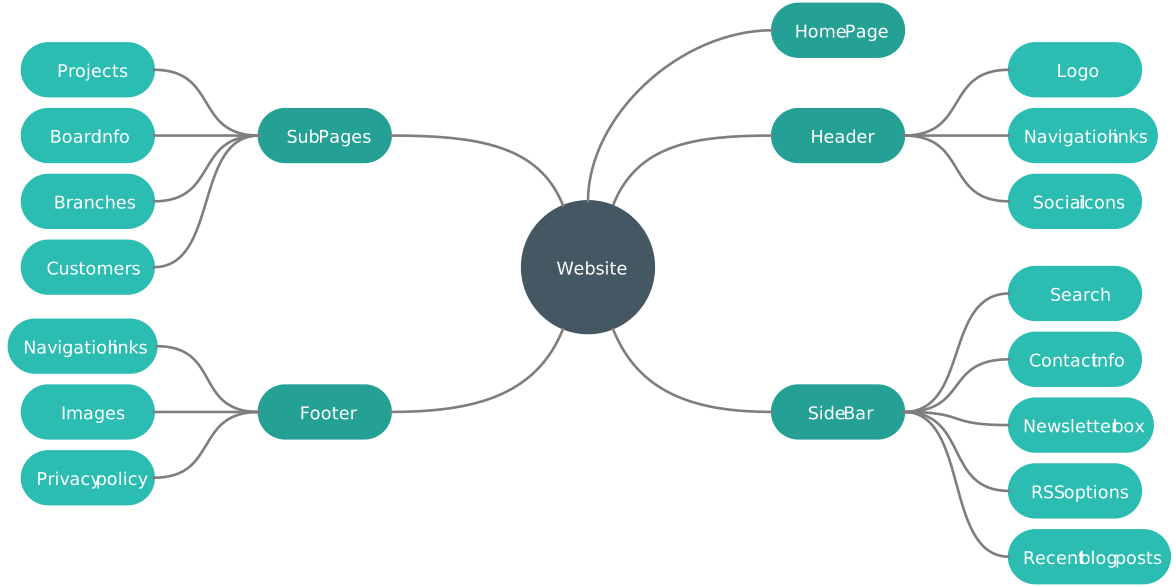
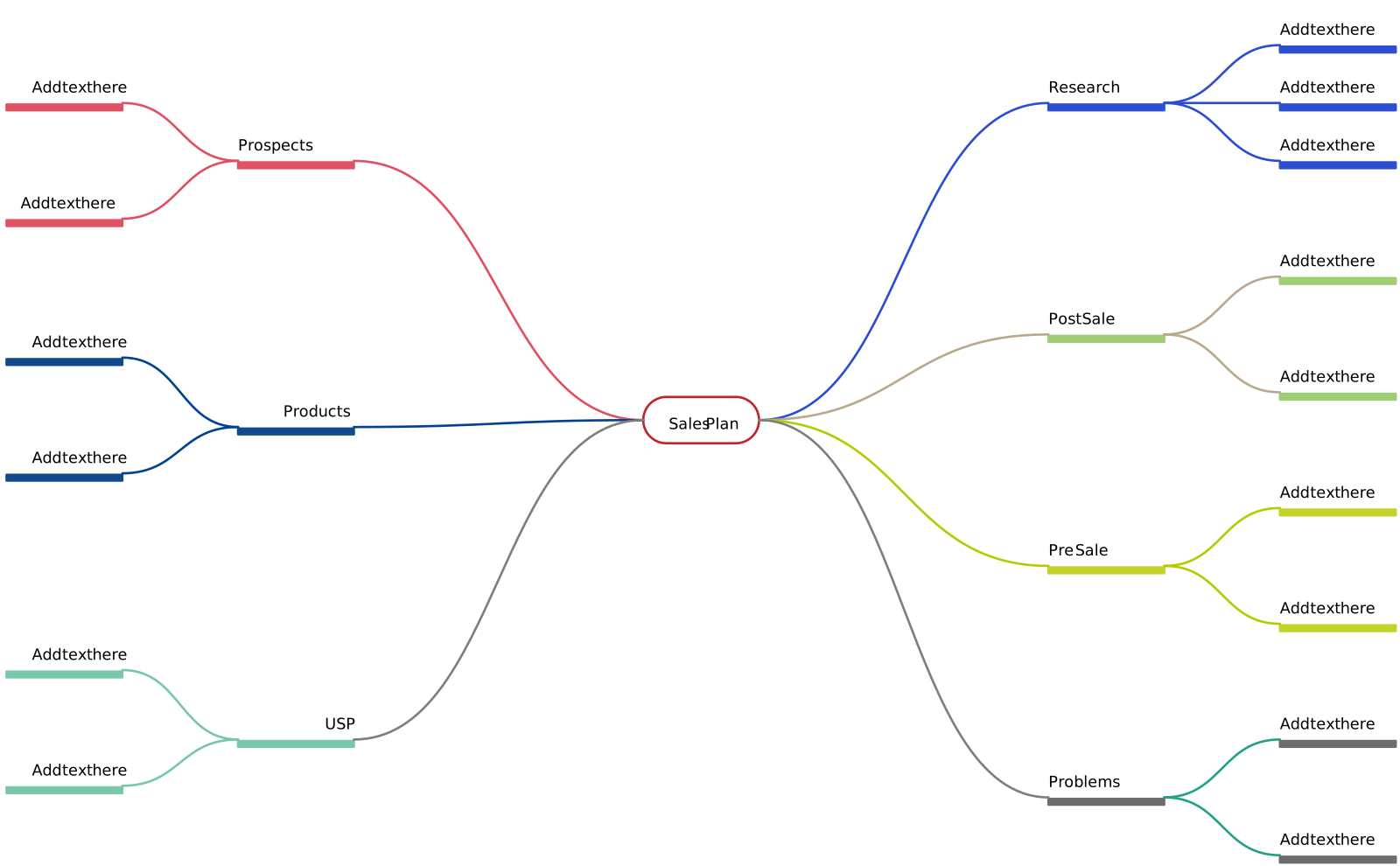
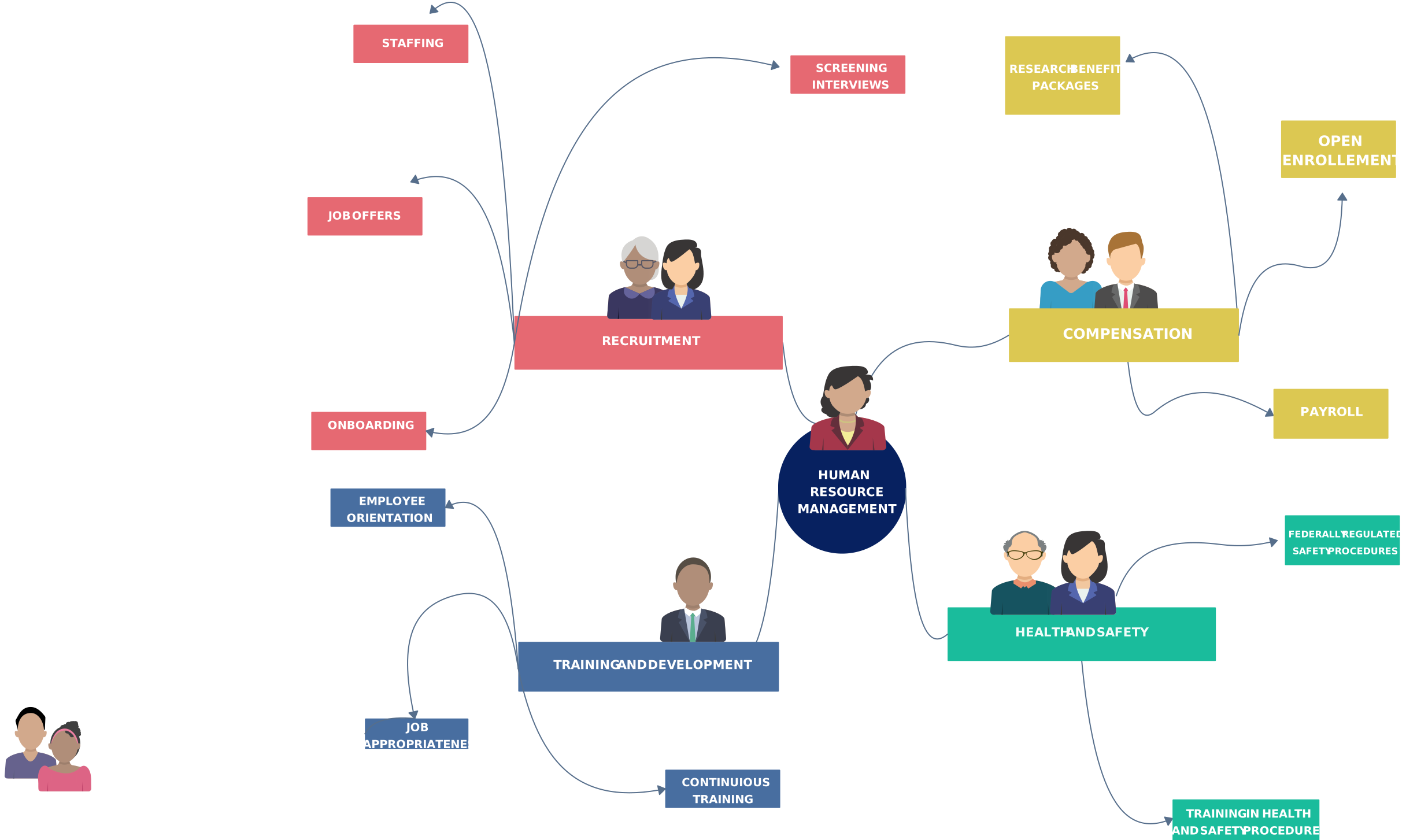
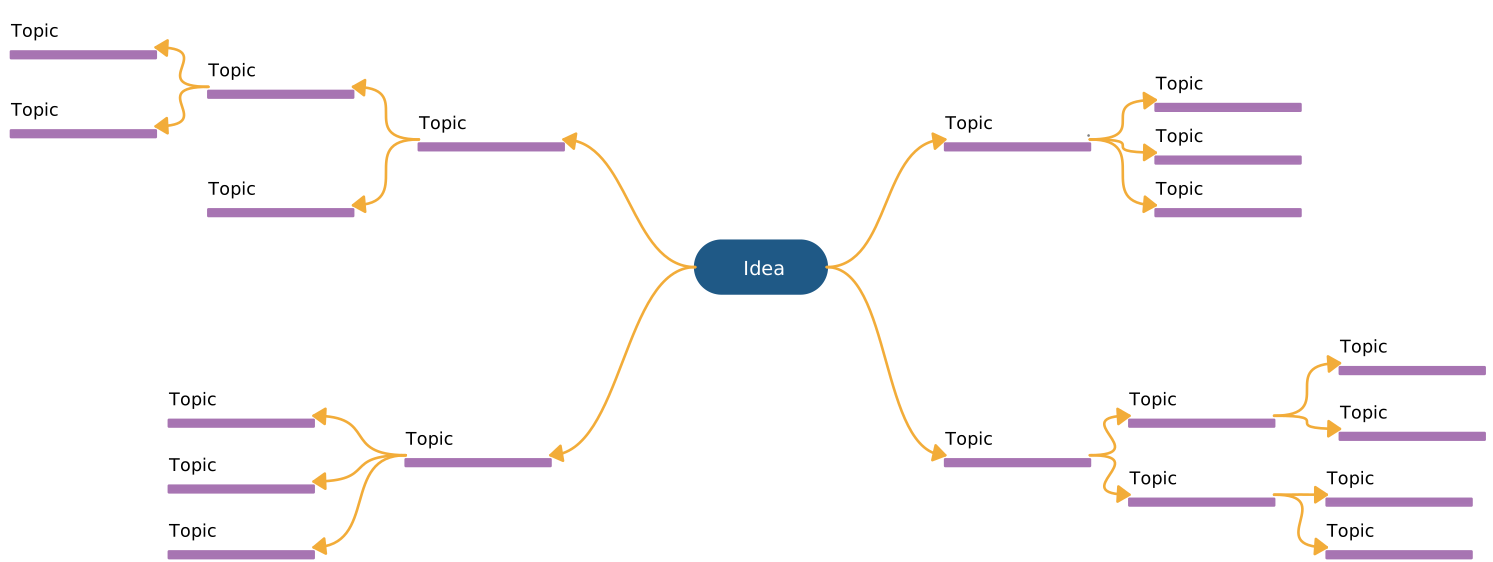
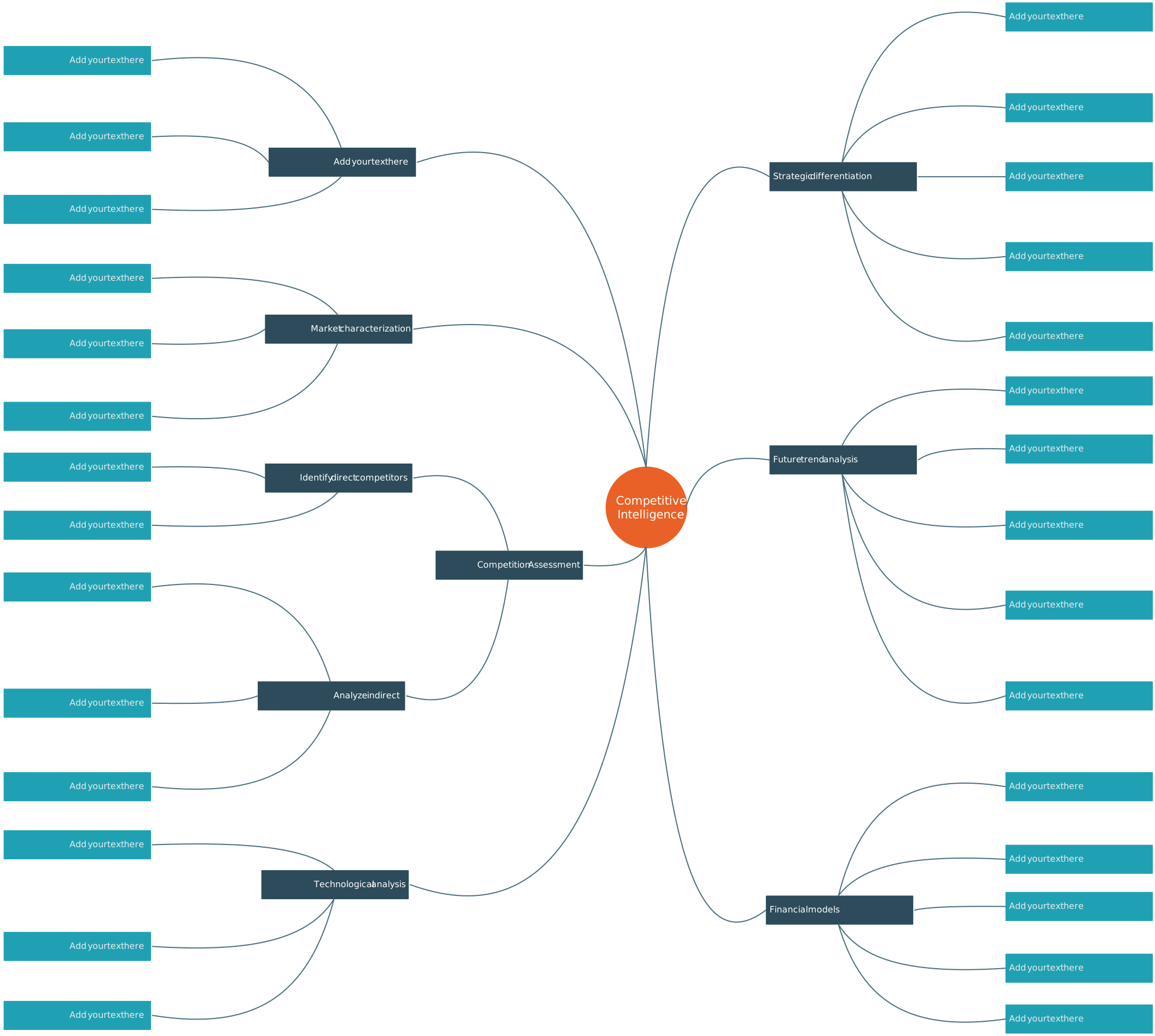
Free Mindmap Templates to Get Started


Helpful Resources for Building Mindmaps
Discover different ways to make mindmaps.
Learn about the differences between a concept map and a mind map.
Learn how to make a Mindmap using Microsoft Excel.