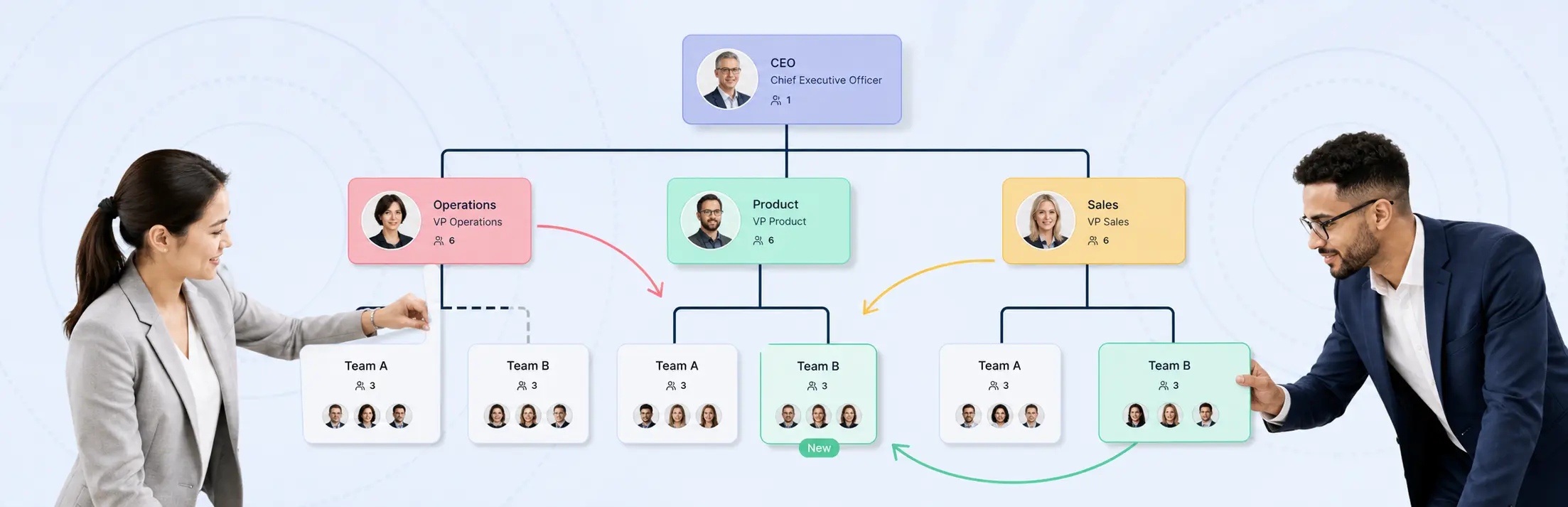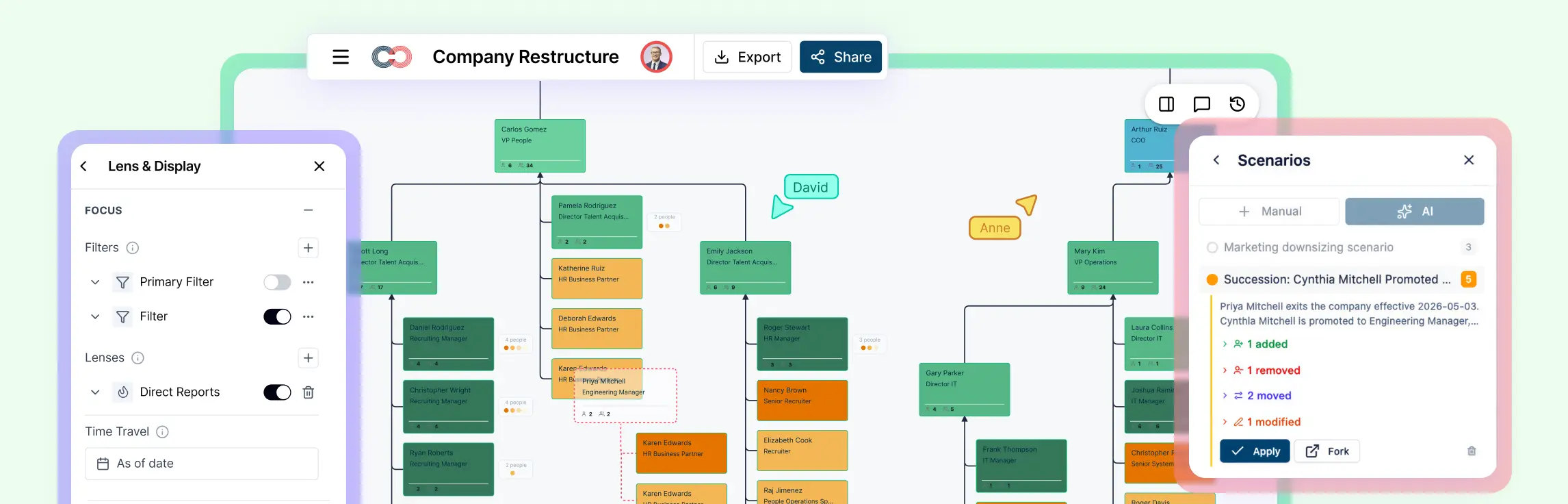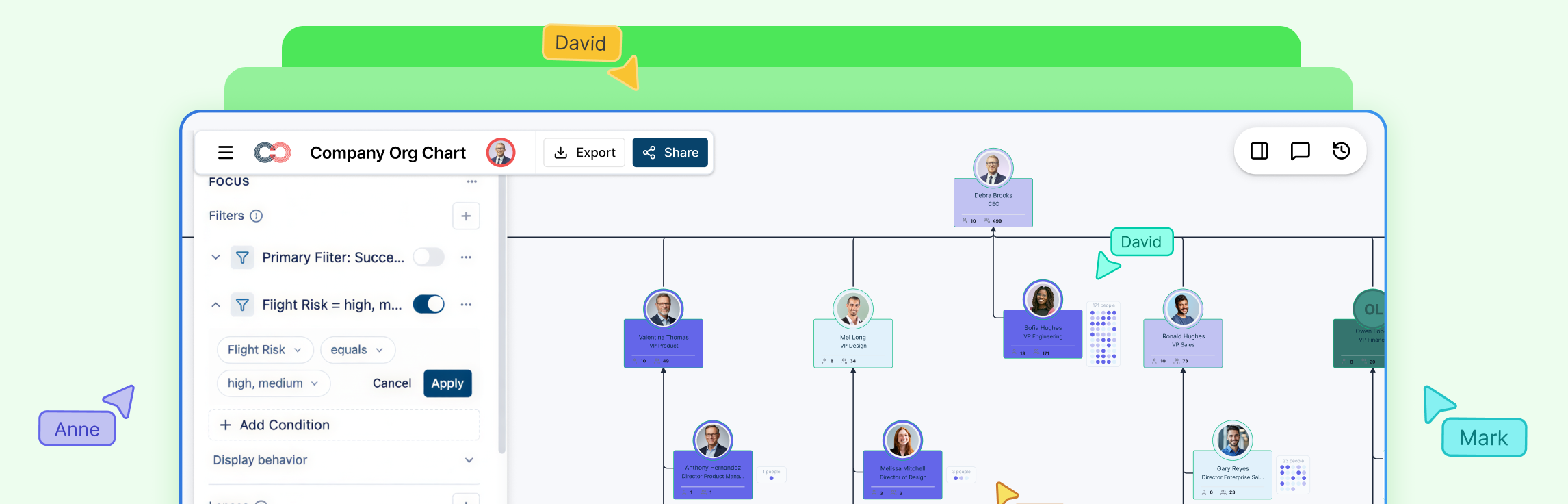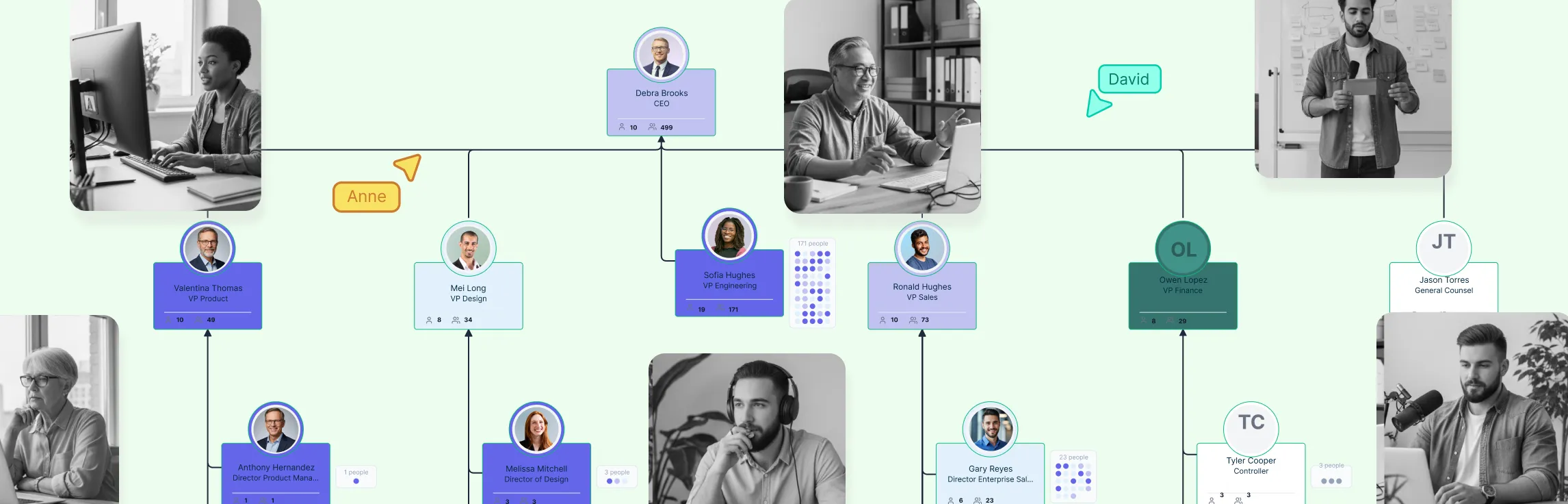
Most org chart tools let you draw boxes with names and titles. That works for simple visuals, but the moment HR needs to track performance ratings, compensation bands, flight risk, or succession readiness, those tools fall apart — pushing teams that manage real people data back into spreadsheets.
We built field packs to fix this. Instead of a flat org chart with a name and a title, Creately gives you 201 curated data fields organized into 15 progressive packs. You start simple — name, title, department, hire date — and activate additional packs as your needs grow. The HR generalist sees 40 fields. The CHRO sees all 201. Nobody sees fields they shouldn’t.
This is the single most requested feature from our enterprise HR customers, and as far as we can tell, no other org chart tool has anything like it. This guide explains how it works, what’s in each pack, and how the sensitivity model keeps compensation data invisible to anyone who shouldn’t see it.
What Are HR Org Chart Field Packs?
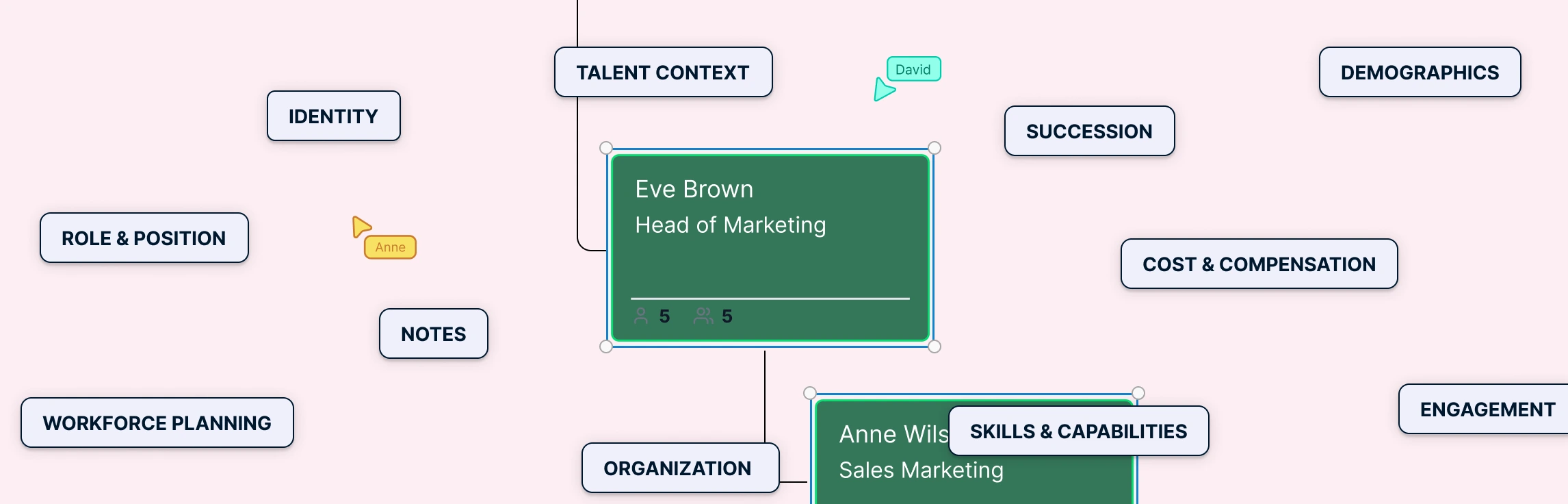
HR org chart field packs are pre‑configured bundles of related employee data fields that attach directly to person nodes on your org chart. Think of them as a plugin system for HR data: when you activate a pack such as Compensation, every person card gains the relevant fields (salary, compa‑ratio, pay grade, bonus target, equity). When you deactivate a pack, those fields disappear entirely—not hidden behind lock icons, but removed from the interface, so each viewer only sees the data that applies to their role.
Why field packs instead of custom fields? We tried custom fields first. What happened was predictable: one team created “Salary”, another created “Base Pay”, a third created “Annual Comp” — all meaning the same thing. Field sprawl made the data unusable. Packs solve this by grouping related attributes into governed, versioned sets with consistent naming, data types, and validation rules.
Packs apply to both person objects (current employees) and position objects (budgeted headcount). This distinction matters for workforce planning: you can model future positions with compensation bands before anyone is hired into them.
The 15 Field Packs for Organizational Charts
Here are the available organizational chart data field packs. You don’t need to enable all of them — most teams start with 2–3 and add more over time.
| Pack | ~Fields | Best For | Key Fields |
|---|---|---|---|
| 1. Base / Core Identity | 15 | Everyone | Name, gender, DOB, status, sexual orientation, notes |
| 2. Employment | 15 | HR Generalist | Title, department, hire date, employment type, FTE, location, cost center, work arrangement |
| 3. Compensation | 12 | Compensation Director | Salary, compa-ratio, pay range min/mid/max, bonus target, equity grant, merit %, FLSA status |
| 4. Performance | 10 | HRBP | Performance rating, 9-box placement, goals completed, development plan, review cycle |
| 5. Talent | 10 | Talent Management | Flight risk, retention priority, high potential flag, readiness level, promotion timeline |
| 6. Succession | 10 | CHRO | Successor list, succession readiness, development gaps, bench strength, risk color |
| 7. Skills | 12 | Project Managers | Skills inventory, certifications, technical skills, skill level, years of experience |
| 8. Demographics | 10 | Chief Diversity Officer | Gender, ethnicity, age group, veteran status, disability, nationality — Sensitive PII tier |
| 9. Education | 8 | L&D / Talent | Degree, institution, graduation year, professional certifications, continuing education |
| 10. Workforce Planning | 12 | Finance VP / FP&A | FTE, worker type (employee/contractor/temp), contract dates, retirement eligibility, cost center |
| 11. Department | 10 | Department Heads | Headcount, target headcount, budget, attrition rate, vacancy rate, cost per headcount |
| 12. Engagement | 8 | People Analytics | eNPS, satisfaction score, last survey date, engagement trend |
| 13. Projects & Assignments | 10 | Project Managers | Current project, role on project, allocation %, availability, team assignment |
| 14. Role Profiles | 10 | Org Designers | Job template, required skills, preferred skills, role level, career ladder position |
| 15. Custom Fields | varies | Any | User-defined fields from CSV/Sheets/Excel import or manual creation — for industry-specific or org-specific needs |
The exact field count varies as we add new fields based on customer requests, but the architecture is designed so new fields slot into existing packs rather than creating new sprawl.
Progressive Disclosure: Start Simple, Scale Up
This is the design principle that makes 201 fields usable instead of overwhelming.
Day one:
You enable the Base and Employment packs. Everyone on the org chart shows name, title, department, location, and hire date. That’s 30 fields available, and most cards show 5-6 of them. Clean, simple, useful.
Month two:
Your HRBP asks for performance data during talent reviews. You enable the Performance and Talent packs. Suddenly the same org chart can show 9-box placement, flight risk, and succession readiness — but only for users with the right access tier. The HR generalist still sees name and title.
Quarter two:
The Compensation Director needs pay equity analysis. Enable the Compensation pack. Heatmap by compa-ratio. See who’s above and below range across the entire org in one view. The Compensation Director sees salary data; a department manager viewing the same chart sees nothing — the fields don’t exist in their view.
This is what we mean by progressive disclosure: the system grows with your HR maturity. You never see 201 fields at once. You see exactly the fields that matter for your role and your current task.
The practical benefit: we’ve seen teams go from “we need a dedicated HR analytics tool” to “wait, the org chart already does this” once they discover what field packs unlock. It’s the same visual workspace — it just gets smarter as you activate more packs.
The 6-Tier Data Sensitivity Model
Not all org chart data is equal. A person’s name is public. Their salary is not. We built a 6-tier sensitivity model that controls who sees what — and critically, unauthorized users don’t see locked fields or grayed-out placeholders. The fields simply don’t exist in their view.
| Tier | Who Sees It | Example Fields |
|---|---|---|
| 1. Public | Everyone in the org | Name, title, department, location |
| 2. Internal | Employees + contractors | Email, phone, hire date, work arrangement |
| 3. Manager | Direct manager + skip-level | Performance rating, goals, skills of direct reports only |
| 4. HR Standard | HR team broadly | Employment details, education, engagement scores |
| 5. HR Confidential | HR Directors + CHRO | Compensation, succession, flight risk, talent ratings |
| 6. Sensitive PII | CHRO + Legal only | Demographics, disability status, veteran status, nationality |
Why this matters in practice: Before we built this, our enterprise customers were creating 3-4 separate org chart workspaces — one for all-hands, one for managers, one for HR, one for the compensation team. Every time someone moved teams, all four had to be updated. With the sensitivity model, it’s one chart, one source of truth, and the visibility layer handles the rest.
This also simplifies compliance. GDPR, CCPA, and HIPAA all have different requirements for how personal data is displayed and exported. The sensitivity model means you configure the rules once at the field level, and every view, export, and share link respects them automatically.
How to Activate Field Packs for Organizational Charts
If you want to move from a static org diagram to a live, queryable HR system, Creately’s free org chart software is built to support this workflow end‑to‑end — here’s how to activate field packs on your org chart.
Step 1: Open your org chart workspace
Start with an existing org chart or create a new one. If you’re importing from HRIS, the CSV/Sheets/Excel import with AI column mapping will auto-generate the chart structure. You can also sync directly with Azure Entra ID for automatic org data.
Step 2: Go to Field Pack Settings
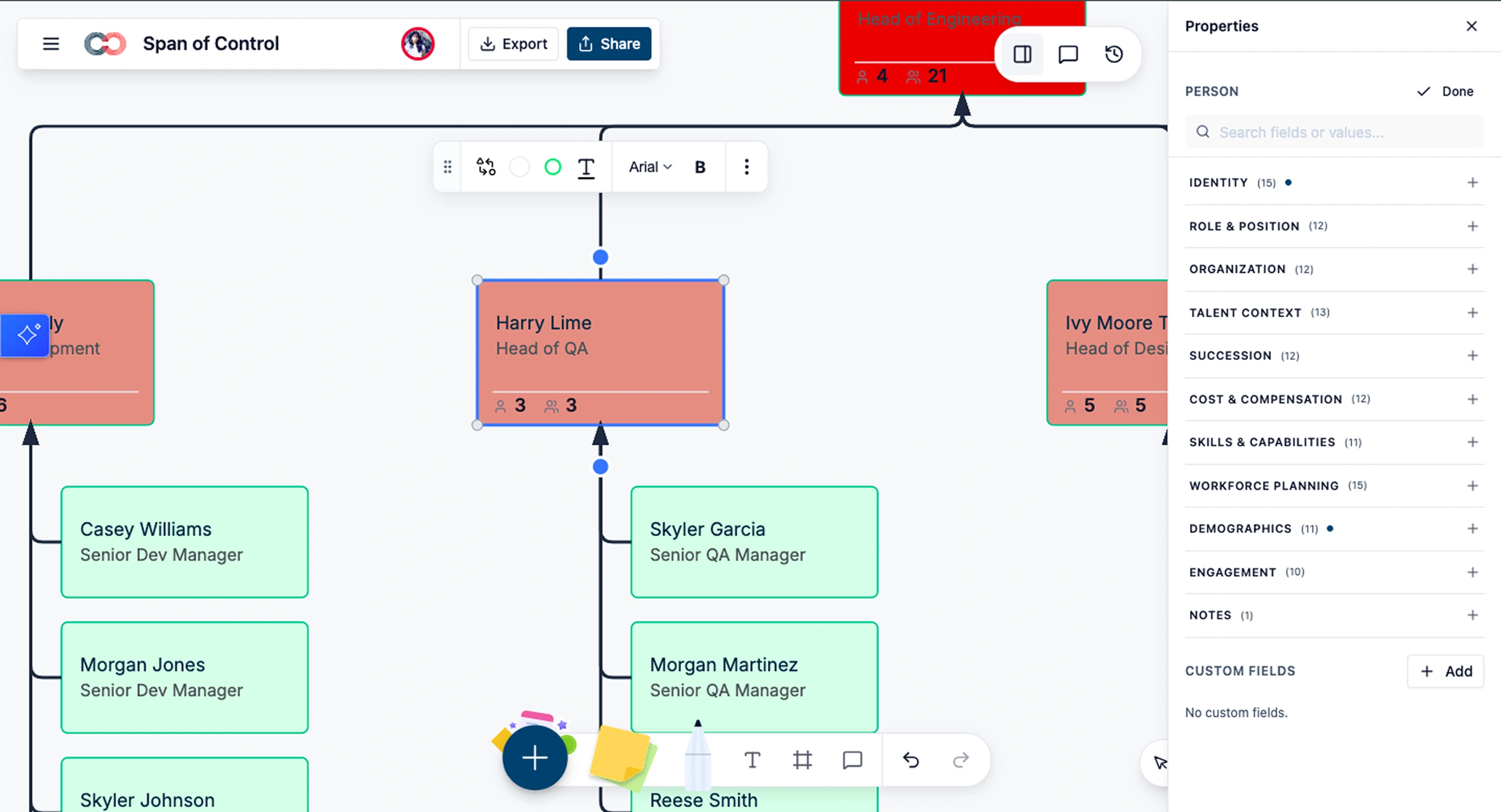
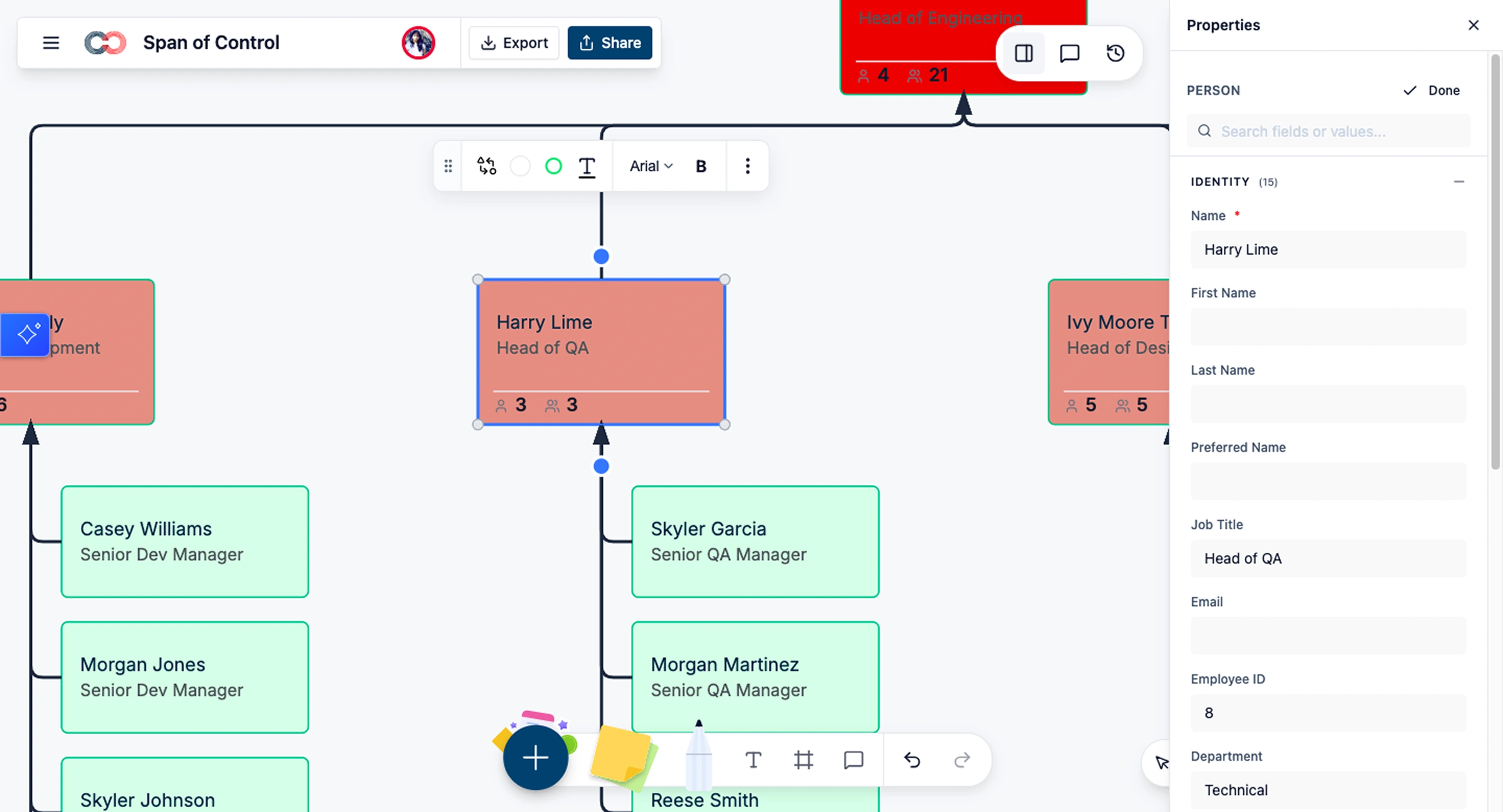
This is where field packs live. Click on an employee to open the properties panel and you’ll see the full pack library — each pack shows its field count, a description, and which sensitivity tiers its fields belong to.
Step 3: Enable the packs that match your role
Start with Core Identity and Employment. These give you a functional org chart with real data. Add Performance and Talent when talent review season starts. Add Compensation when the merit cycle begins.
Step 4: Import employee data
Upload a CSV, connect a Google Sheet, or sync from Azure Entra ID. Creately’s AI-powered column mapping reads your column headers and auto-matches them to field pack fields with confidence scores. “Employee Number” maps to Core Identity → Employee ID. “Annual Salary” maps to Compensation → Base Salary. Review the suggestions, fix any mismatches, and import. The entire import is a single undoable action — Ctrl+Z reverts everything if something looks wrong.
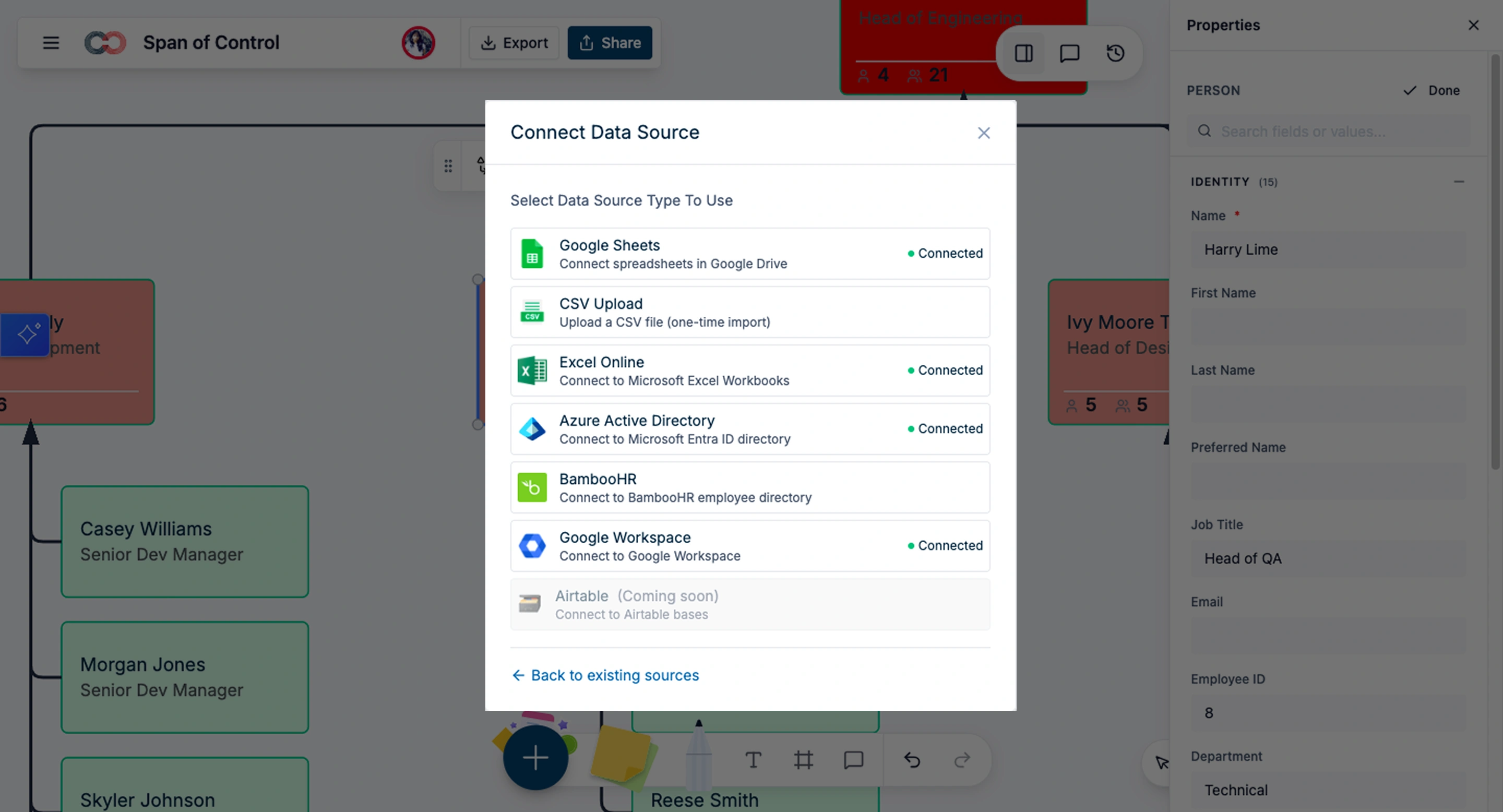
If you’re starting from a spreadsheet, see how to generate an org chart using spreadsheets for a step-by-step walkthrough.
Step 5: Set sensitivity tiers
For each enabled pack, review which sensitivity tier its fields belong to. Compensation fields default to HR Confidential. Demographics default to Sensitive PII. You can adjust these, but the defaults are designed to be safe out of the box.
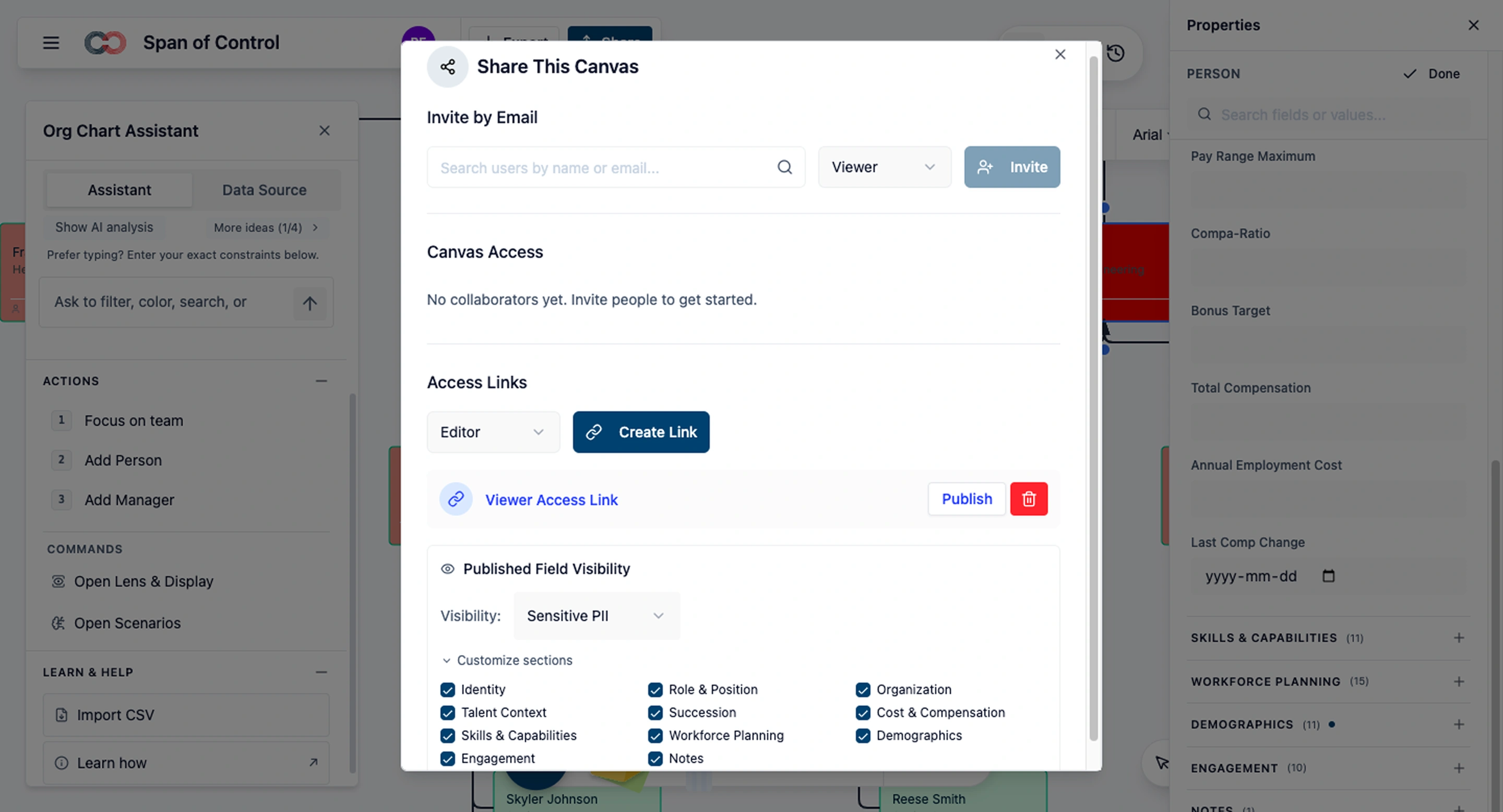
Step 6: Invite your team and verify
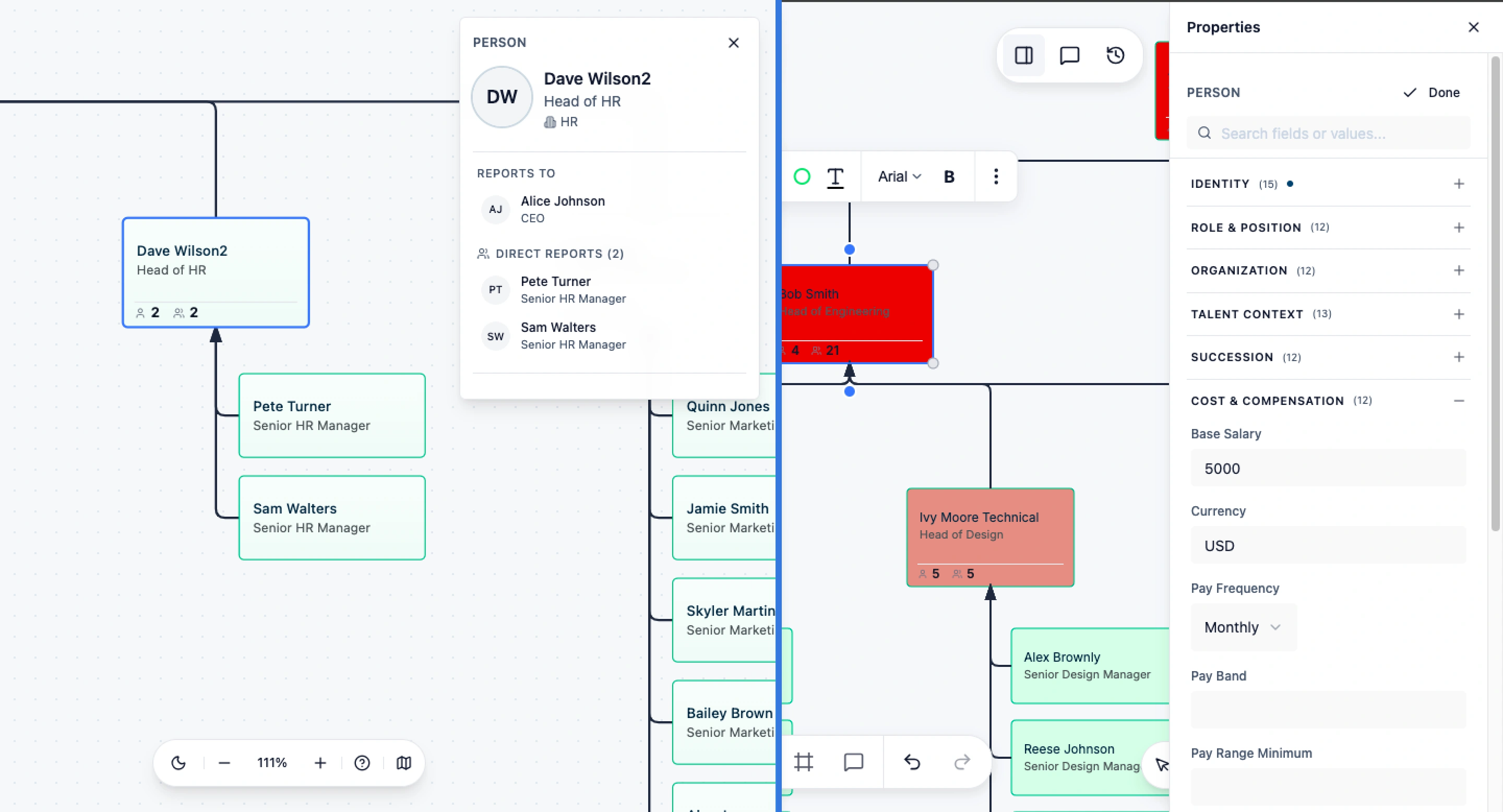
Share the workspace with a test user at each access level (employee, manager, HRBP, CHRO) and verify they see exactly the fields they should. For example, a department manager viewing the org chart sees performance ratings for their team but has no visual indication that salary or demographic fields even exist — those fields are completely invisible.
Common Workflows by Pack
HR Generalist (Base + Employment packs)
Maintain the org chart as people join, leave, and move. Onboard new hires by creating their node, importing their data, and sharing the updated chart with their manager. This is the “keep the lights on” workflow — fast, accurate, low overhead.
HRBP (+ Performance + Talent packs)
Run talent reviews by enabling the Performance and Talent packs before the review cycle. Color the org chart by 9-box placement or flight risk. Walk into a conversation with a department head and say “here are your 3 highest-risk people and here’s the development gap for each one” — with the data right on the chart, not in a separate spreadsheet.
Compensation Director (+ Compensation pack)
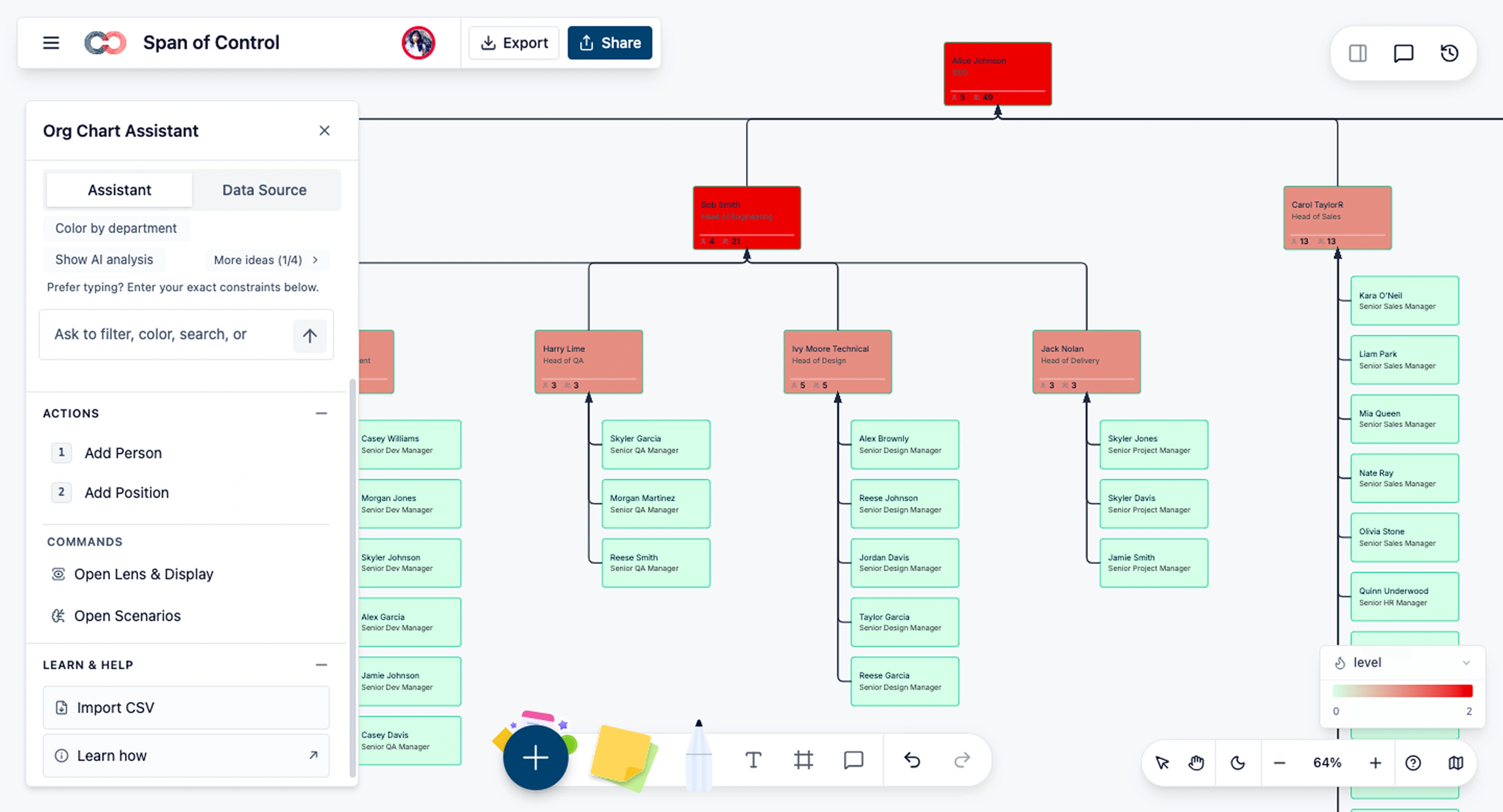
Pay equity audits become visual. Enable the Compensation pack, heatmap by compa-ratio, and instantly see who’s above, at, or below range across the entire org. Filter by department + pay grade to isolate comparison groups. Model merit increases as scenario updates and compare total cost impact before committing.
CHRO (all packs)
Full organizational intelligence. Succession risk visualization: color positions by bench strength (no successor, weak pipeline, strong pipeline). In practice, a CHRO can instantly surface leadership gaps by filtering the org to show only roles with no successor, then reviewing bench strength before a board review or reorg discussion.
Workforce planning: use position objects with Employment and Compensation data to model future headcount costs. Before approving a hiring plan, finance and HR can add unfilled position objects with target salaries and start dates, then compare total headcount cost across multiple scenarios.
DEI dashboards: Demographics pack with Sensitive PII access for aggregate‑only leadership reporting.
For a deeper walkthrough, see our succession planning and workforce planning guides.
Finance VP (+ Workforce Planning + Department packs)
Headcount budgets by department, location, and band. Model reorg cost impact with scenario planning. Contractor conversion analysis: filter by worker type + contract end date to see which contractors need conversion decisions this quarter.
Field Packs vs Custom Fields in Other Tools
| Dimension | Creately Field Packs | Custom Fields (ChartHop, OrgVue, etc.) |
|---|---|---|
| Governance | Curated packs with consistent naming, types, and validation — versioned and maintained | Ad-hoc fields created by individual admins — prone to "Salary" vs "Base Pay" vs "Annual Comp" sprawl |
| Progressive disclosure | Enable packs per role; fields invisible until activated | All custom fields typically visible in the admin panel; hiding requires per-field configuration |
| Sensitivity model | 6-tier model built into the architecture; fields vanish for unauthorized users | Role-based access on individual fields; often shows "locked" indicators that reveal data exists |
| Maintenance cost | Lower — packs update as a unit, new fields slot into existing packs | Higher — each custom field must be maintained, validated, and permissioned individually |
| Import mapping | AI-powered column matching from CSV, Google Sheets, Excel; direct sync with Azure Entra and HRIS platforms | Manual mapping or basic column name matching |
The fundamental difference: field packs are opinionated. They encode best practices about which fields belong together, what data types they should use, and who should see them. Custom fields give you flexibility but no guardrails. For teams scaling past 100 people, the governance advantage of packs compounds quickly.
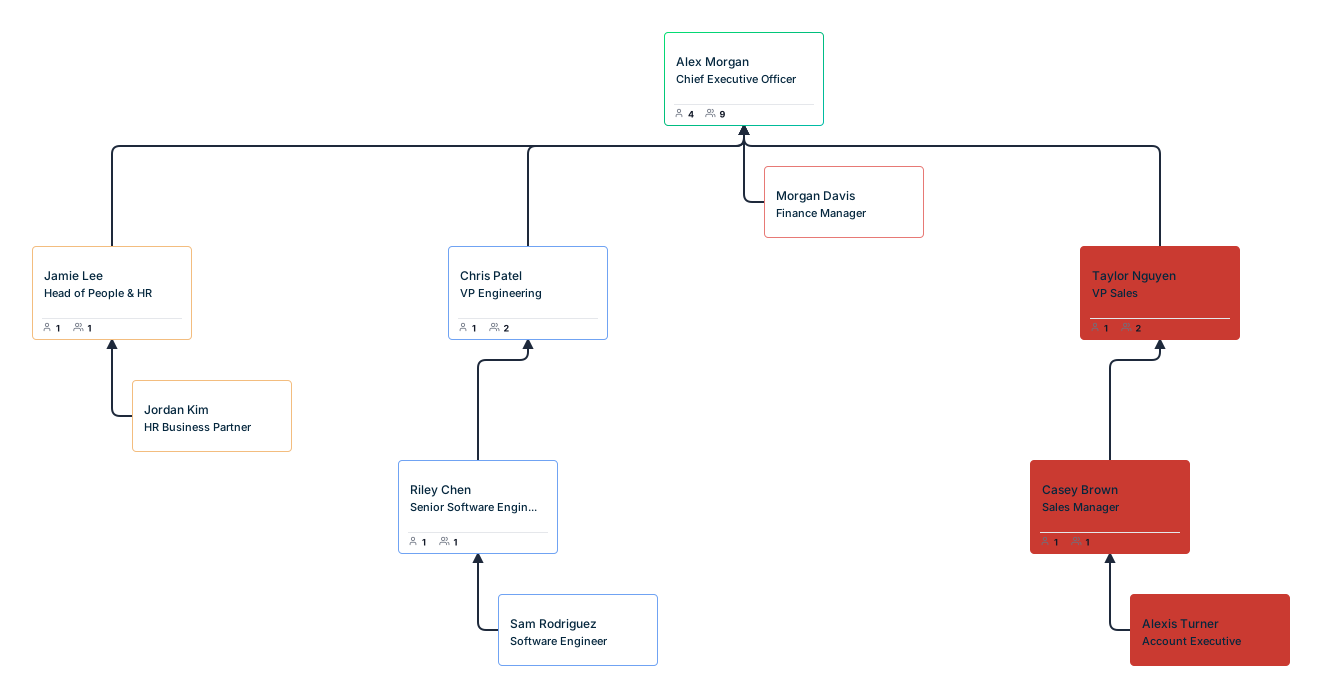
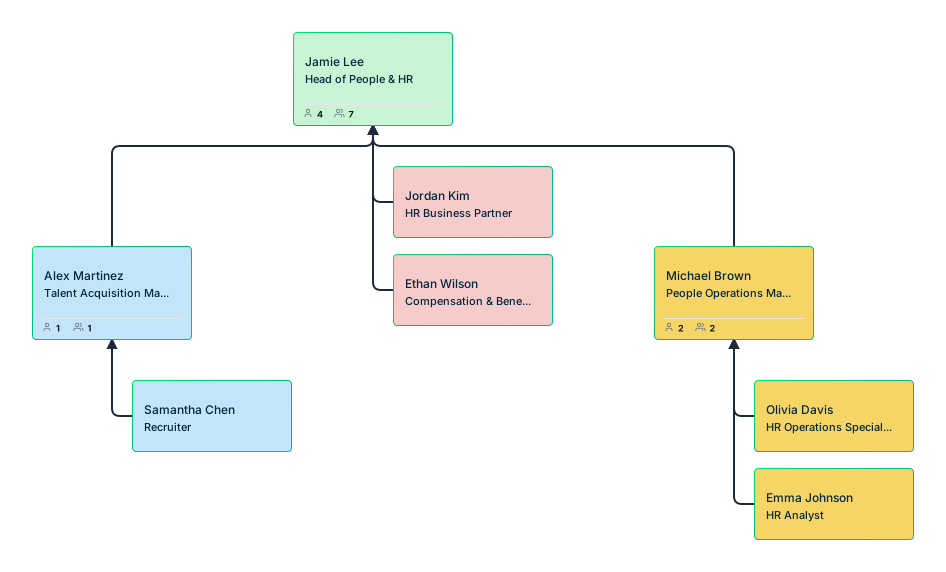
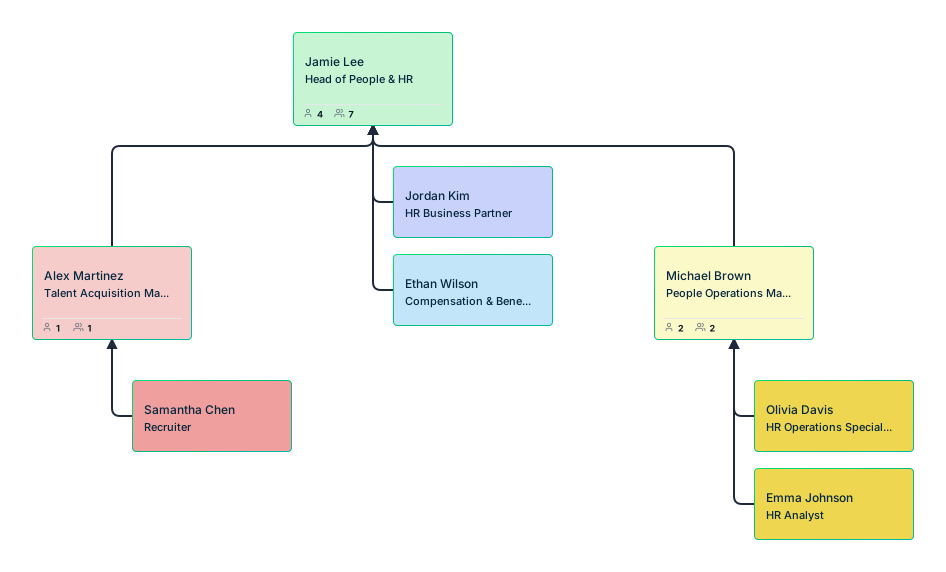
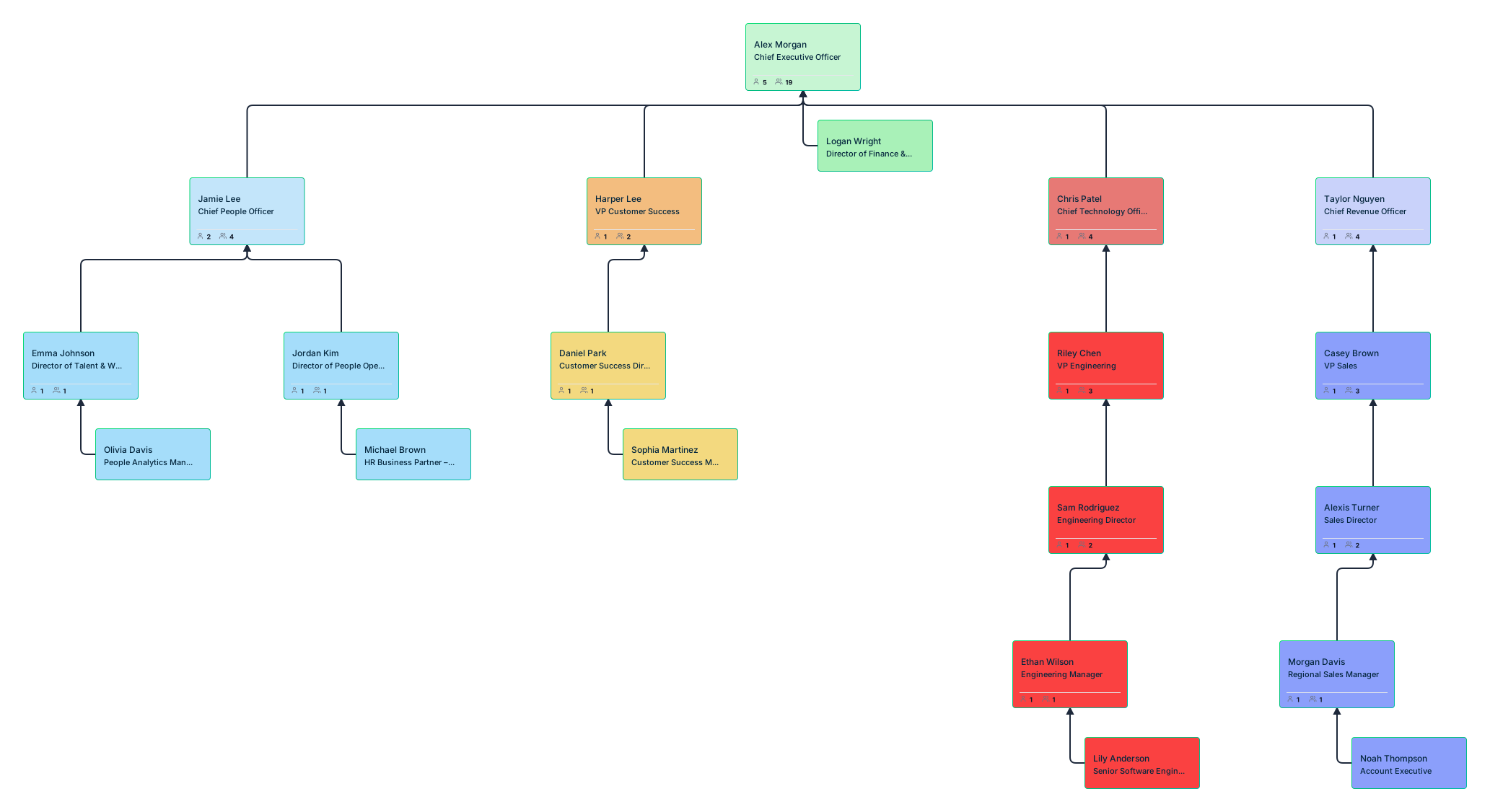
Free Org Chart Templates to Get Started


Helpful Resources for Making Org Charts
Explore rules for drawing organizational charts and org chart best practices to make your org chart more meaningful and useful.
Easily make organizational charts to visualize the reporting structure of your organization for effective HR planning and management with org chart maker.
Learn simple steps to create an org chart that fits your business, along with tips and tools to make it easy to build and update.